Application Deployment Management
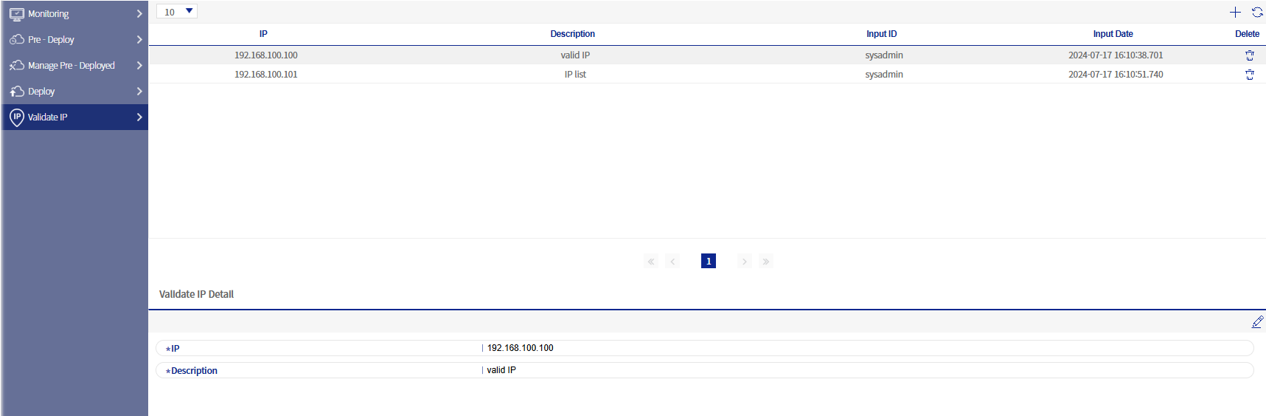
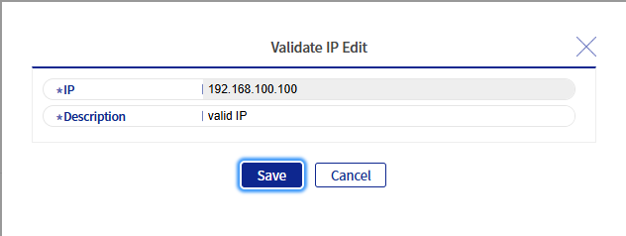
This menu is used to deploy BXM applications to the server and consists of Monitoring, Pre-Deploy, Manage Pre-Deployed, Deploy, and Validate IP Management.

1. Monitoring
This screen allows you to monitor currently running BXM online instances.

You can check the information of currently running BXM online instances. You can check the number of pre-deployed applications and deployed applications currently in service; when you click each column, the information of the corresponding BXM application is displayed in a popup.
2. Pre-Deploy
This function allows you to deploy a new version of an application to an operating server and test it without affecting the applications currently in service.
|
If you want to set an initial value for the server path or svn path of Pre-Deploy, save the initial value using bxm.admin.app.deploy.server.path as the key. This can be done on the Admin settings screen. |
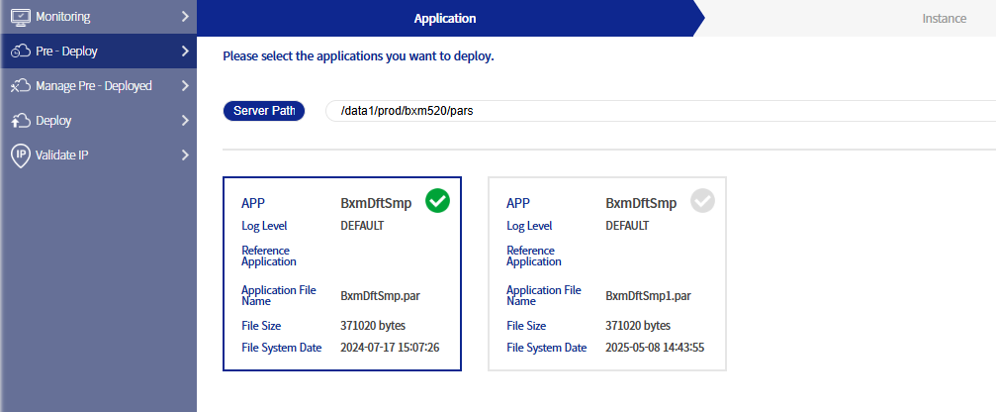
Pre-Deploy consists of three steps: selecting the target application, selecting the target online instance, and selecting the validation IP and validation time.
2.1. Select Target Application
Search for and select the BXM application deployment file (extension par) from the server directory or SVN repository location.
2.2. Select Target Online Instance
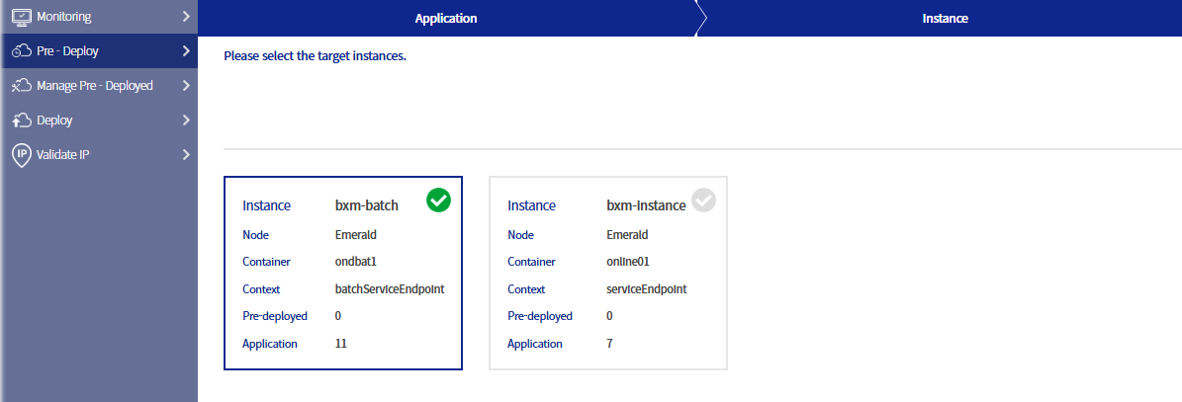
Select the instance to which the application will be deployed.
2.3. Select Validation IP and Time
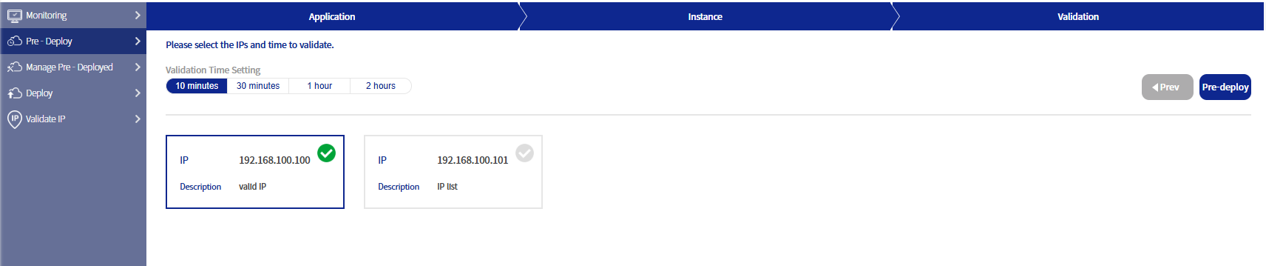
Select the validation IP and time. The validation IP is the IP used to test the pre-deployed application, and the configured time means the time at which the pre-deployed application is automatically removed from the server if no action is taken on it.
3. Manage Pre-Deployed
If there are pre-deployed applications, you can manage them.
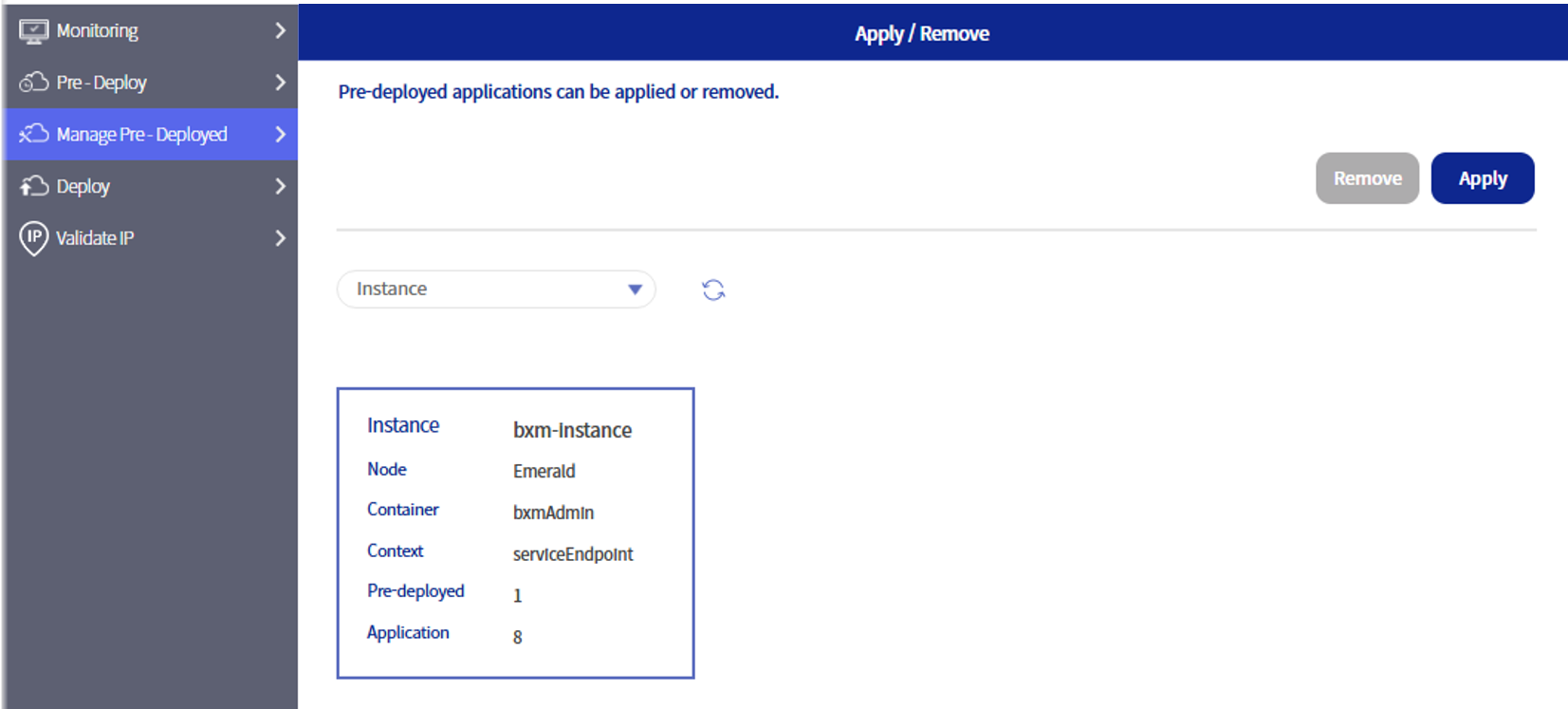
You can check pre-deployed information based on applications or based on online instances. If you “apply” the pre-deployment, the existing application in service is deleted and the pre-deployed application is converted to the actual service.
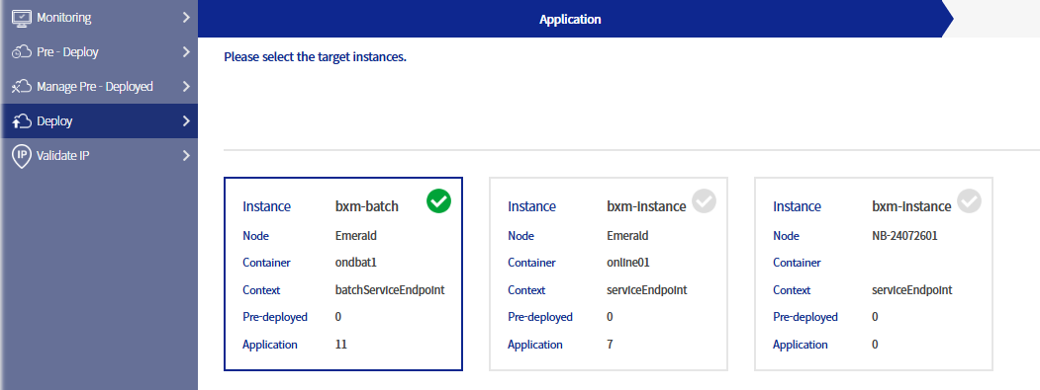
4. Deploy
Deploys a BXM application to the server. To use this function, the auto-deploy option of the online instance must be set to false.
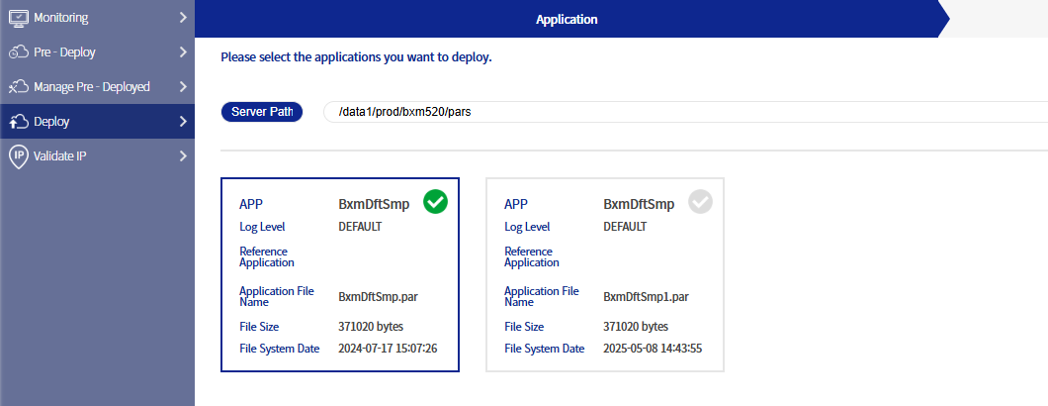
Deployment consists of two steps: selecting the application and selecting the online instance.