Introduction
This section briefly introduces the basic screens and menus of BXM Web Admin.
1. BXM Web Admin Usage Environment
Resolution: 1280 x 1024 (or higher)
| Browser name | Version |
|---|---|
Chrome |
52 or higher |
Firefox |
47 or higher |
Internet Explorer |
11 or higher |
2. Login Screen
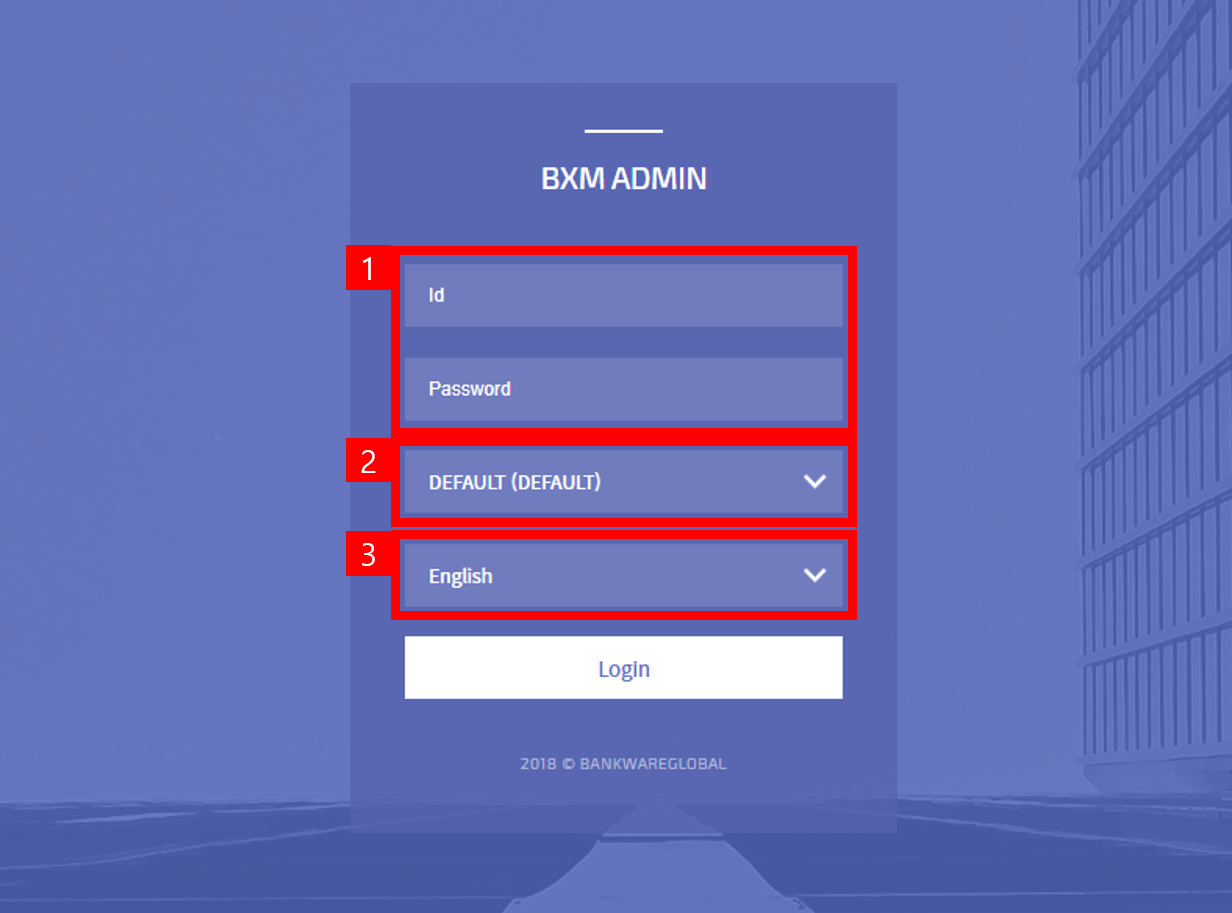
1: User ID and password for login
2: Language selection
3. Basic Screen
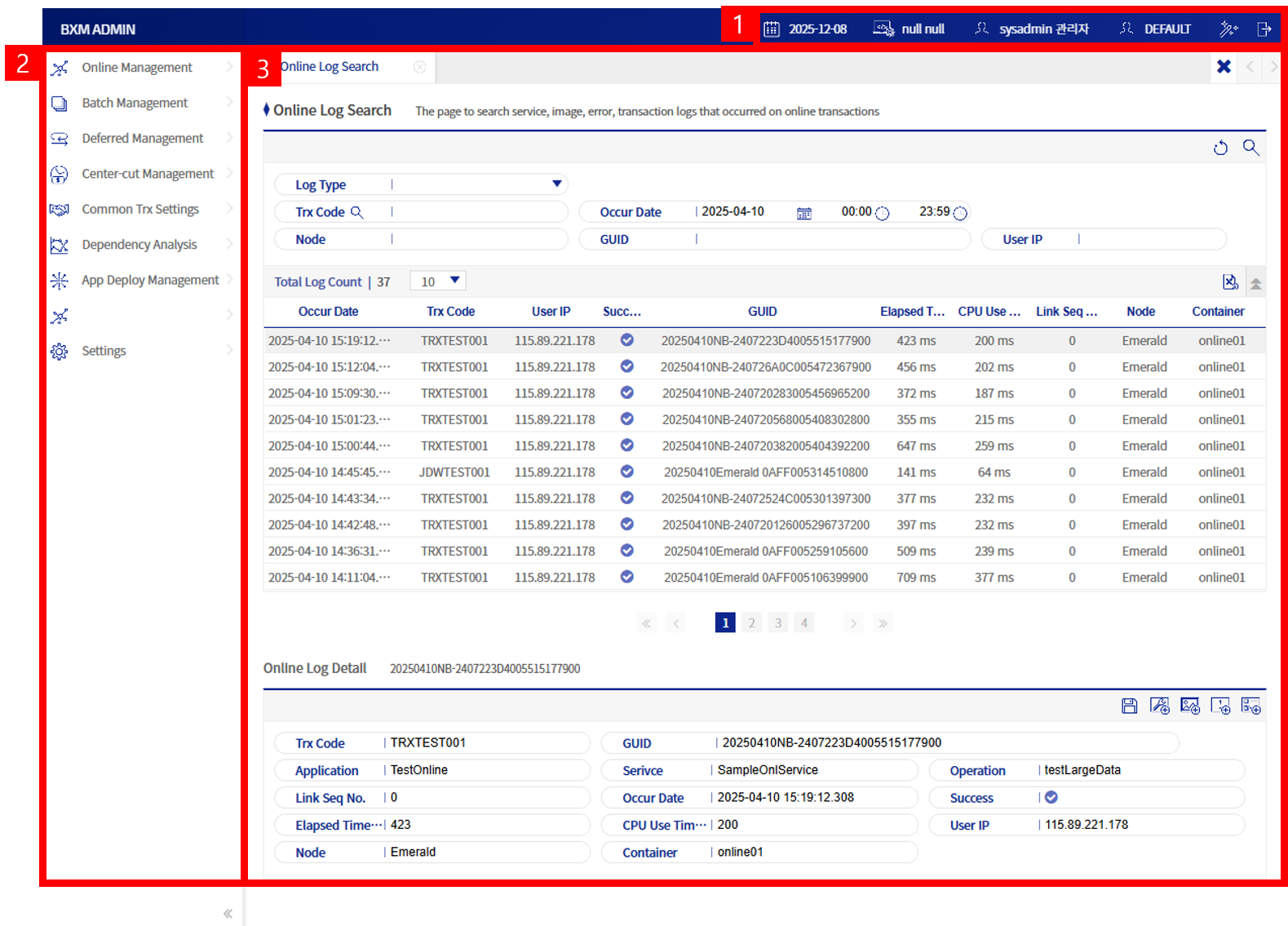
1: Basic information area
2: Screen menu area
3: Main screen area
3.1. Basic Information Area
You can check basic information such as the operating date.

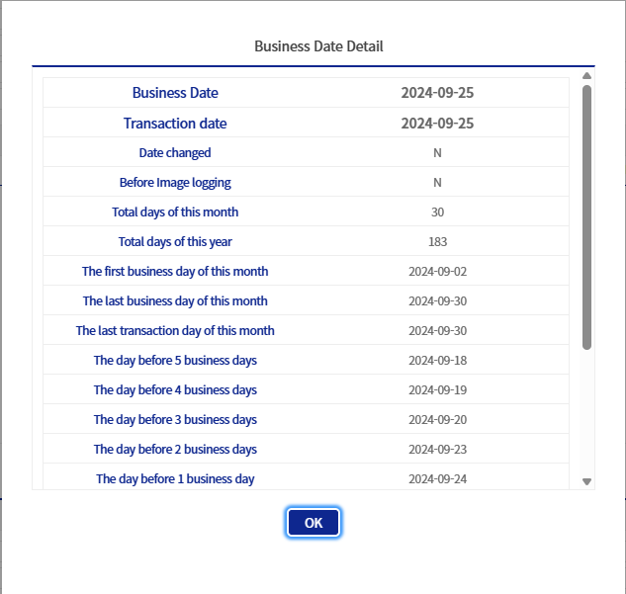
1: Current operating date. Click to check detailed information about the operating date in the following popup.
2: Information on the system under development
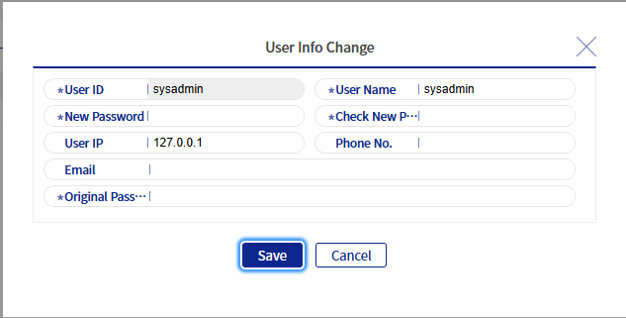
3: Information on the connected user. Click to change the connected user information in the following popup.
You must enter the current password correctly to proceed to the user information change screen.
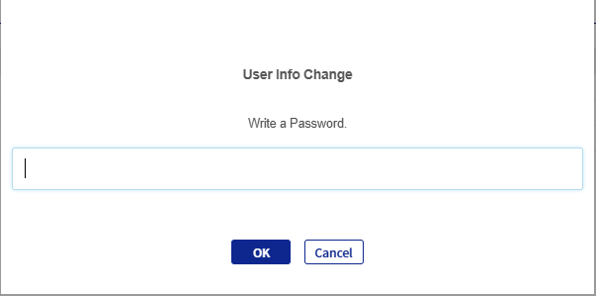
The user ID cannot be changed, and the user name, new password, and new password confirmation are required fields.
4: Color theme change button
5: Logout button
3.2. Main Screen Area
This area displays the contents of each menu. All menus consist of common elements (except APP deployment management and App Analyzer). The following is the online log inquiry screen.
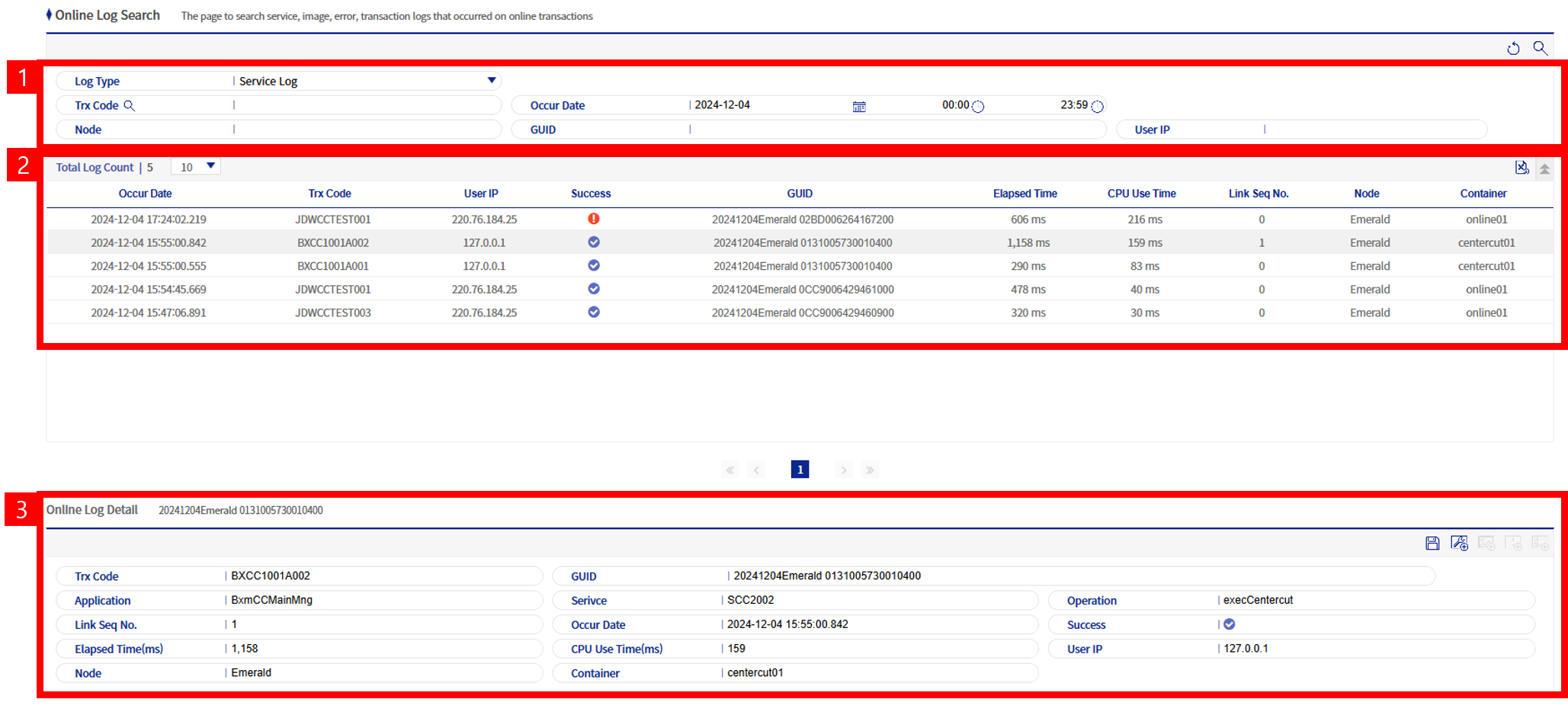
1: Search area. Each screen has search fields appropriate to its characteristics, and the 'Reset' and 'Search' buttons are located at the top right.
| Icon | Description |
|---|---|
|
Resets the search criteria. |
|
Retrieves data based on the search criteria. |


2: Grid area where the search results are displayed. You can adjust the number of data displayed in the grid by using the combo box at the top left. Depending on the screen, there may be buttons such as Excel download, add item, and delete item.
| Icon | Description |
|---|---|
|
Displays a popup for adding an item. Located at the top right of the grid. |
|
Downloads the current search results as an Excel file. Located at the top right of the grid. |
|
Deletes the corresponding item. Located at the far right of each grid item. |


3: Detail area. This area displays detailed information of the item selected in the above grid. Depending on the screen characteristics, buttons for additional actions are located at the top right. For descriptions of each button, refer to the corresponding screen guide.
| Icon | Description |
|---|---|
|
Execute button. For what is executed depending on the screen characteristics, refer to the corresponding screen guide. |
