Center-cut Job Status
This screen is used to monitor or control center-cut.
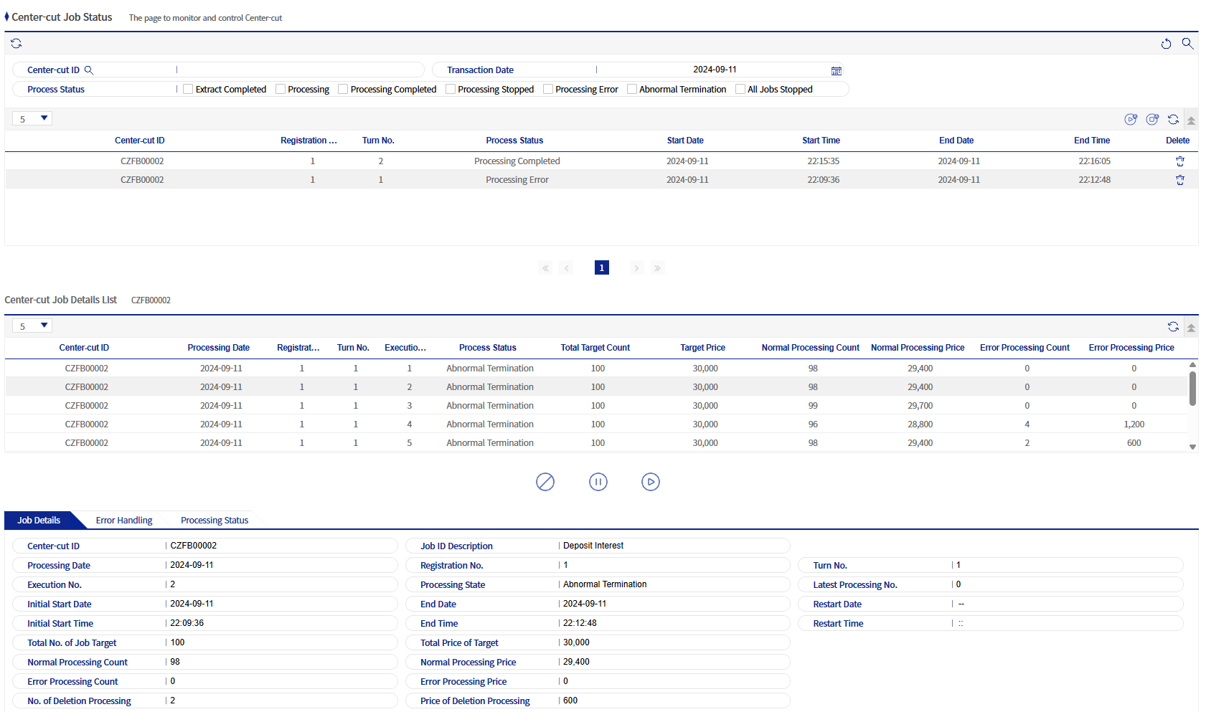
1. Center-cut Job Status Main
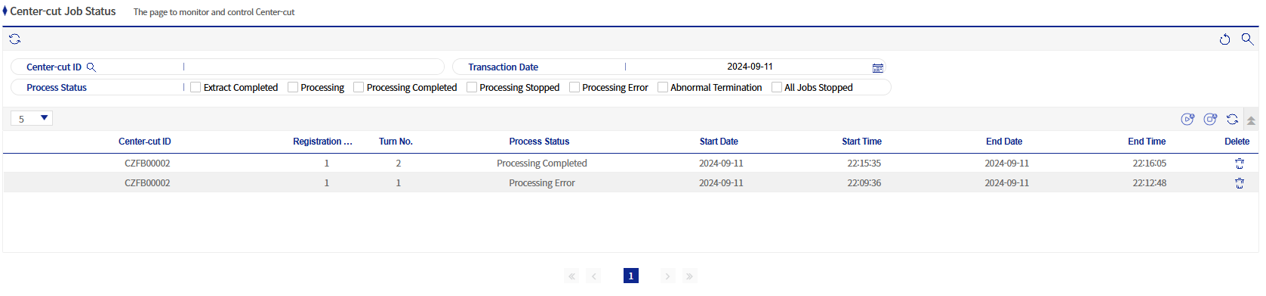
-
You can check center-cut ID, processing date, and processing status as search conditions.
-
There are seven processing statuses: [Extraction completed / Processing / Processing completed / Processing stopped / Processing error / Abnormal termination / All jobs stopped].
-
By referring to the center-cut developer guide, when you create and run a data input batch program, the center-cut whose processing status is Extraction completed is registered in the list.
-
There are two control buttons at the top right of the grid in the center-cut job status main screen.
| Icon | Icon name | Description |
|---|---|---|
|
Start all center-cut |
This button re-executes only those items whose processing status is All jobs stopped in the center-cut job status list. |
|
Stop all center-cut |
This button temporarily stops only those items whose processing status is Processing in the center-cut job status list. |


2. Center-cut Job Detail List

-
In the center-cut job detail list, center-cut job details are output using center-cut ID, Acceptance Number, Round Number, and processing date as the PK (Primary Key).
-
There are three control buttons at the bottom of the grid in the center-cut job detail list.
| Icon | Icon name | Description |
|---|---|---|
|
Forced termination |
This button forcibly terminates center-cut only for those items whose processing status is Processing in the center-cut job detail list. |
|
Pause |
This button pauses center-cut only for those items whose processing status is Processing in the center-cut job detail list. |
|
Run center-cut |
This button runs center-cut only for those items whose processing status is Extraction completed in the center-cut job detail list. |



3. Center-cut Job Detail (Tab)

-
This is information about the center-cut jobs that are output in the center-cut job detail list.
4. Center-cut Error Handling (Tab)

-
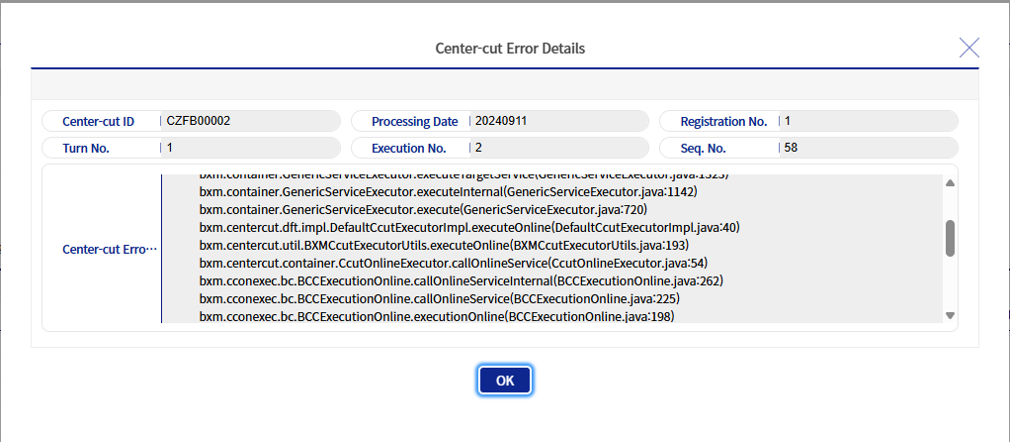
If a processing error occurs while running center-cut, you can check the details in the Error Handling tab.
-
You can check processing time, status, error code, error program, message, etc., and the Error Handling tab includes the following buttons.
| Icon | Icon name | Description |
|---|---|---|
|
Re-register all |
This button re-registers all error items that appear in the Error Handling list. |
|
Check |
This is the button for checking error message details. When you click the button, a popup like the one below appears. |
|
Re-register |
This button allows you to re-register errors corresponding to each serial number during center-cut jobs. |



5. Center-cut Processing Status (Tab)

-
This area shows the processing status for the center-cut in the center-cut job detail list. Processing nodes are created according to the number of center-cut processing servers, and you can monitor the processing status.
-
The number of parallel processes displays the value configured in center-cut job management.
-
There are two node assignment methods: automatic and manual. If you change the option, you must click the Save button for it to be applied.
-
The initial value follows the method configured on the main server. If you change the option, the option value is applied when the job is before processing or in processing.
-
When the node assignment method is manual, you can modify the configured number of processes. The sum of the configured number of processes must be equal to the number of parallel processes.