VO editor
This section describes the features of the VO editor.
1. Editor layout
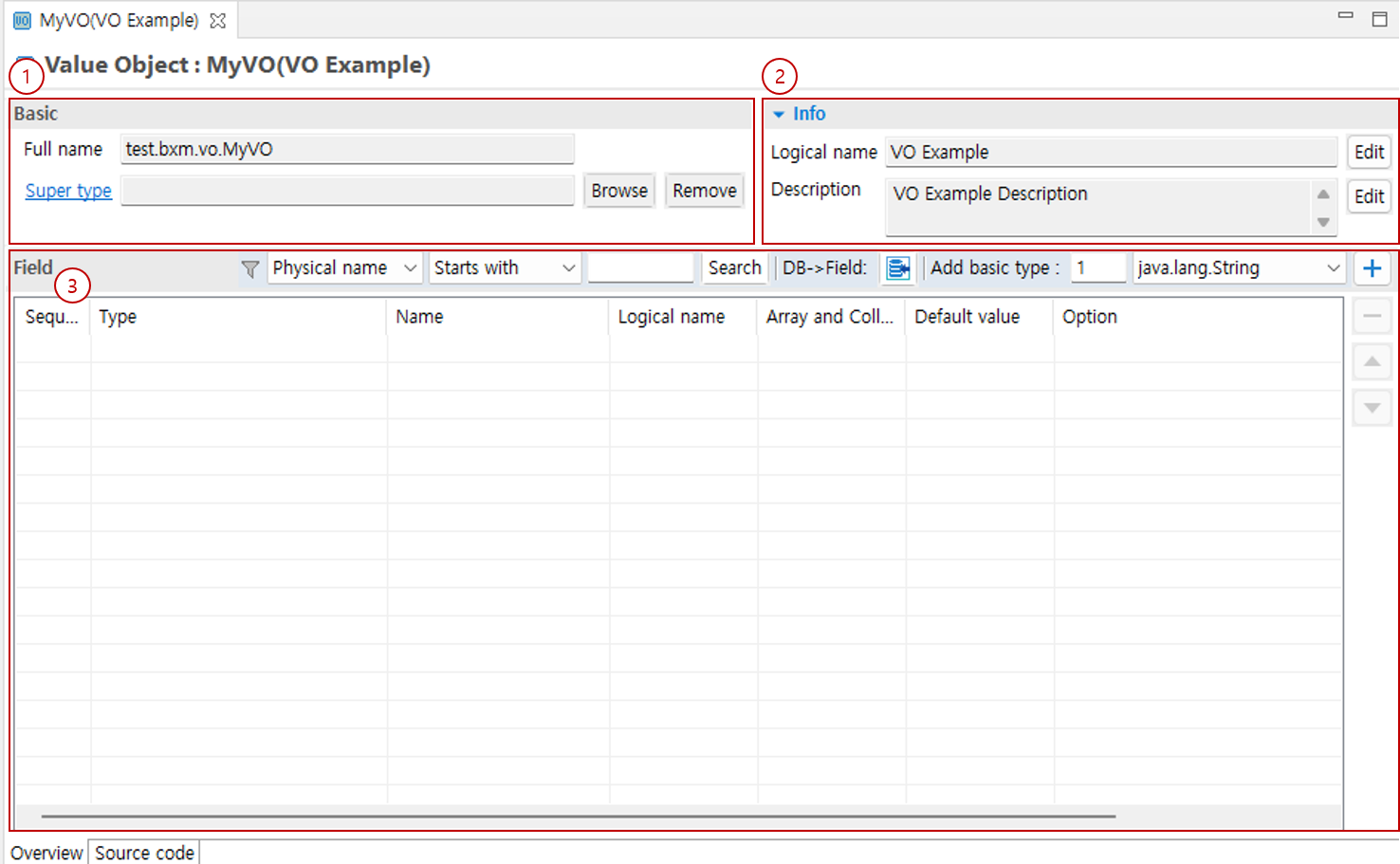
-
Basic: You can check the Supertype and other information.
-
Info: You can check the basic information of the VO.
-
Field: You can manage the fields of the VO.
1.1. Basic
You can check the Supertype and other information.

-
Fully name: You can check the fully qualified name of the VO.
-
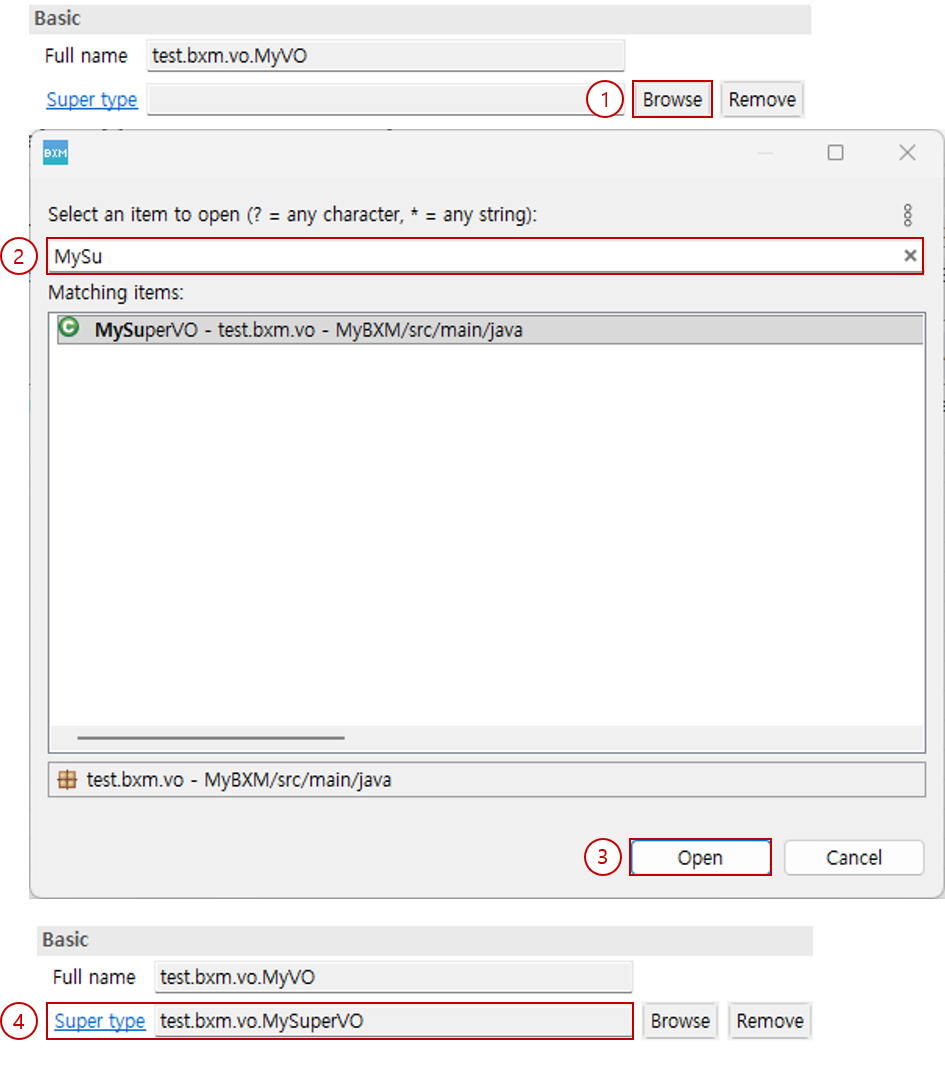
Super type: You can set/delete the Supertype of the VO.
1.2. Info
You can check the basic information of the VO.
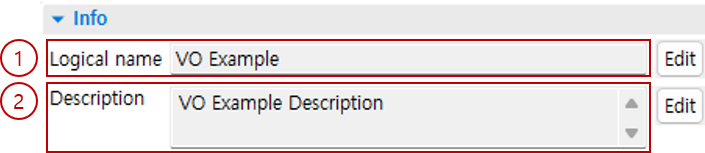
-
Logical name: You can edit the logical name of the VO.
-
Description: You can edit the description of the VO.
1.3. Field
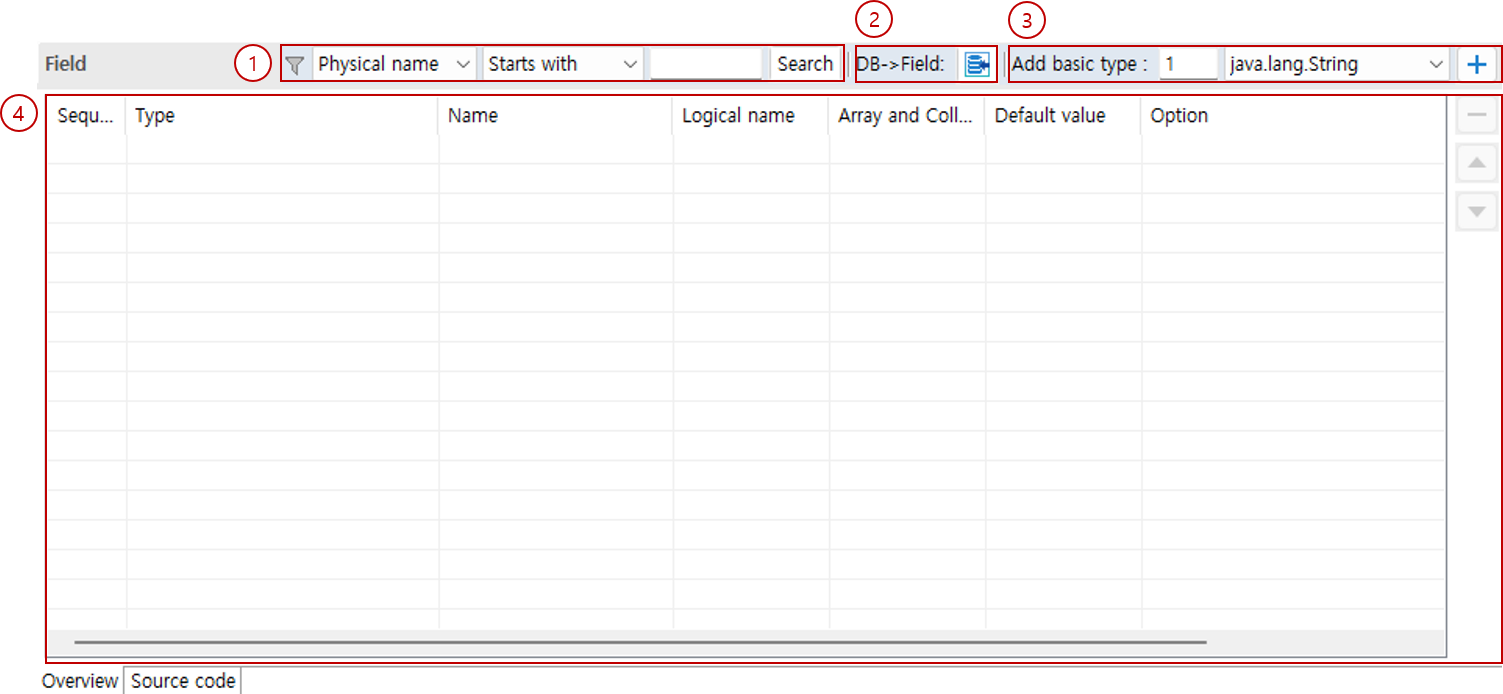
You can manage the fields of the VO.
-
Find variable: You can find fields whose names match the condition.
-
DB→Field: You can add fields by selecting tables/columns.
-
Add basic type: You can add the specified number of fields of the selected type.
-
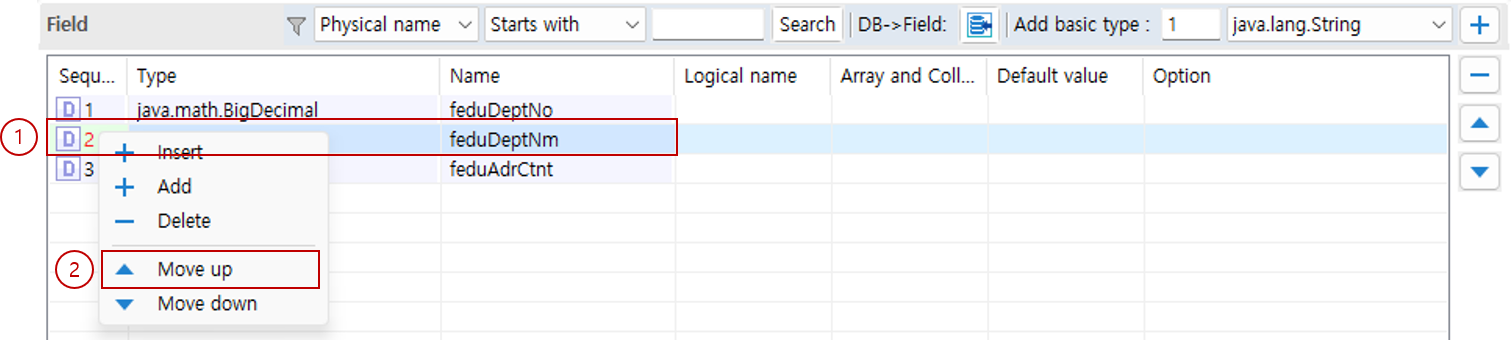
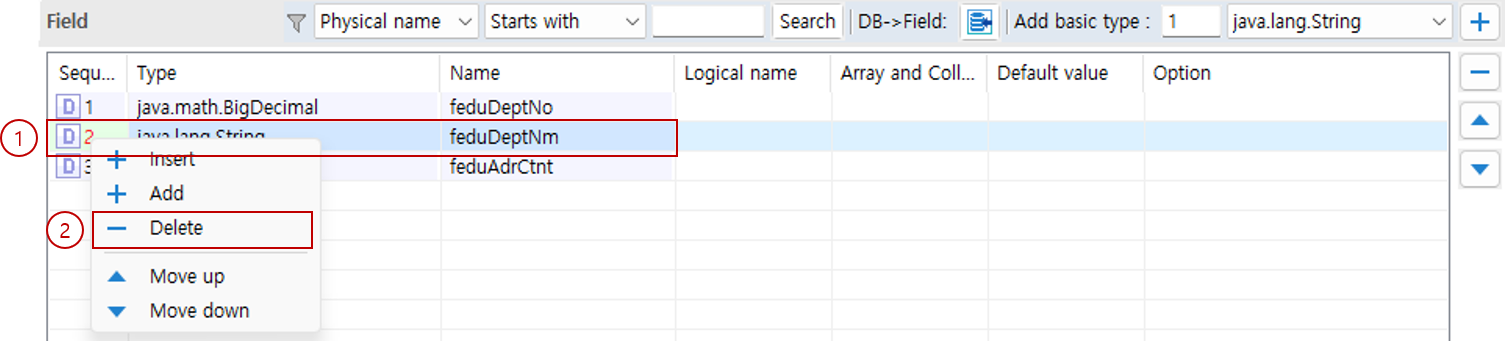
Field: You can add/delete/edit the fields of the VO.
2. Super type

3. Add field
This section describes how to add fields.
3.1. Add as basic type
You can add basic types as fields by using the toolbar feature.

-
Select the number and type to add, and then click the + button.
3.2. Add using context menu
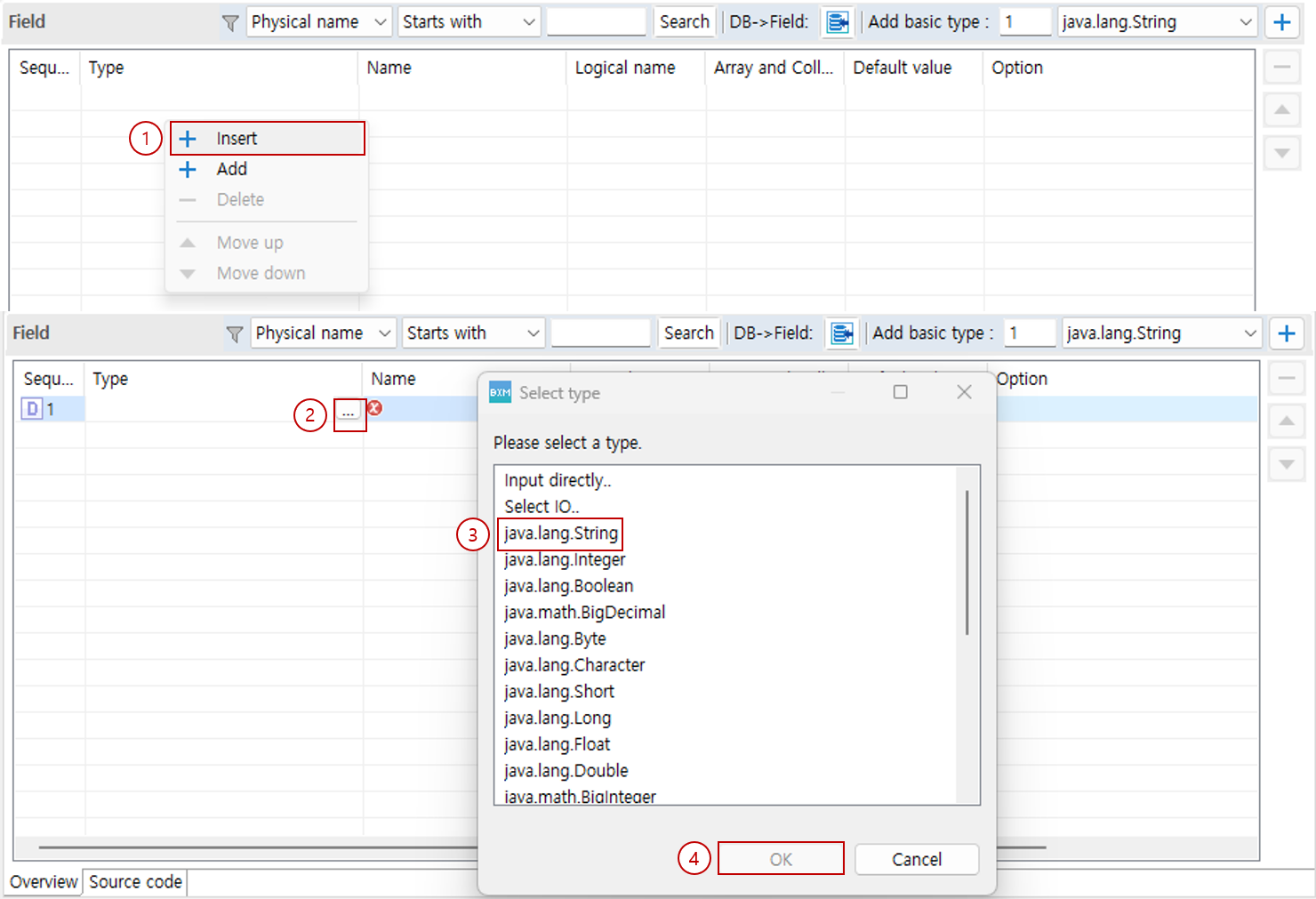
You can add fields using the context menu.
-
In the field list, right-click, and then select Insert or Add from the context menu that appears.
-
Click … in the type column of the added field.
-
In the Select type Dialog, select the type to use.
-
Click the OK button.

-
Enter the name of the added field.
3.3. Add using DB→Field feature
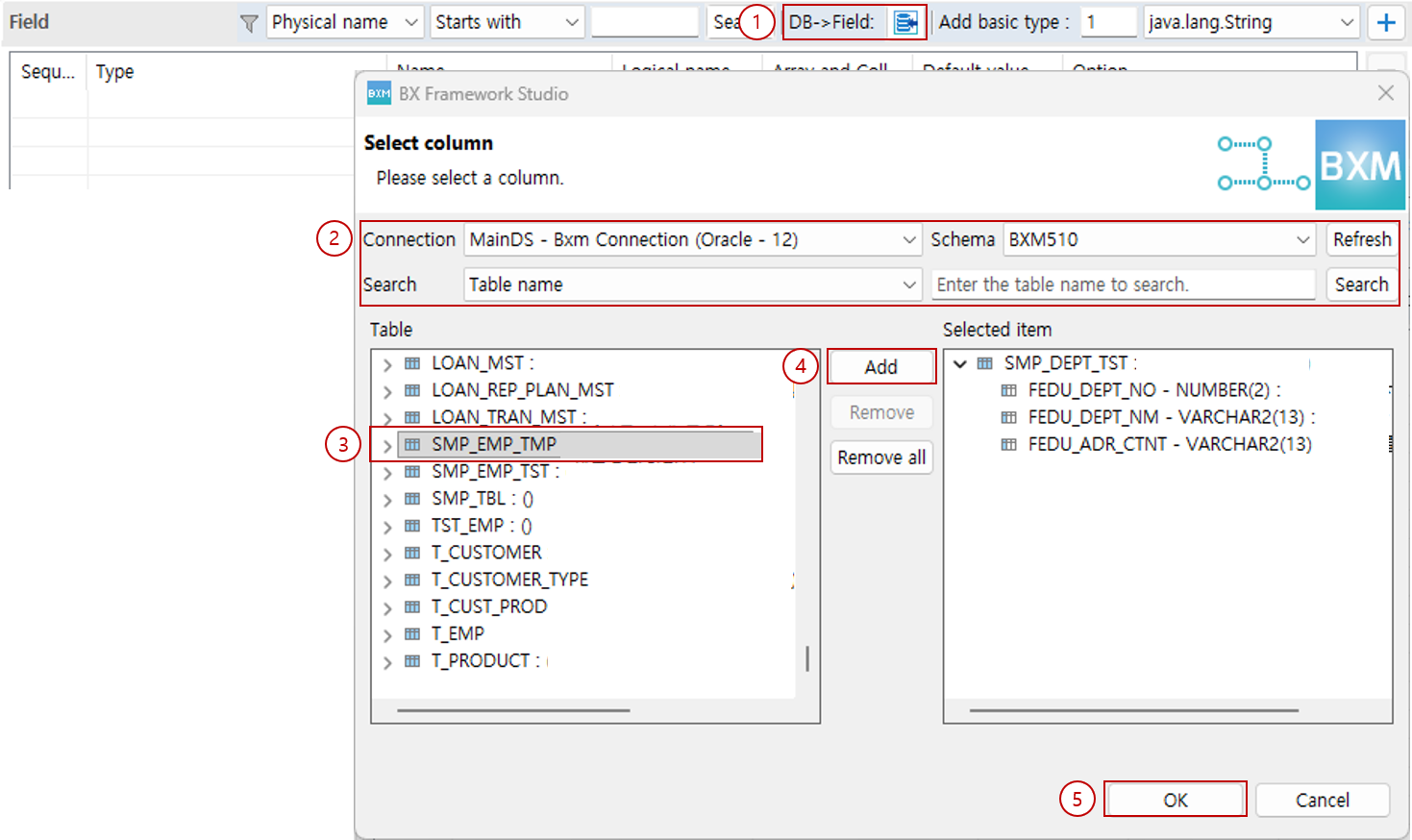
You can add fields by selecting tables/columns.
-
Click DB→Field.
-
Enter the search conditions.
-
From the search results, select the table or column to use.
-
Double-click the selected item or click the Add button to move it to Selected item.
-
Click the OK button.

Check the added fields.