Comments
This chapter describes precautions for writing program comments for application development. Comments use JavaDoc-style comment syntax.
1. Service and Bean class comments
Comments for Service and Bean classes are automatically generated as follows when created with the wizard of BXM Studio. Change the developer(Korean name) part in @author to the actual developer name.
/**
 * <b>BXM Business class</b>
 * <p>
 * <b>Revision history</b><br>
 * <pre>
 * 2019.01.04 : New creation
 * </pre>
 *
 * @since 2019.01.04
 * @version 1.0.0
 * @author Developer(Name)
 */
2. Service operation and Bean method comments
Comments for Service operations and Bean methods are entered directly by the user. If you type /** above the declaration of the Service operation or Bean method for which you want to write comments and press Enter, JavaDoc comments are generated as follows.
/**
 * @param input DSmpEmpTst000Dto
 * @return DSmpEmpTst000Dto
 * @throws DefaultApplicationException
 */
@BxmCategory(logicalName = "Sample Employee Information Single Inquiry")
public DSmpEmpTst000Dto getEmpInf(DSmpEmpTst000Dto input) throws DefaultApplicationException {
    ... ...
}
3. Comments in the method body
For the body of Service operations and Bean methods, use JavaDoc-style comments as shown below for Flow Diagram deliverables.
4. @BXMType
When comments and annotations are written in the source code, Studio uses them to represent the flow of the source code.
4.1. LogicalArea
Use this when you want to represent the business flow with the flow designer.
@Desc: Write a description of the BXMType. For a single line, write within 20 characters; for two lines, write within 10 characters per line. If exceeded, it will be truncated in the flow designer.
/**
 * @BXMType LogicalArea
 * @Desc Perform branch processing according to business classification.
 */

/**
 * @BXMType LogicalArea
 * @Desc If classification is 'I'
 *      Registration processing
 */
logger.debug("Registration processing");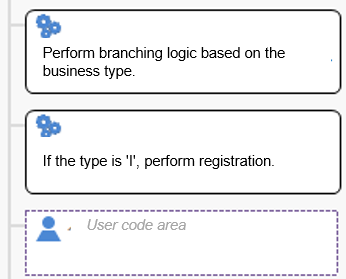
4.2. IF
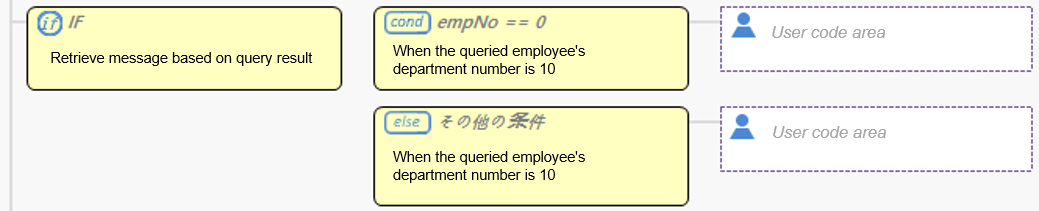
For branch statements you want to represent in the flow designer, write as follows.
@Desc: Write a description of the BXMType. For a single line, write within 20 characters; for two lines, write within 10 characters per line. If exceeded, it will be truncated in the flow designer.
/**
 * @BXMType IF
 * @Desc Assemble message according to inquiry result
 */
if(output.getFeduDeptNo() == 10)/** If the queried employee's department number is 10.. */
{
    logger.debug("Queried employee's department number : 10");
}
else /** If the queried department number is not 10.. */
{
    logger.debug("Queried employee's department number : {}", output.getFeduDeptNo());
}
4.3. Loop
For loop statements you want to represent in the flow designer, write as follows.
@Desc: Write a description of the BXMType. For a single line, write within 20 characters; for two lines, write within 10 characters per line. If exceeded, it will be truncated in the flow designer.
/**
 * @BXMType Loop
 * @Desc Set Bean's Output as Service's Output.
 */
for (DSmpEmpTst000Dto fetchDto : beanOutput) {
    outDtoSub1 = new SSMP1002A001OutDtoSubGrid01();

    outDtoSub1.setFeduEmpNo(fetchDto.getFeduEmpNo());
    outDtoSub1.setFeduEmpNm(fetchDto.getFeduEmpNm());
    outDtoSub1.setFeduOccpNm(fetchDto.getFeduOccpNm());

    output.getGrid01().add(outDtoSub1);
}