Create and Test Query DBIO
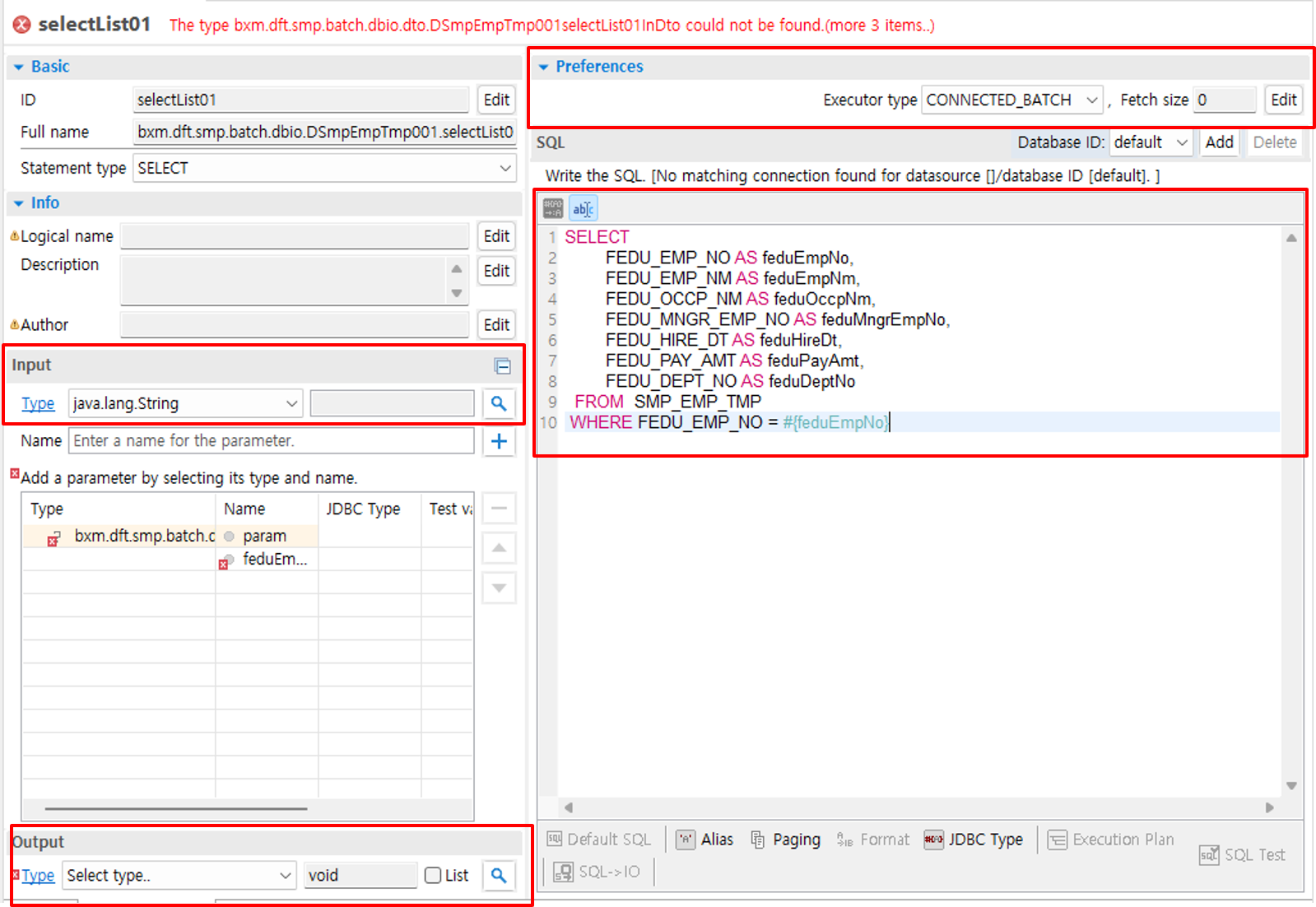
Create a DBIO to query the processing data. When using DBIO in a batch ItemReader, large volumes of data are processed, so use the "CONNECTED_BATCH" Executor as shown in the example below. DBIO is created in Studio through the "DBIO" menu.
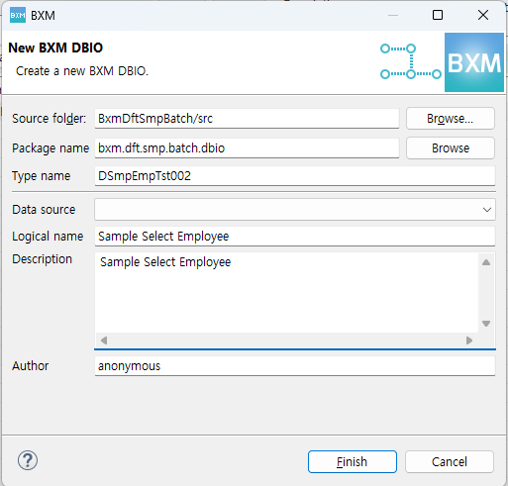
(1) Create a New DBIO Wizard
Use the DBIO Wizard to create a DBIO according to the naming rules.
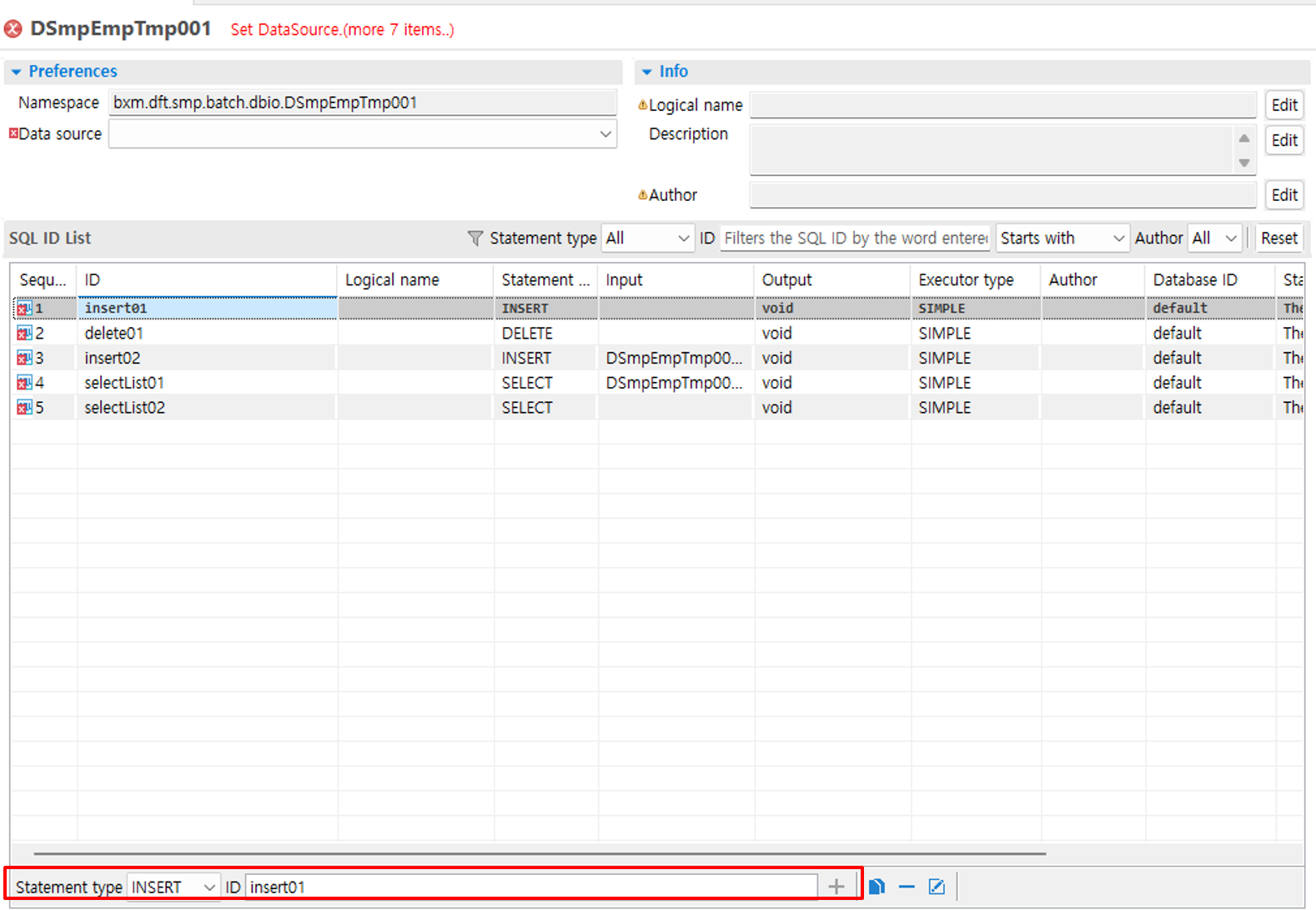
(2) Add SQL ID for Query Processing DBIO
On the "Overview" tab, enter the SQL ID for query processing and click the ADD(+) button. Then, the entered method is added to the SQL ID list at the top.
(3) Create Query SQL
Double-click the SQL ID created to retrieve the batch processing target to open a new tab, and write the query in the Text Area of the "SQL" tab on the right. To perform Fetch processing in batch, set the Executor type value on the environment settings tab to CONNECTED_BATCH. To handle the condition values for querying the target, select the DBIO input IO on the previously created "Input" tab and click the ADD(+) button to add it. Then define the output IO to receive the query results on the "Output" tab, and check the checkbox in the List so that multiple results can be returned.