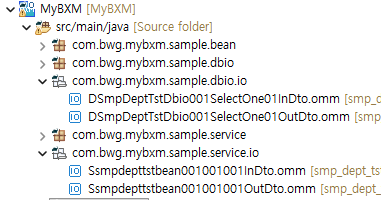
New Service Template
This section describes the features of the New Service Template wizard.
It provides a template feature that automatically generates Service, Bean, DBIO, and IO required for a basic inquiry service.
There are three main template features.
| Template type | Description |
|---|---|
Select table |
Generates a service that performs single, multiple, and paging queries based on a table. |
Select existing DBIO |
Generates a service based on a DBIO that already exists in the project. |
Execute SQL |
After writing SQL, generates a service based on that SQL. |
The New Service Template wizard is executed as shown in the figure below.
-
Click New → 'New Service Template' in the quick menu at the top left.
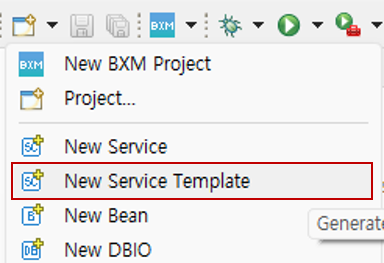
1. Select data source type
1.1. Select table
This feature generates a service that performs single, multiple, and paging queries based on a table.
-
Select the Select table type in the data source and click Next.
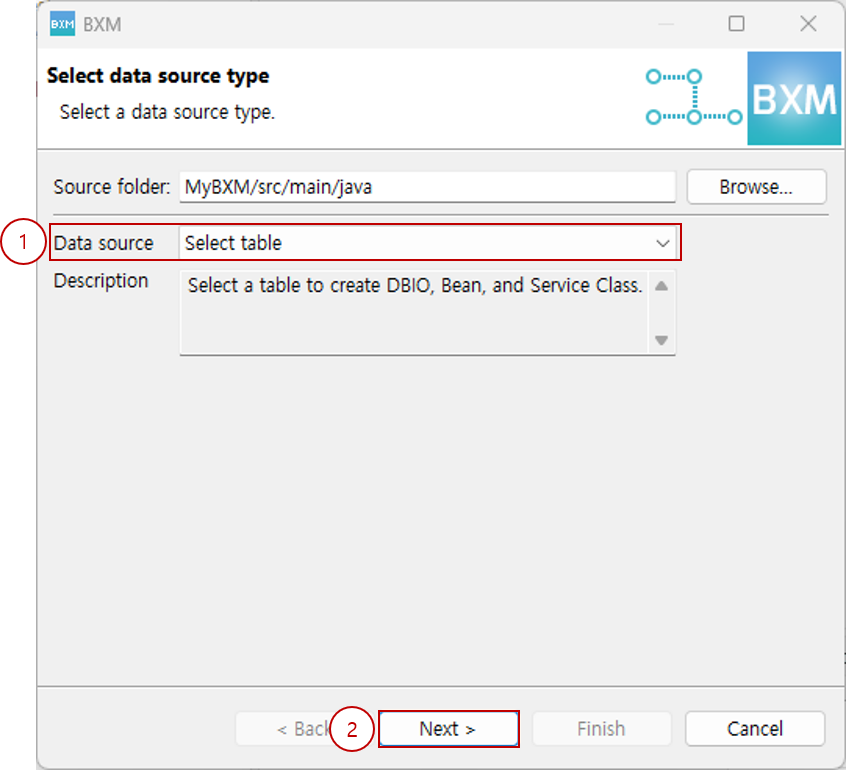
(1) Select the Select table type in the data source
(2) Click Next -
Select the table and template type, check the auto-completed resource names, and then click Next.
At this time, all resource names are generated by a module defined by the framework manager.
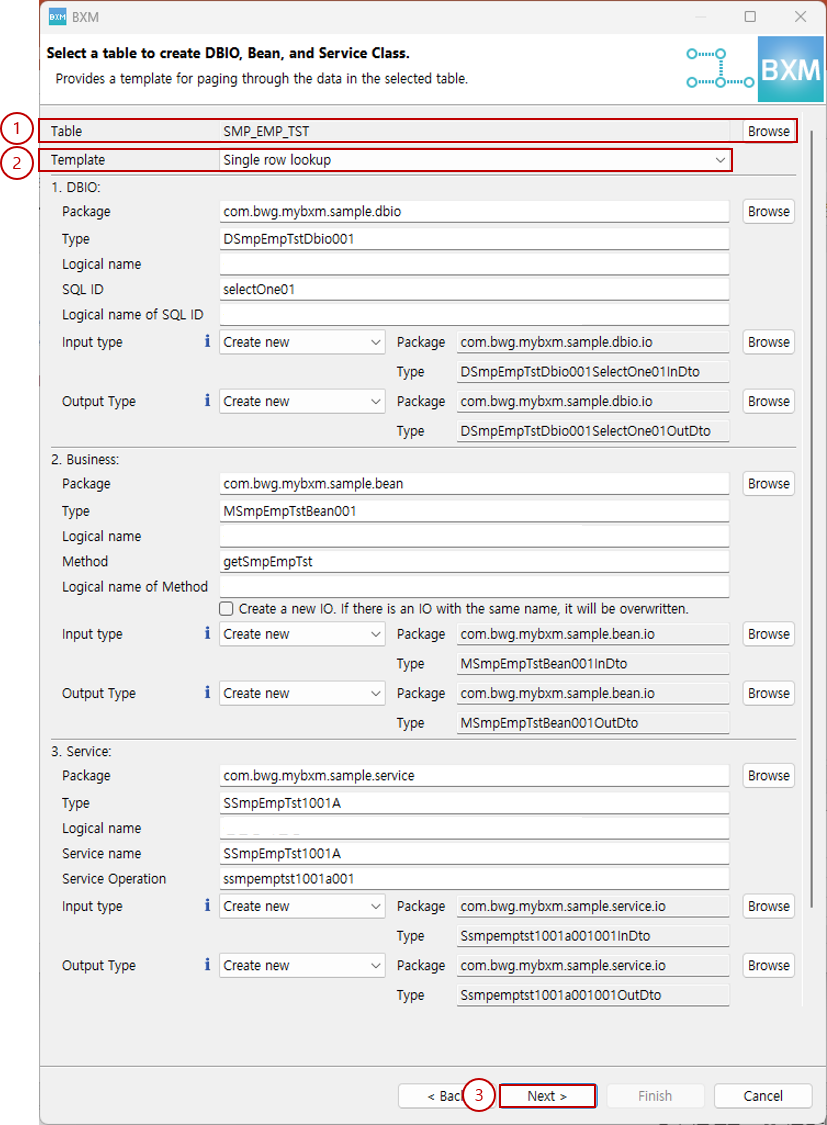
(1) Click Browse to select a table
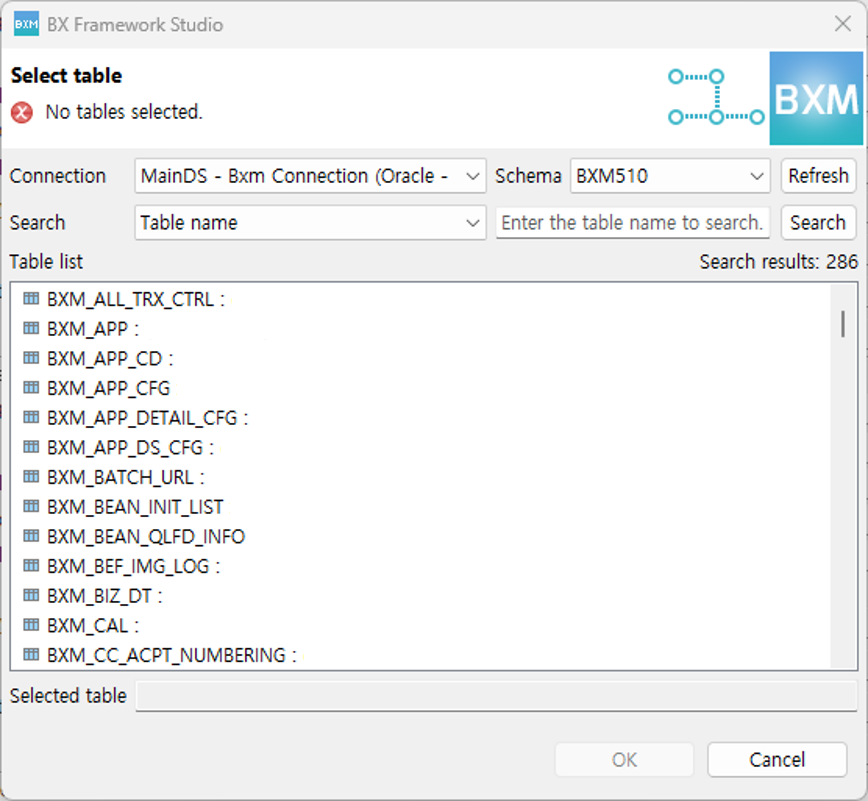
(2) Select the template type (single row, multi row, paging)
(3) Click Next
1.2. Execute SQL
This feature automatically generates a service that uses a written SELECT SQL.
-
Select the Execute SQL type in the data source and click Next.
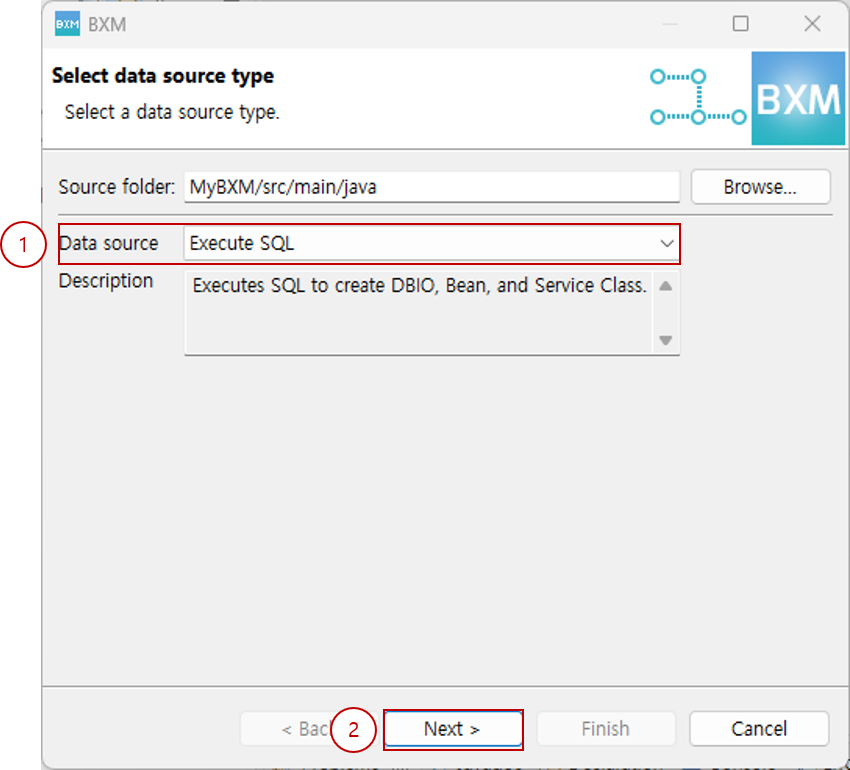
(1) Select the Execute SQL type in the data source
(2) Click Next -
Write the Select SQL and click SQL Test.
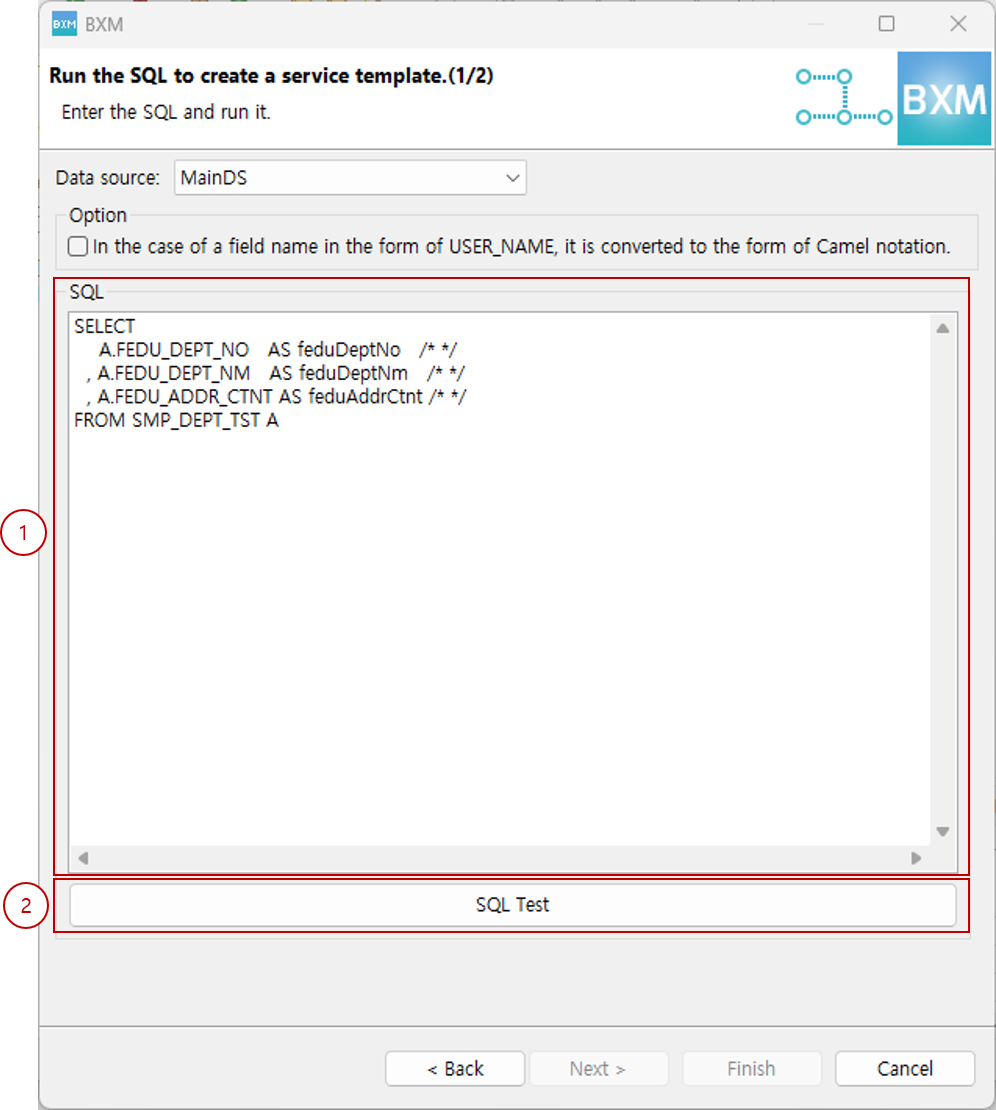
(1) Write SQL
(2) Click SQL Test -
Select the template type, check the auto-completed resource names, and then click Next.
At this time, all resource names are generated by a module defined by the framework manager.
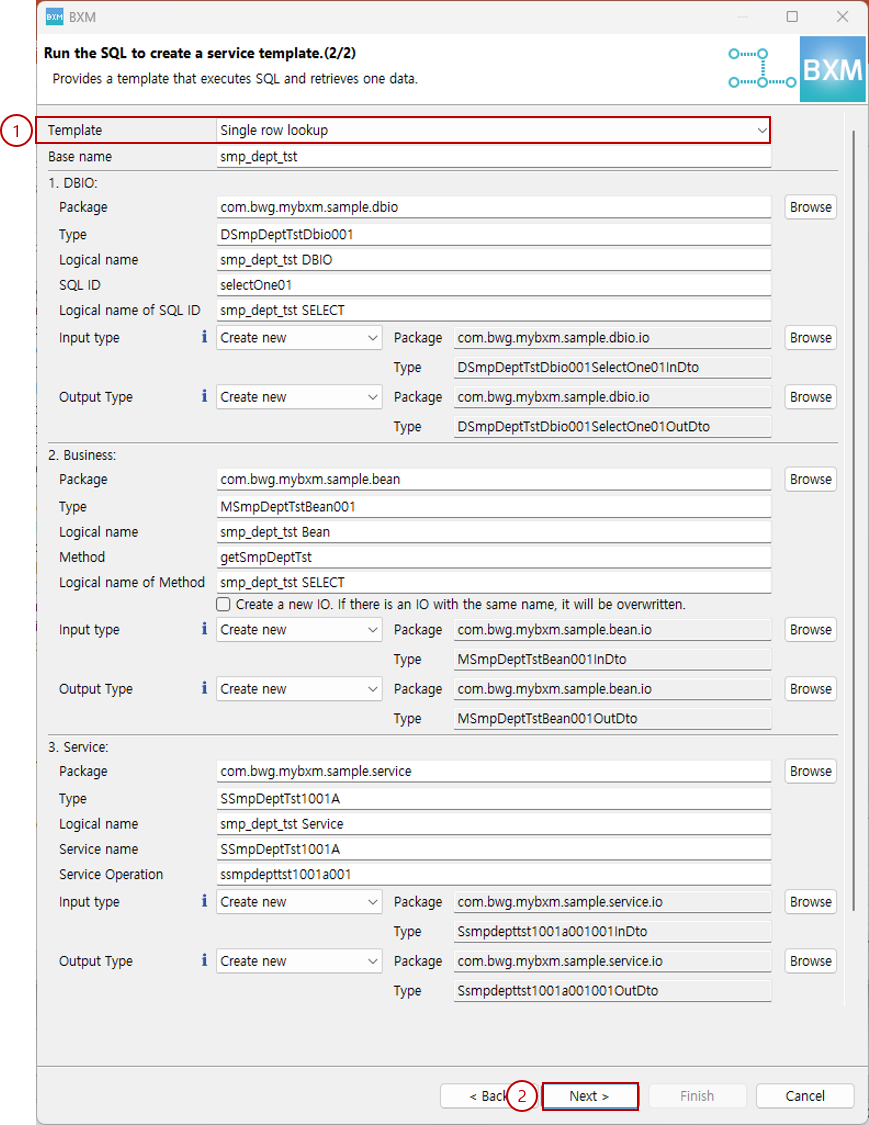
(1) Select template type
(2) Click Next
1.3. Select written DBIO
This feature generates a service using a DBIO that already exists in the project.
-
Select the Select written DBIO type in the data source and click Next.
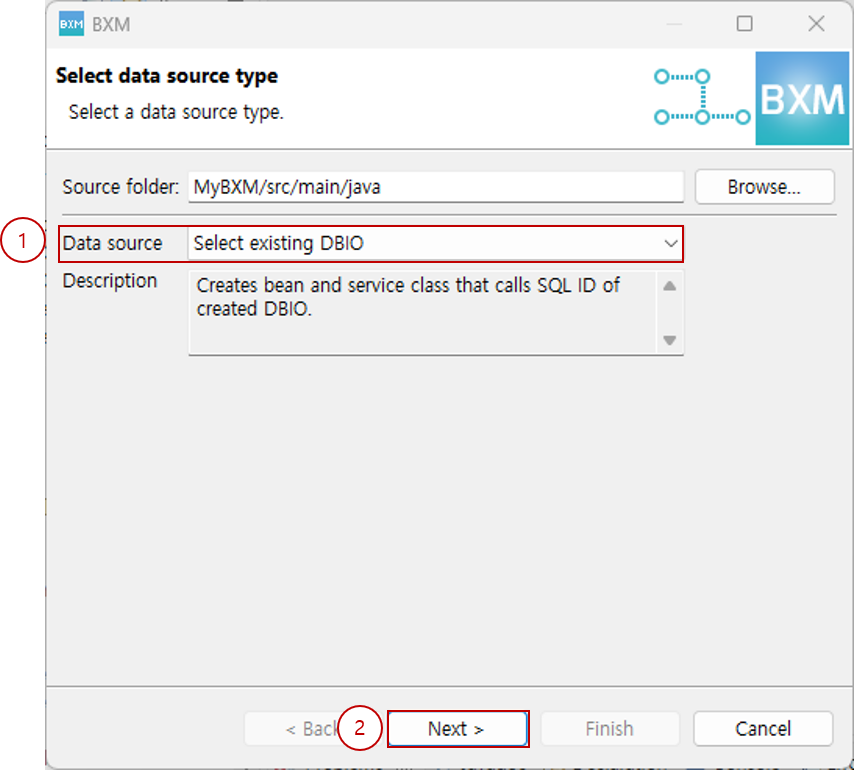
(1) Select the Select written DBIO type in the data source
(2) Click Next -
Select the SQL ID of the DBIO in the desired project and click Next.
At this time, all resource names are generated by a module defined by the framework manager.
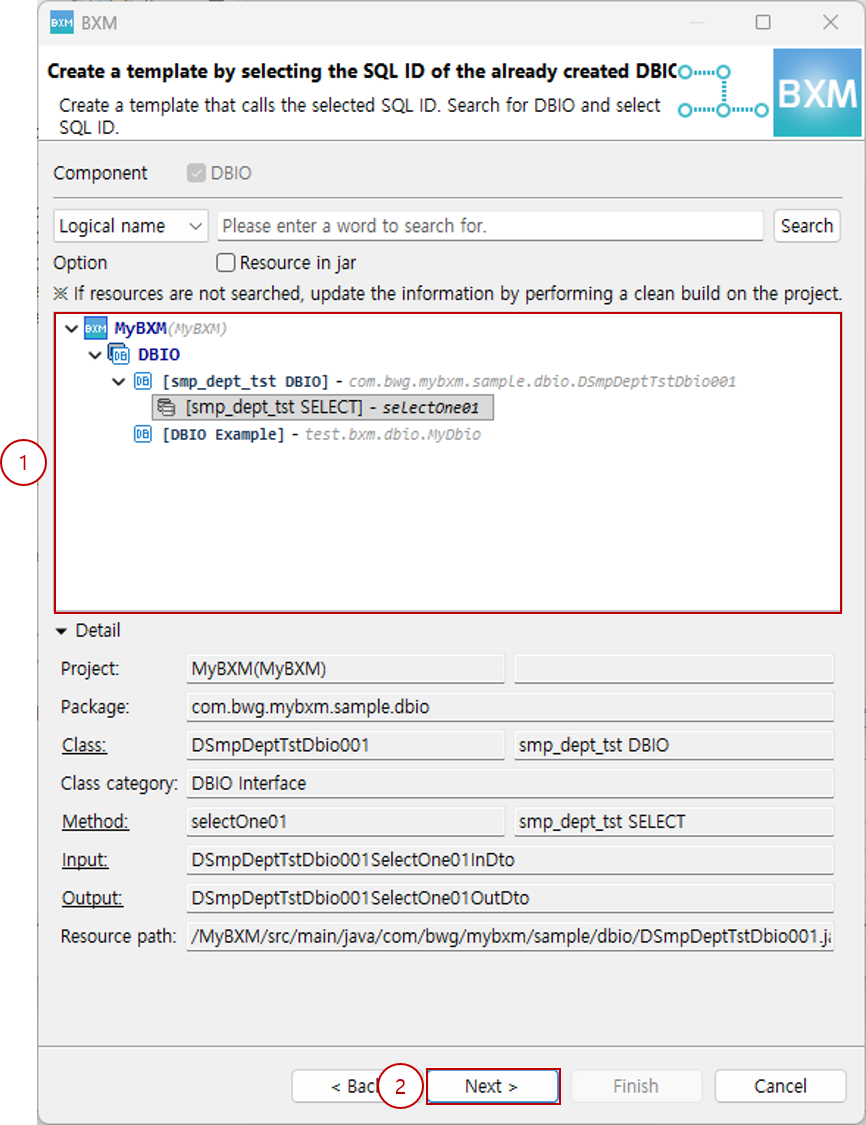
(1) Select SQL ID
(2) Click Next -
Check the resource names and click Next.
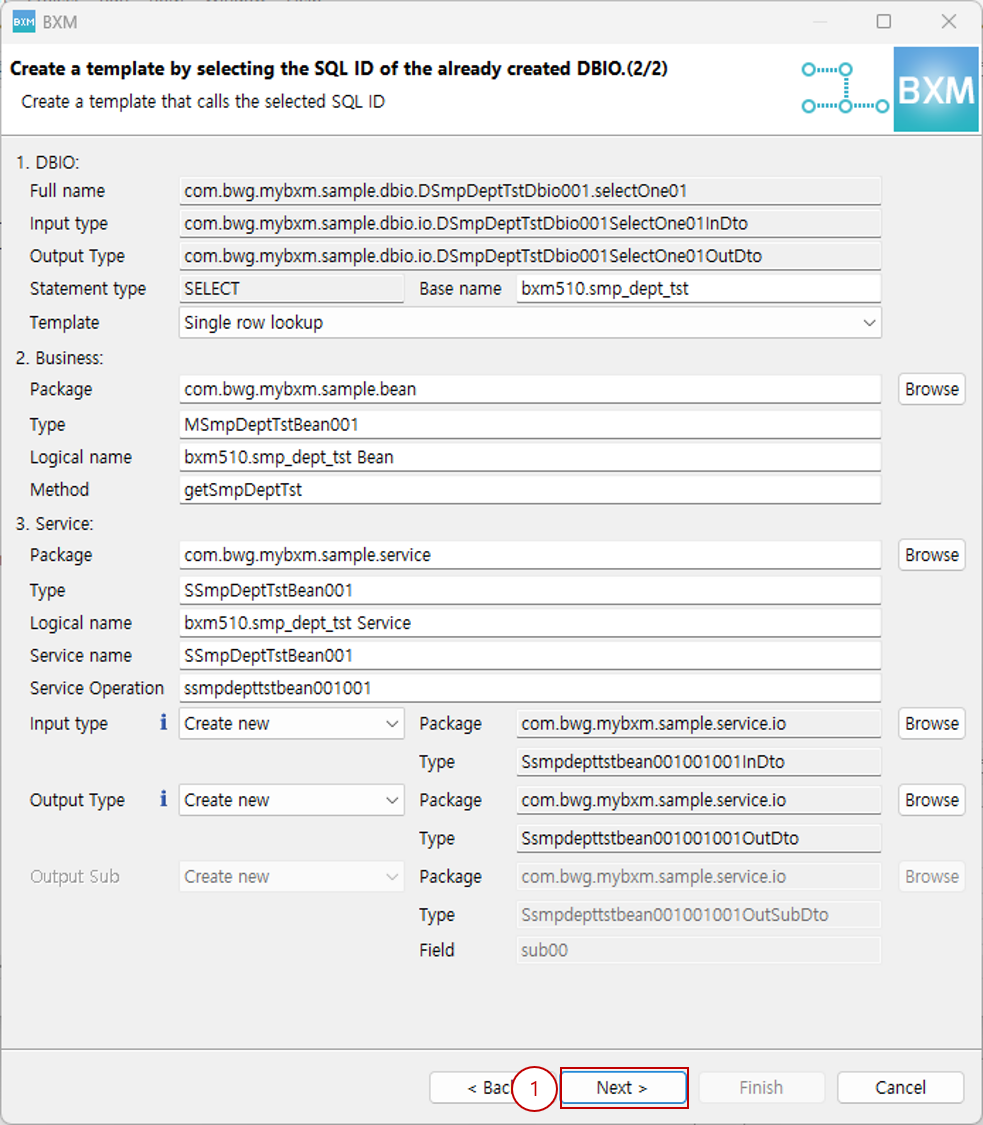
(1) Click Next
2. Summary page
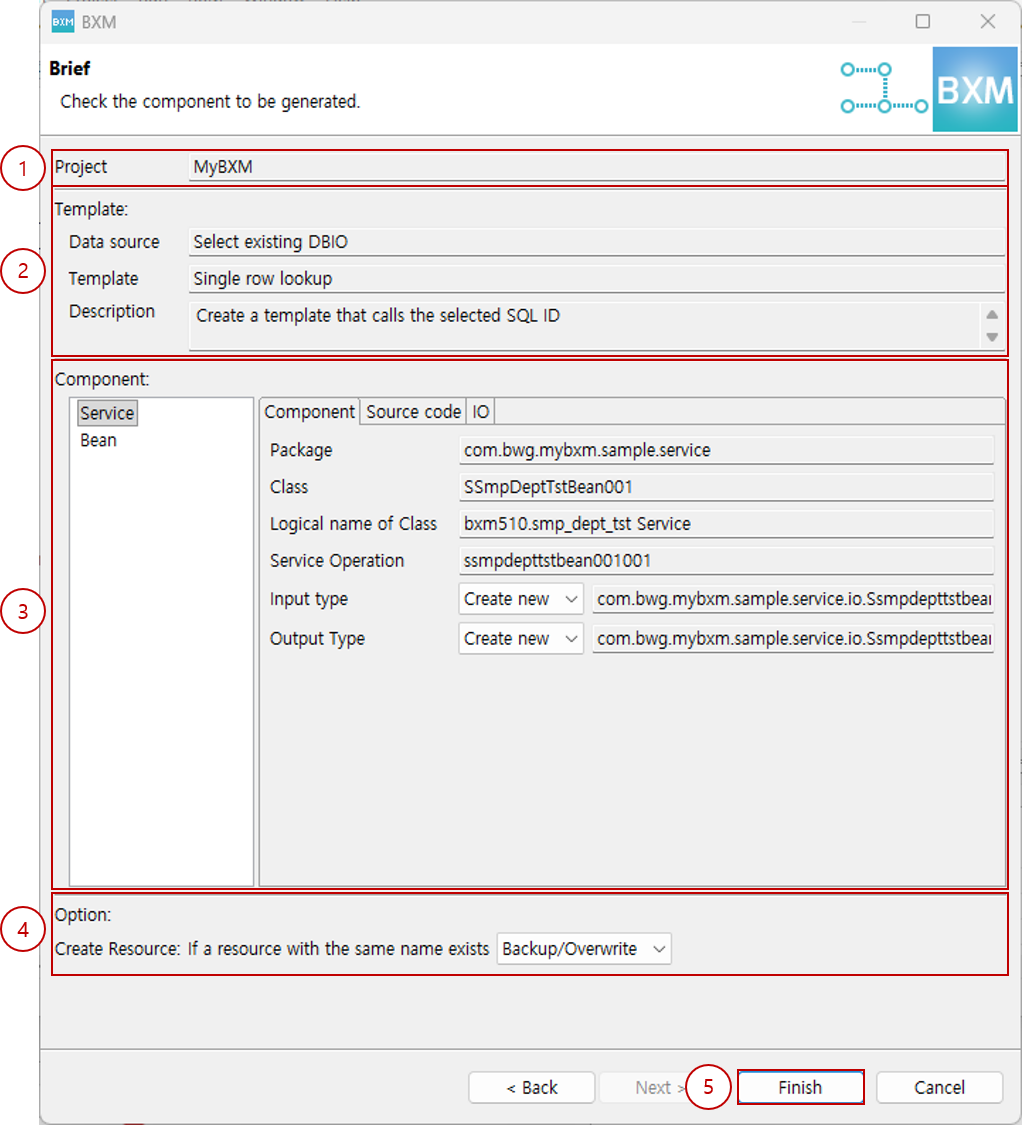
Provides information and preview of the resources to be generated.
-
Check the project information where the resources will be generated
-
Check information about the selected data source and template
-
Check the information and source code preview of the resources to be generated
-
For already existing resources, select a backup policy for resource generation (Backup/Overwrite, Overwrite, Skip)
-
Click Finish