Creating a Bean
1. Writing Business Logic
-
Create a Bean class. Right-click in the Package Explorer → New → select New Bean.
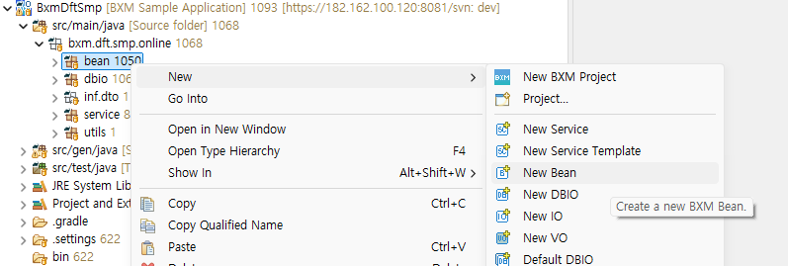 Figure 1. Creating a Bean
 -
In the New BXM Bean Wizard, enter the type name and logical name.
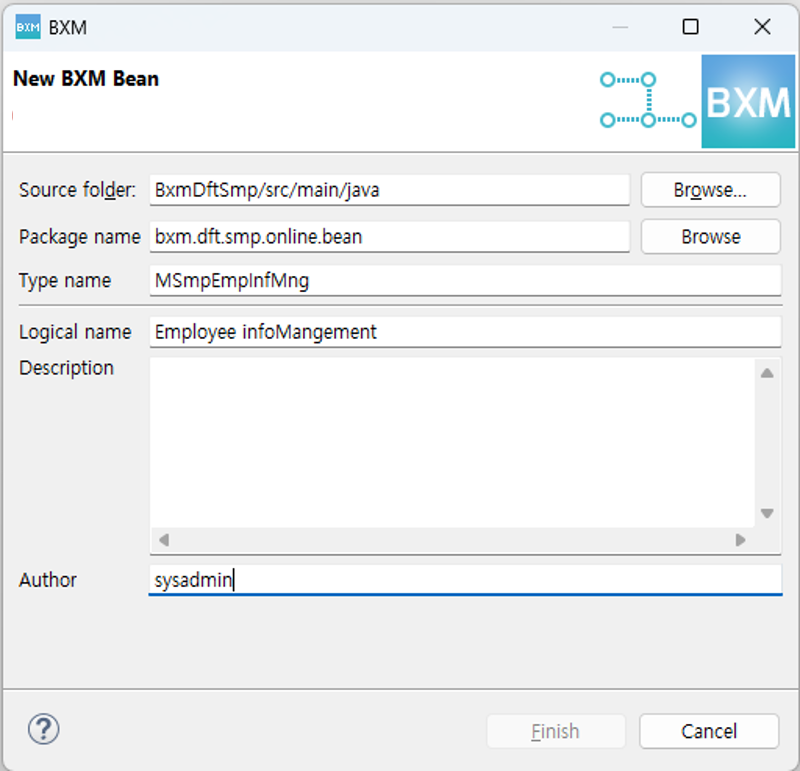 Figure 2. New BXM Bean Wizard
 -
Write the business logic. For BXM development standards, refer to the BXM Developer Guide - Development Standards document. Below is the Bean method that has been written.
@BxmBean
@BxmCategory(logicalName = "Employee Info Management")
public class MSmpEmpInfMng {
    final Logger logger = LoggerFactory.getLogger(this.getClass());

    private DSmpEmpTst000 dSmpEmpTst000;

    /**
     * Select a single employee info.
     *
     * @param   input   DSmpEmpTst000Dto
     * @return DSmpEmpTst000Dto
     * @throws DefaultApplicationException
     */
    @BxmCategory(logicalName = "Single Select")
    public DSmpEmpTst000Dto getEmpInf(DSmpEmpTst000Dto input) throws DefaultApplicationException {

        logger.debug("============== START ==============");
        logger.debug("input = {}", input);

        dSmpEmpTst000 = DefaultApplicationContext.getBean(dSmpEmpTst000, DSmpEmpTst000.class);

        /**
         * @BXMType VariableDeclaration
         */
        DSmpEmpTst000Dto output = null;

        /**
         * @BXMType DbioCall
         * Employee ID number selectOne
         */
        output = dSmpEmpTst000.selectOne00(input);

        logger.debug("output = {}", output);
        logger.debug("============== END ==============");

        return output;
    }
}
2. Creating a Module Test
-
Create a module test. Right-click in the Package Explorer → New → select New Module Test.
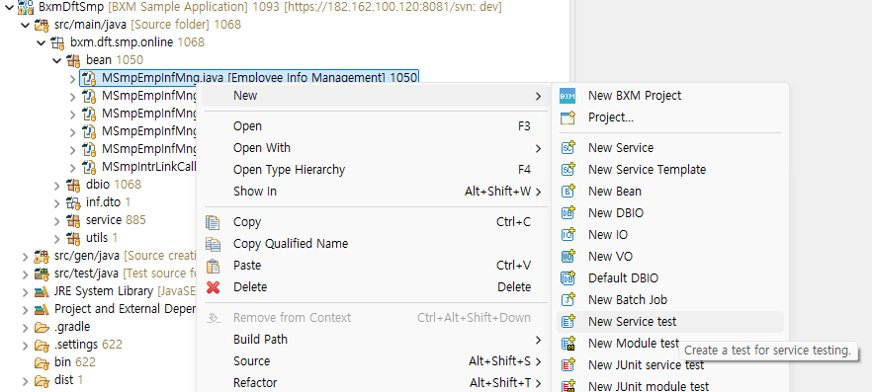 Figure 3. Creating a Module Test
 -
If a Bean class is not selected, search for and enter the class.
-
From the search results, select the desired method and click the Finish button.
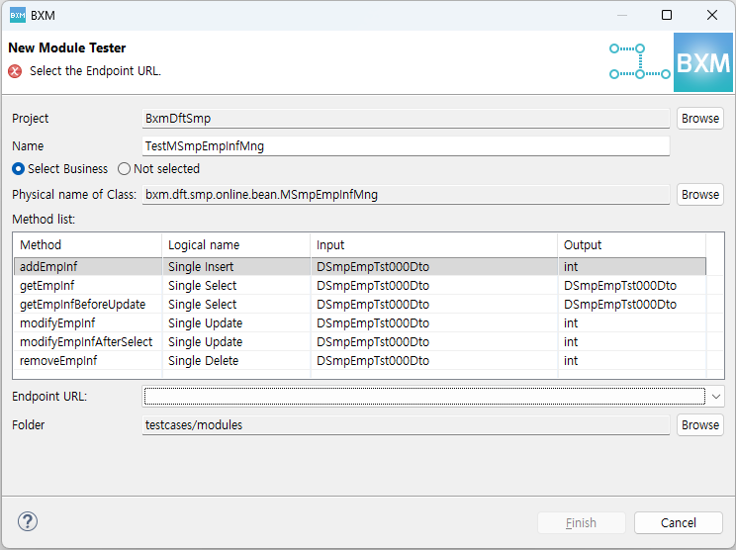 Figure 4. Creating a Module Test
Below is the created module test tool, and testing is executed after server deployment. For how to run the module test tool, refer to Executing Module Test.
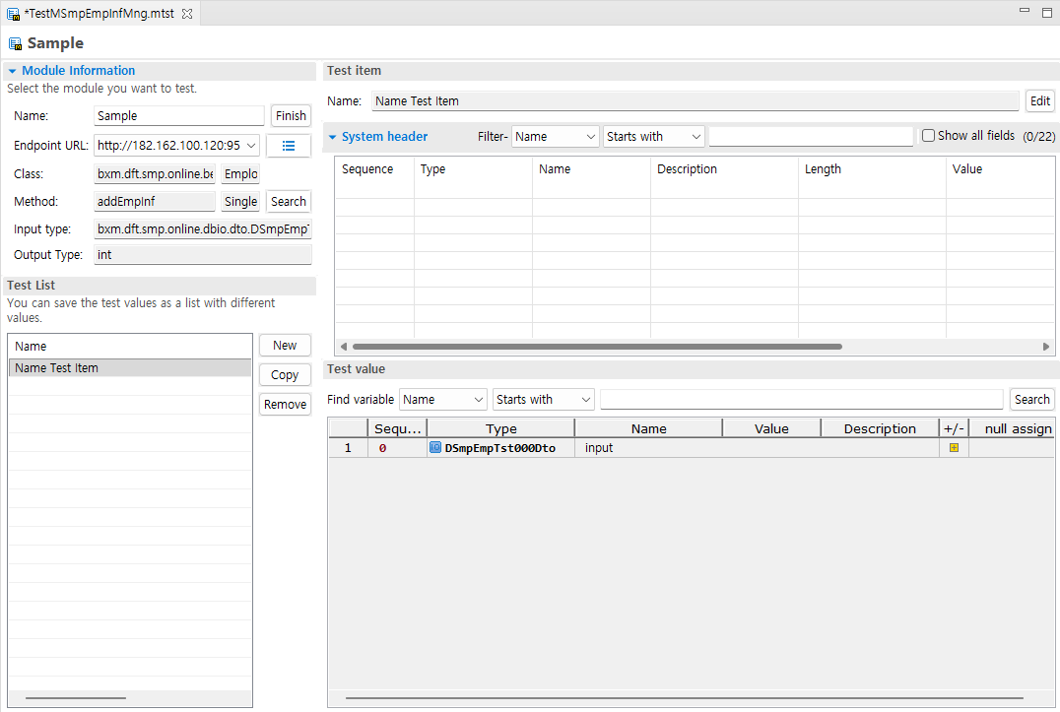 Figure 5. Module Test Tool Screen