Excel Design
This document describes how to create an Excel design.
1. Excel Design Sheet Configuration
This section describes the sheet configuration of the Excel design.
-
Design File List Sheet
This sheet is used to create a list of design files to be generated.

-
Component List Sheet
This sheet is used to create lists of services, components, and DBIOs.

-
IO List Sheet
This sheet is used to create an IO list.

2. Creating an Excel Design
This section describes how to create an Excel design.
2.1. Creating the Design File List Sheet
This section describes how to create the design file list sheet.

-
File Name: Enter the name of the design file to be generated.
-
Author: Enter the author.
-
Description: Enter a description of the design file.
-
Business - Logical Name: Enter the logical name of the business code.
-
Business - Physical Name: Enter the physical name of the business code.
2.2. Creating the Component List Sheet
This section describes how to create the component list sheet.
2.2.1. Creating the Component List Sheet (Design File Name ~ Method)

-
File Name: Enter the name of the design file to which the component belongs.
-
Application Classification: Enter the application to which the component belongs.
-
Allowed values:
ONLINE,BATCH
-
-
Share: If the component is to be shared externally, enter
Y. -
Program Category: Enter the program category.
-
Allowed values:
SERVICE,BEAN,DBIO
-
-
Component - Physical Name: Enter the physical name of the component as meta. If there are multiple meta values, separate them with
.. If the logical name is entered, the physical name does not need to be entered.Example)
acct.rcpt -
Component - Logical Name: Enter the logical name of the component as meta. If there are multiple meta values, separate them with
..Example)
account.transfer -
Component - Description: Enter a description of the component.
-
Method - Access Modifier: Enter the access modifier of the method. The allowed access modifiers vary depending on the program category.
-
If the program category is SERVICE:
public,protected,private -
If the program category is BEAN:
public,protected,private -
If the program category is DBIO:
public
-
-
Method - Prefix: Enter the prefix of the method. If there is no prefix, leave it blank.
-
Allowed values:
insert,sql,update,delete,merge,select
-
-
Method - Physical Name: Enter the physical name of the method as meta. If there are multiple meta values, separate them with
.. If the logical name is entered, the physical name does not need to be entered. -
Method - Logical Name: Enter the logical name of the method as meta. If there are multiple meta values, separate them with
.. -
Method - Description: Enter a description of the method.
2.2.2. Creating the Component List Sheet (Input)
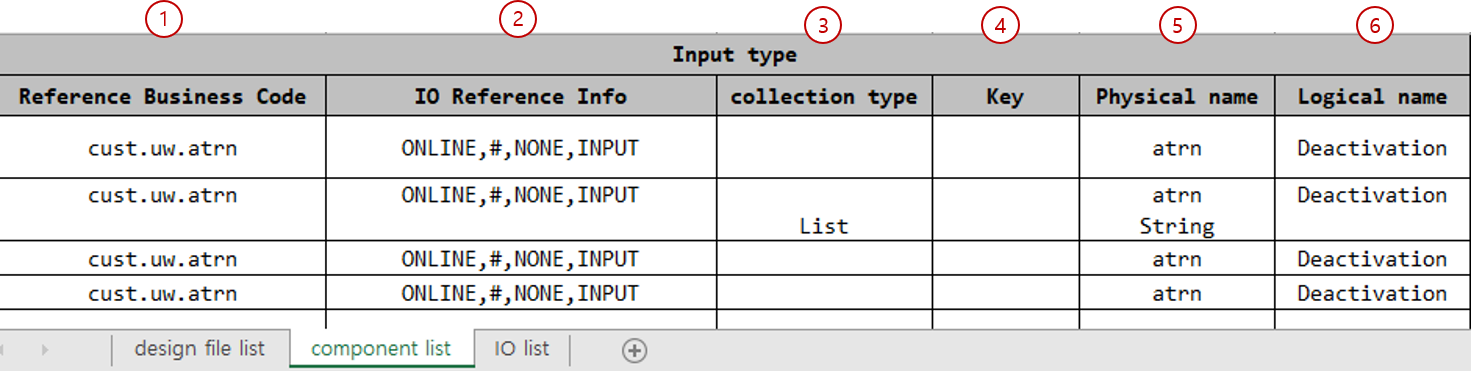
-
Input - Reference Business Code: Enter this when the input parameter is of IO type. Enter the business code of the IO, separated by
.. If this field is blank, it is regarded as the business code of the design file to which the component belongs. If the IO reference info is blank, do not enter anything.Example) If L1: cust, L2: uw, L3: atrn, enter
cust.uw.atrn. -
Input - IO Reference Info: Enter this when the input parameter is of IO type. Enter, in order, the application to which the IO belongs, whether it is shared, the applicable class, and the I/O division, separated by
,.If the component is not a shared component or the applicable class is
NONE, you can enter#.-
If there are 4 values, they are read as Application, Share, Applicable Class, I/O division.
Example)
ONLINE,Y,NONE,INPUT -
If there are 3 values, they are read as Application, Applicable Class, I/O division.
Example)
ONLINE,NONE,INPUTorONLINE,#,INPUT -
If there are 2 values, they are read as Applicable Class, I/O division. The application is regarded as
ONLINE.Example)
SERVICE,OUTPUT -
If there is 1 value, it is read as I/O division. The application is regarded as
ONLINEand the applicable class asNONE.Example)
INPUT
-
-
Input - Collection Type: Enter the collection type of the input parameter.
-
Allowed values:
List,Set,Map
-
-
Input - Key: If the collection type is
Map, enter the key type. If blank, it is regarded asString. If the collection type is notMap, the entered value is ignored.-
Allowed values:
Integer,Long,Float,Double,Short,Byte,Character,Boolean,String
-
-
Input - Physical Name: If the input parameter is of IO type, enter the physical name as meta. If there are multiple meta values, separate them with
.. If the logical name is entered, the physical name does not need to be entered. If the input parameter is a primitive type, enter the primitive type. If there is no input parameter, leave it blank.-
Allowed values when it is a primitive type:
int,long,float,double,short,byte,byte[],char,boolean,String,Integer,Long,Float,Double,Short,Byte,Character,Boolean,BigDecimal,BigInteger,Date,Timestamp,IOmmObject
-
-
Input - Logical Name: If the input parameter is of IO type, enter the logical name as meta. If there are multiple meta values, separate them with
.. If the input parameter is a primitive type, leave it blank.If there are multiple inputs, you must enter them by inserting line breaks within the same cell.

If there are no input parameters, leave all items 1.~6. blank.
2.2.3. Creating the Component List Sheet (Output)
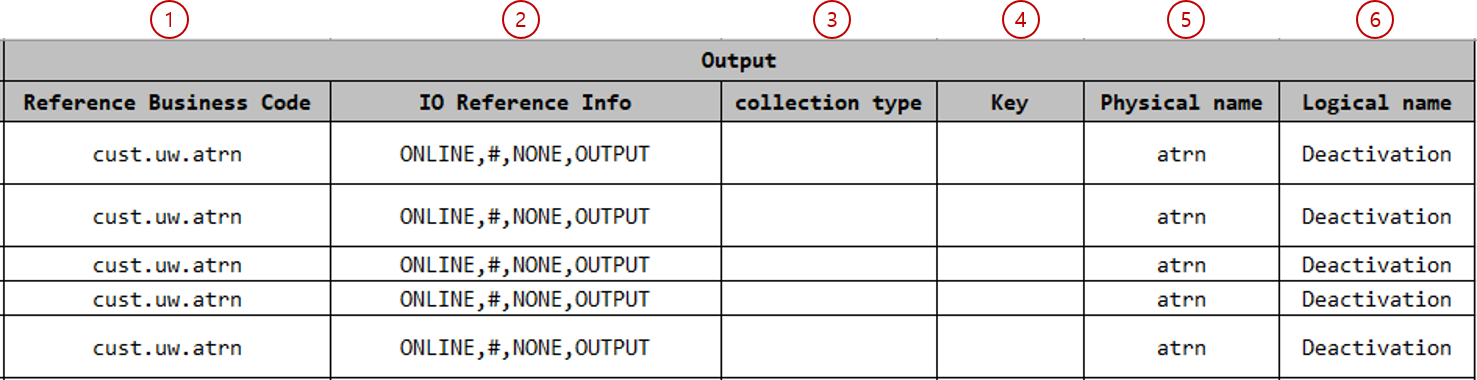
The output input method is the same as for input parameters.
-
Output - Reference Business Code: Enter this when the output is of IO type.
-
Output - IO Reference Info: Enter this when the output is of IO type.
-
Output - Collection Type: Enter the collection type of the output.
-
Output - Key: If the collection type is
Map, enter the key type. -
Output - Physical Name: Enter the physical name of the output.
-
Output - Logical Name: Enter the logical name of the output.
If the output is void, leave all items 1.~6. blank.
2.3. Creating the IO List Sheet
This section describes how to create the IO list sheet.
2.3.1. Creating the IO List Sheet (Design File ~ IO)
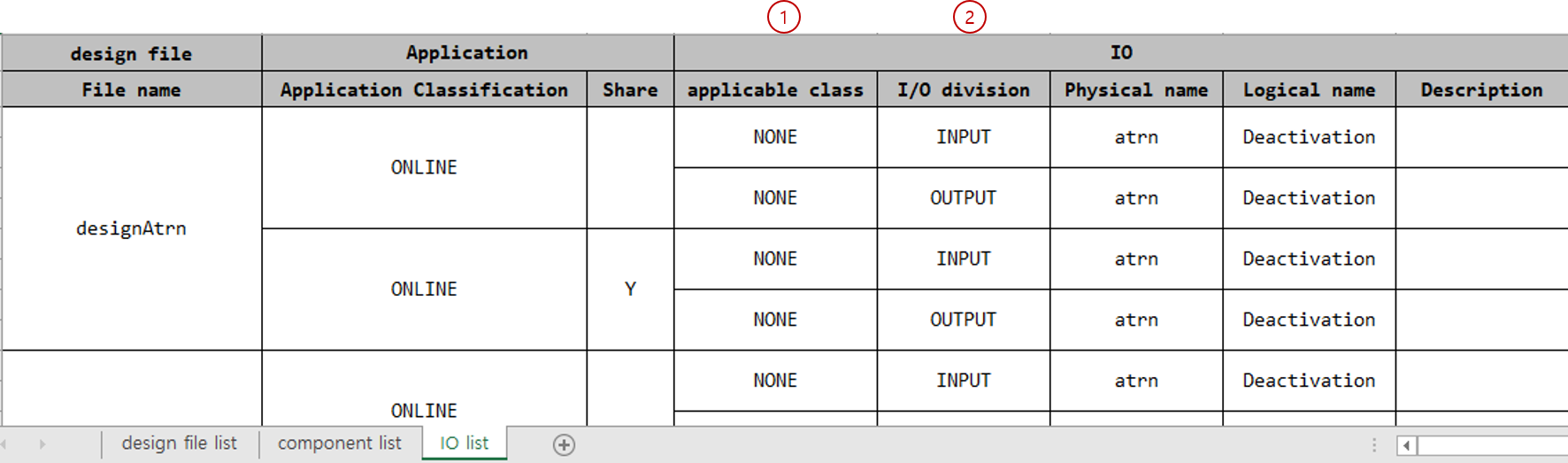
For how to enter the design file name, application classification, share, physical name, logical name, and description, refer to Creating the Component List Sheet (Design File Name ~ Method).
-
Applicable Class: Enter the applicable class. If you do not specify the applicable class, enter
NONEor leave it blank.-
Allowed values:
NONE,SERVICE,BEAN,DBIO,BATCH_COMPONENTS
-
-
I/O division: Enter the I/O division.
-
Allowed values:
INPUT,OUTPUT,SUB_INPUT,SUB_OUTPUT,IN_OUT,SUB_IN_OUT
-
2.3.2. Creating the IO List Sheet (IO Field)
-
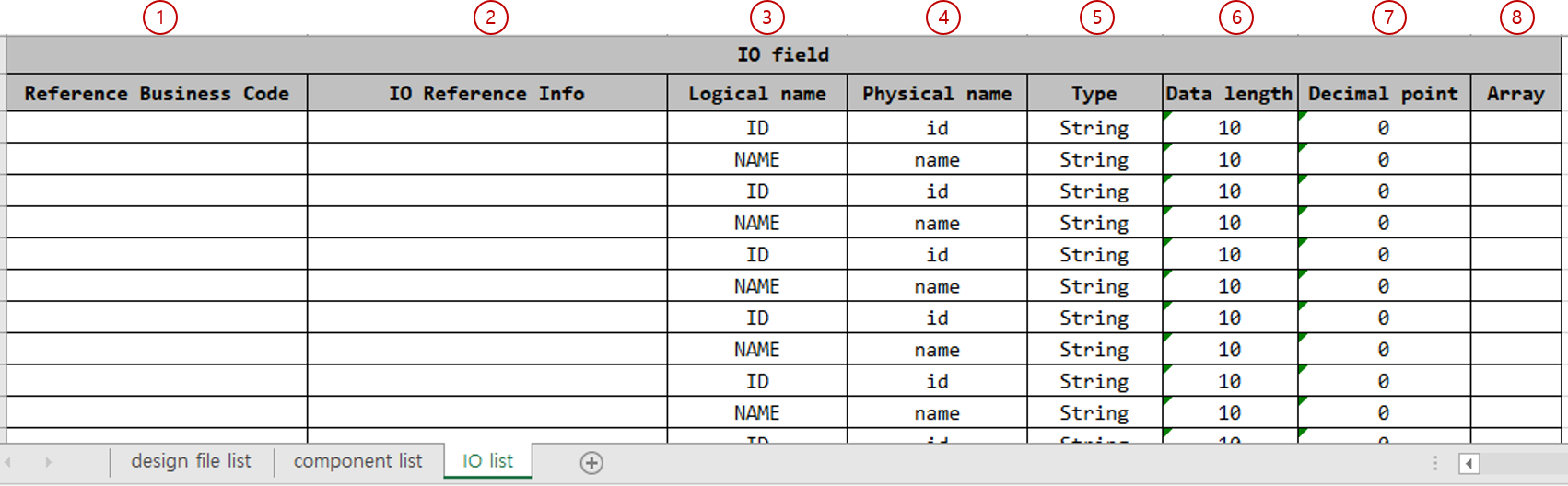
IO Field - Referenced Business Code: Enter this when the field is of IO type. For how to enter, refer to item 1 of Creating the Component List Sheet (Input).
-
IO Field - IO Reference Info: Enter this when the field is of IO type. For how to enter, refer to item 2 of Creating the Component List Sheet (Input).
-
IO Field - Logical Name: Enter the logical name of the field as meta. If there are multiple meta values, separate them with
.. -
IO Field - Physical Name: Enter the physical name of the field as meta. If there are multiple meta values, separate them with
.. If the logical name is entered, the physical name does not need to be entered. -
IO Field - Type: If the field is a primitive type, enter the type. Do not enter anything if it is of IO type.
-
Allowed values:
int,long,float,double,short,byte,byte[],char,boolean,String,Integer,Long,Float,Double,Short,Byte,Character,Boolean,BigDecimal,BigInteger,Date,Timestamp
-
-
IO Field - Data Length: Enter the data length.
-
IO Field - Decimal Point: Enter the number of decimal points.
-
IO Field - Array: If it is an array, enter
Y.