Design Editor
1. Layout
The Design Editor is structured as follows:
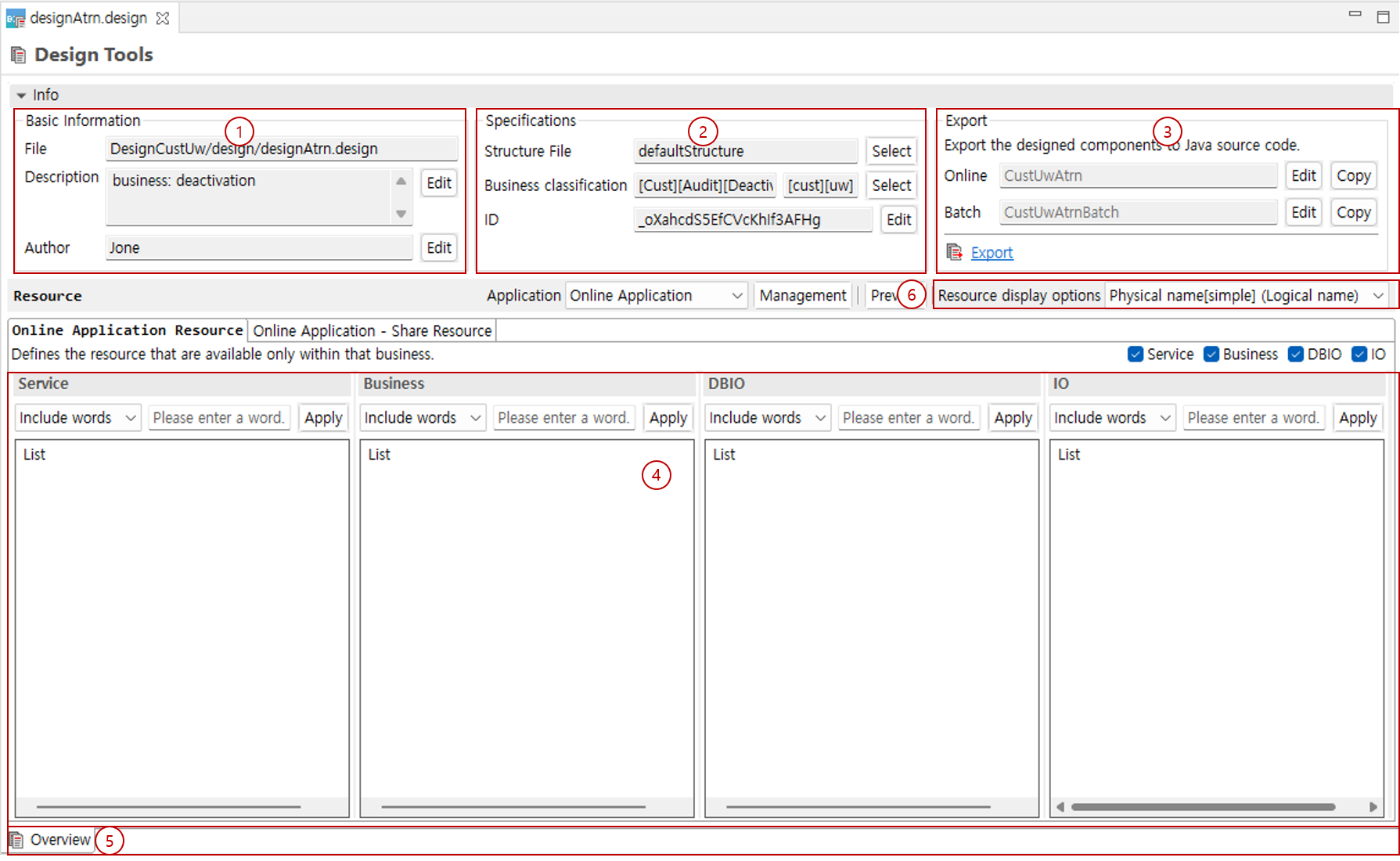
-
Area where you can modify basic information such as the design file name, description, and author.
-
Area where you can set which domain the components in the current design belong to.
-
Area used to generate completed design components into actual physical source.
-
Area where you can create components.
-
Tab area for opening and editing multiple components simultaneously to facilitate component editing.
-
Option to display component names.
-
Logical name: Displays only the logical name.
-
Physical name: Displays the full name including the package name.
-
Physical name[simple]: Displays only the class name.
-
Physical name (logical name): Displays the full name including the package name together with the logical name.
-
Physical name[simple] (logical name): Displays the class name together with the logical name.
-
Logical name (physical name): Displays the logical name together with the full name including the package name.
-
Logical name (physical name[simple]): Displays the logical name together with the class name.
-
2. Application Types
-
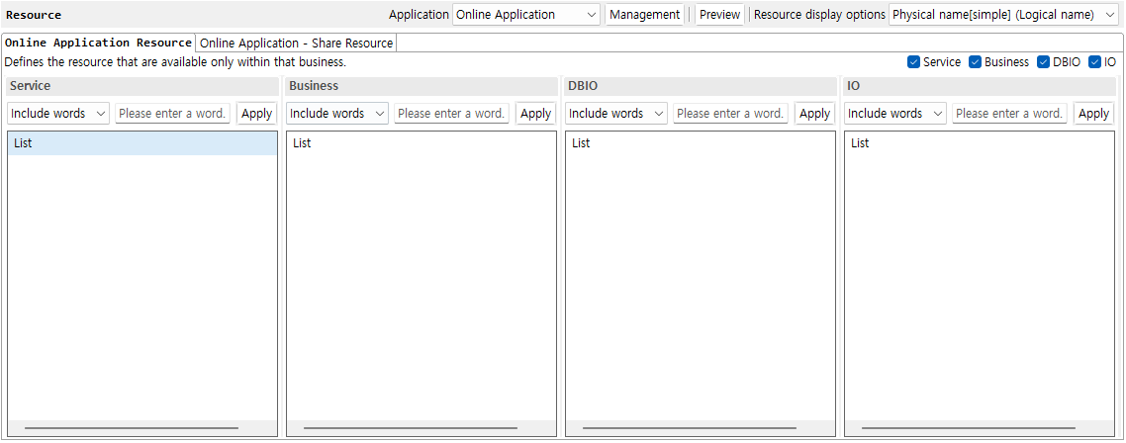
Online Application Resource
This is the tab that generates the resources (Service, Business, DBIO, IO) required for an online application.
-
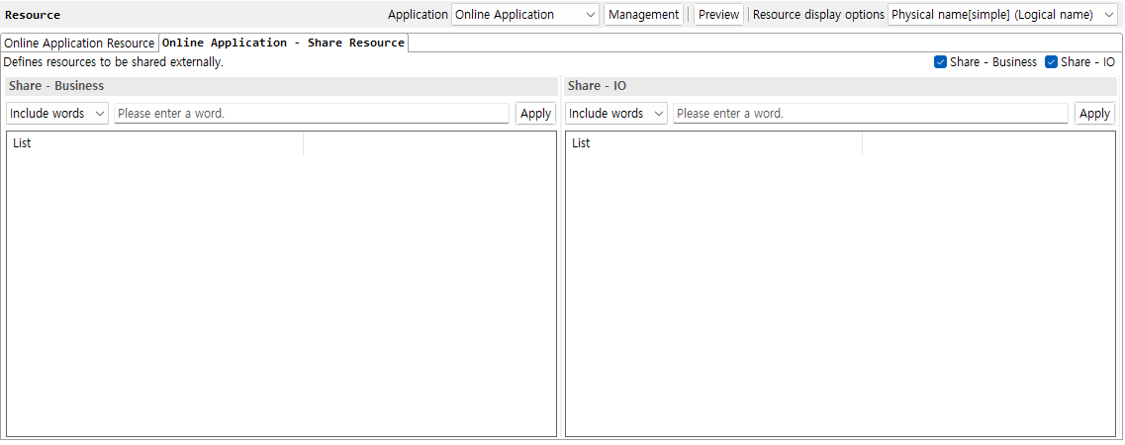
Online Application – Share Resource
This is the tab that generates resources (Business, IO) to be shared with external systems.
-
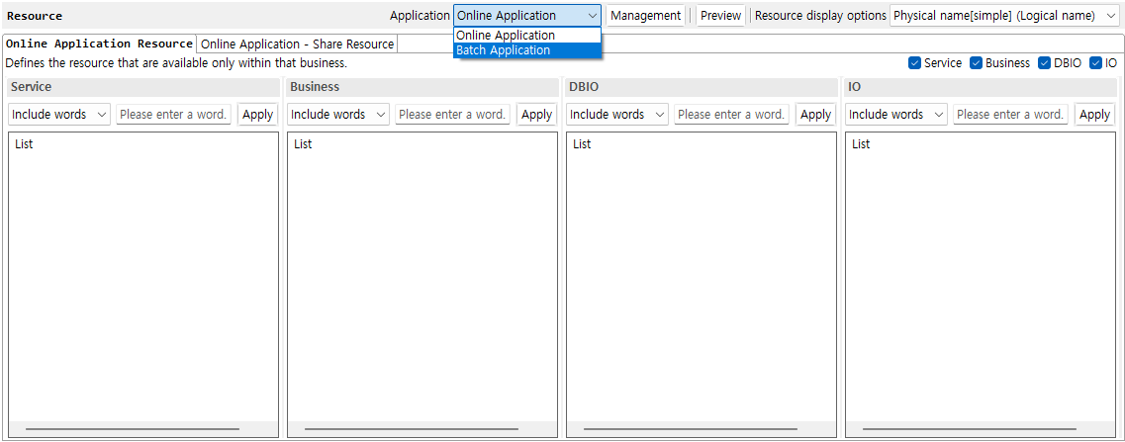
Batch Application Resource
This is the tab that generates the resources (Batch Job, Batch component, Business, DBIO, IO) required for a batch application.
When you select Batch Application from the application combo box, the batch application resources tab is displayed.
3. Application Type Management
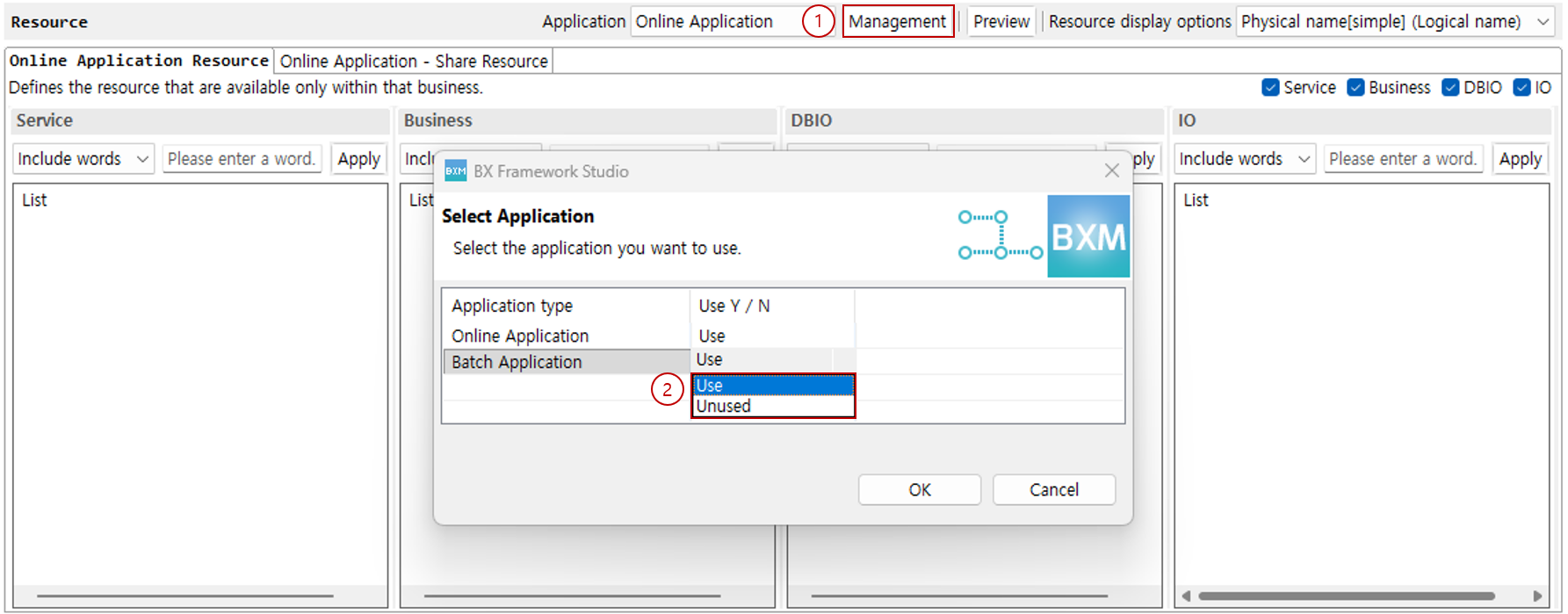
When creating and using a design by selecting only an online or batch application as the application type in the New Design wizard, if you need to add an application type or want to remove an application already in use, you can reassign the applications to use through the Application Type Management function.
-
Click the Management button to open the 'Select Application' Dialog.
-
In the list of available applications, select whether to use each one. When you click the OK button, the selected applications are added to or deleted from the design.
4. Preview
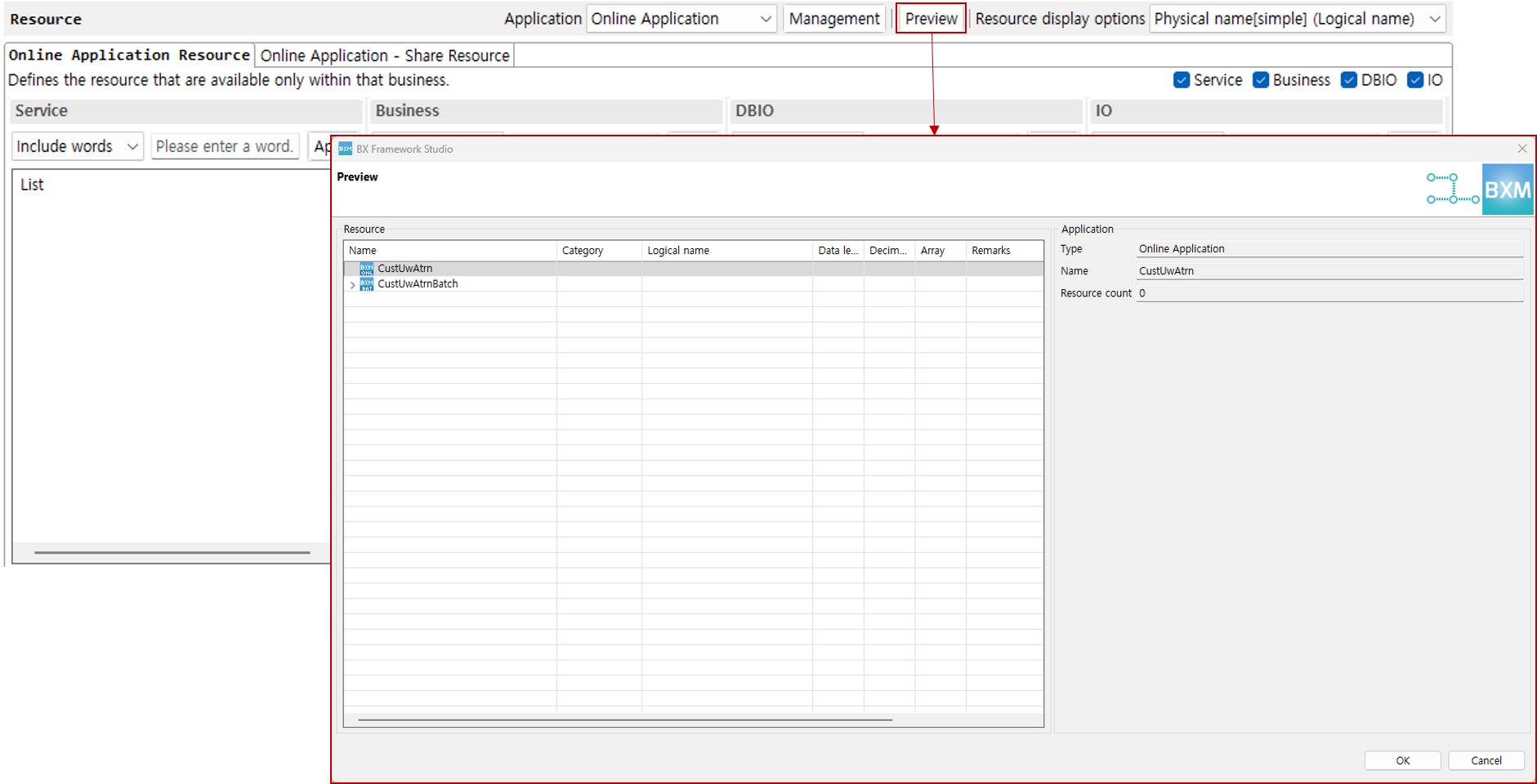
Clicking the Preview button allows you to check the list of designed online/batch application resources and detailed information for each resource.
5. Outline
The Outline of the Design Document Editor consists of two tabs:
-
Resource tab
-
Call Relation tab
5.1. Resources Tab
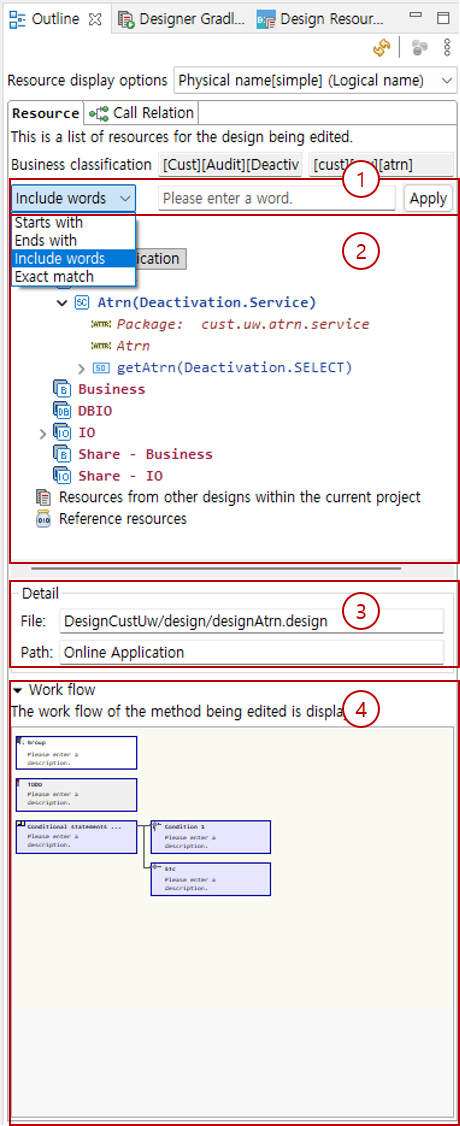
The Resources tab displays the resources of the design file currently being edited and its referenced resources. The Resource tab is structured as follows:
-
Options
You can specify the word matching range and enter words so that only the desired list is displayed.
-
List
-
Resource list of the current design file
-
Resources of other design files in the current project
Displays a list of resources that exist in other design files within the current project.
-
Reference resources
Displays a list of resources of design files that exist in other design projects registered in the classpath or in jar files.
If the domain of the design file being edited and the domain of the referenced design file are subdomains of a project defined as the same domain, all resources are displayed; otherwise, only shared resources are displayed.
-
-
Detail
You can check the design and path that contain the selected resource/method.
-
Work flow
Displays the work flow of the method being edited.
5.2. Call Relation Tab
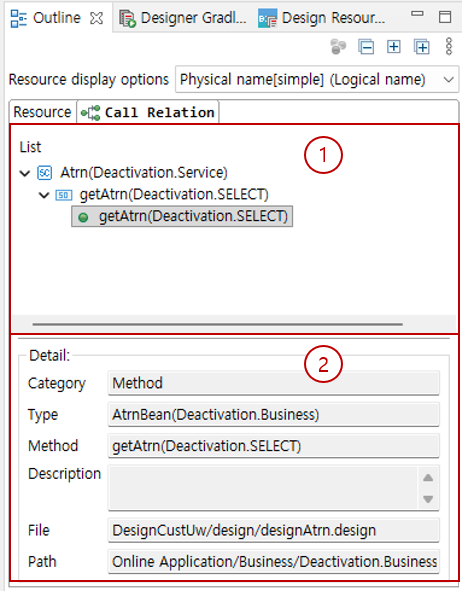
The Call Relation tab displays, in tree form, the call relationships of methods defined in the design file currently being edited. The Call Relation tab is structured as follows:
-
List
Displays, in tree form, the methods that have call methods defined in the design file currently being edited and their call relationships.
Double-click to open the selected item in the editor. -
Detail
Displays detailed information about the item selected in the list.