Transaction Parameter Management
This screen is used to manage parameters for online transactions.
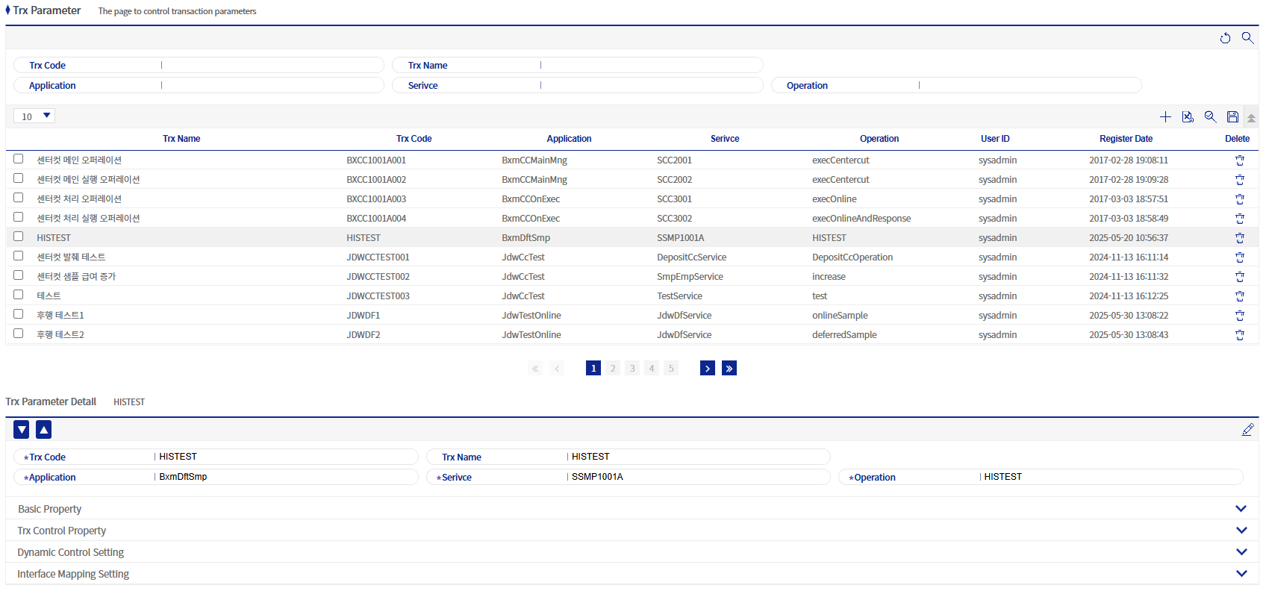
1. Add/Modify Transaction Parameter Popup
This popup is used to add/modify transaction parameters. The fields transaction code (*if used), application, service, and operation are mandatory.
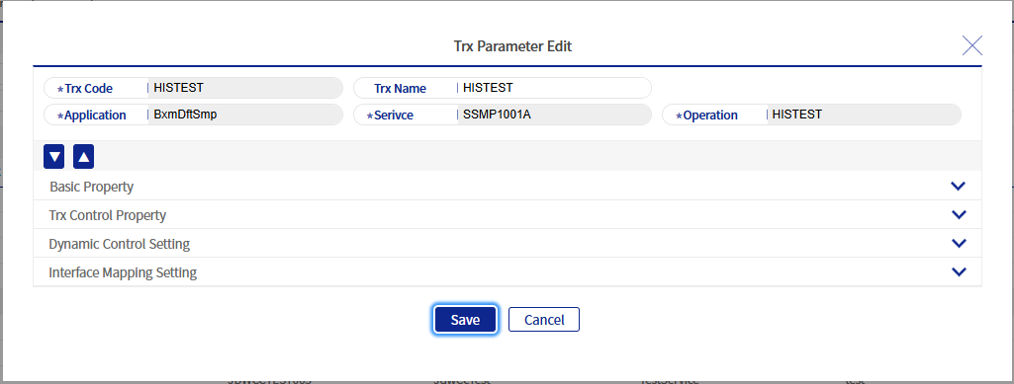
The add/modify popup contains many items and is composed with an accordion UI. The following describes each item in detail.
1.1. Mandatory Area
These are essential elements for a transaction and are located at the top of the popup. If they are not registered, add/modify is not possible.
| Field Name | Description |
|---|---|
Transaction code |
Registers the code to be used for the transaction. Depending on the characteristics of the Client Site, this field itself may not exist. |
Transaction name |
Registers the name of the corresponding transaction. |
Application |
Registers the BXM application name of the corresponding transaction. |
Service |
Registers the service name (@BxmService annotation value) of the corresponding transaction. |
Operation |
Registers the operation name (@BxmServiceOperation annotation value) of the corresponding transaction. |
1.2. Basic Attribute Area
This is the first attribute area in the popup, where you can define basic attributes of the transaction.
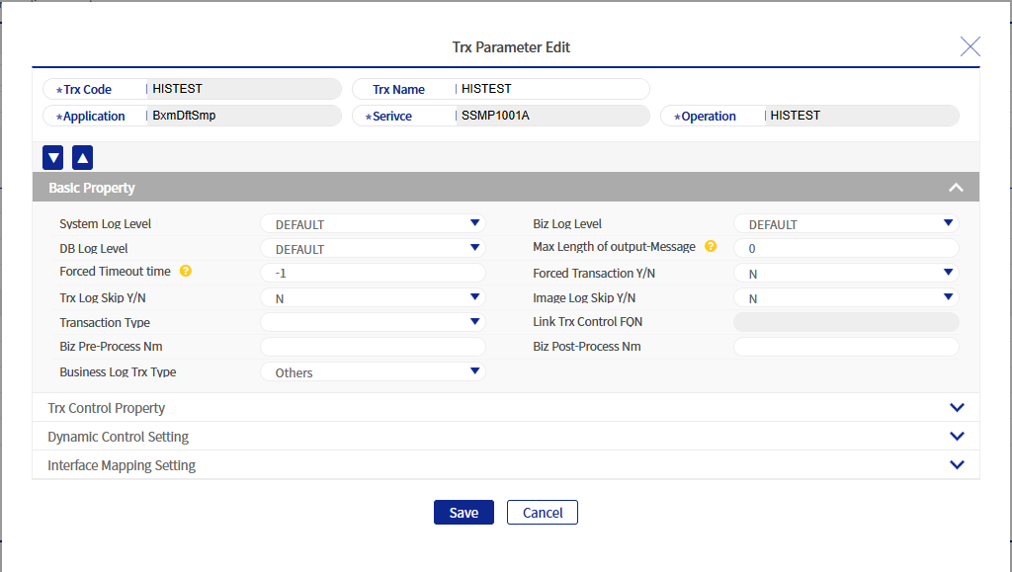
| Field Name | Description |
|---|---|
System log level |
Sets the System log level. The log levels are TRACE > DEBUG > INFO > WARN > ERROR in order, and if set to DEFAULT, the log level configured for the corresponding BXM application is applied. |
Job log level |
Sets the job log level. The log levels are TRACE > DEBUG > INFO > WARN > ERROR in order, and if set to DEFAULT, the log level configured for the corresponding BXM application is applied. |
DB log level |
Sets the DB log level. The log levels are TRACE > DEBUG > INFO > WARN > ERROR in order, and if set to DEFAULT, the log level configured for the corresponding BXM application is applied. |
Maximum size of output message |
Sets the maximum size of the output message (unit: BYTE). |
Forced time-outs |
Sets the transaction time-out (unit: ms). |
Check whether transactions are bundled or not |
If set to Y, transactions are processed as bundled even when the @TransactionalOperation annotation is not present. |
Skip job log |
Indicates whether to record transaction logs. If set to Y, transaction logs are not recorded. |
Skip image log |
Indicates whether to record image logs. If set to Y, image logs are not recorded. |
Job pre-process name |
Sets the job pre-process class name. Enter the fully-qualified name (e.g. bxm.dft.sample.PreProcessSmp). |
Job after process name |
Sets the job after process class name. Enter the fully-qualified name (e.g. bxm.dft.sample.PostProcessSmp). |
Job log transaction type |
The job log transaction type is classified into four types: Others, Deposit, Withdrawal, and Transfer. |
1.3. Transaction Control Attribute Area
This is the second attribute area in the popup, composed of attributes that can control transactions.
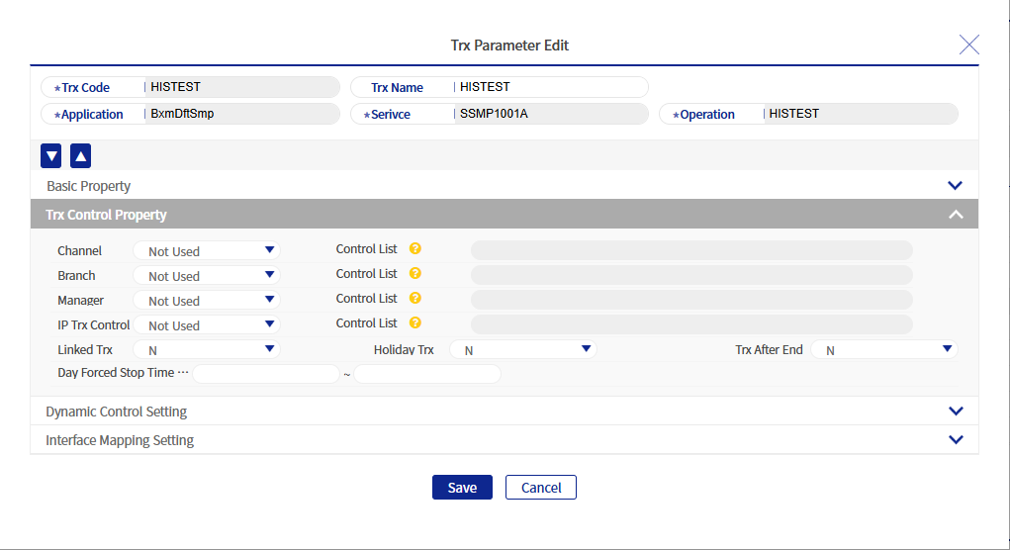
| Field Name | Description |
|---|---|
Channel target list |
Allows you to control transactions by channel. When set as an allow list, only transactions coming from channels in the target list are allowed. When set as a deny list, transactions coming from channels in the target list are blocked. The target list is written in CSV format. |
Business branch target list |
Allows you to control transactions by Business branch. When set as an allow list, only transactions coming from Business branches in the target list are allowed. When set as a deny list, transactions coming from Business branches in the target list are blocked. The target list is written in CSV format. |
Operator target list |
Allows you to control transactions by Operator. When set as an allow list, only transactions coming from Operators in the target list are allowed. When set as a deny list, transactions coming from Operators in the target list are blocked. The target list is written in CSV format. |
Interlocking transactions |
Item for controlling whether interlocking transactions are allowed. |
Holiday transactions |
Item for controlling whether transactions are allowed on holidays. |
Transactions after cut-off time |
Item for controlling whether transactions are allowed after cut-off time. |
Times transactions are unavailable per day |
Allows you to set times when transactions are unavailable for each day. Enter as time in hour, minute, and second (example: 220000). |
1.4. Dynamic Control Settings Area
This is the third attribute area in the popup, composed of attributes that can dynamically control transactions.
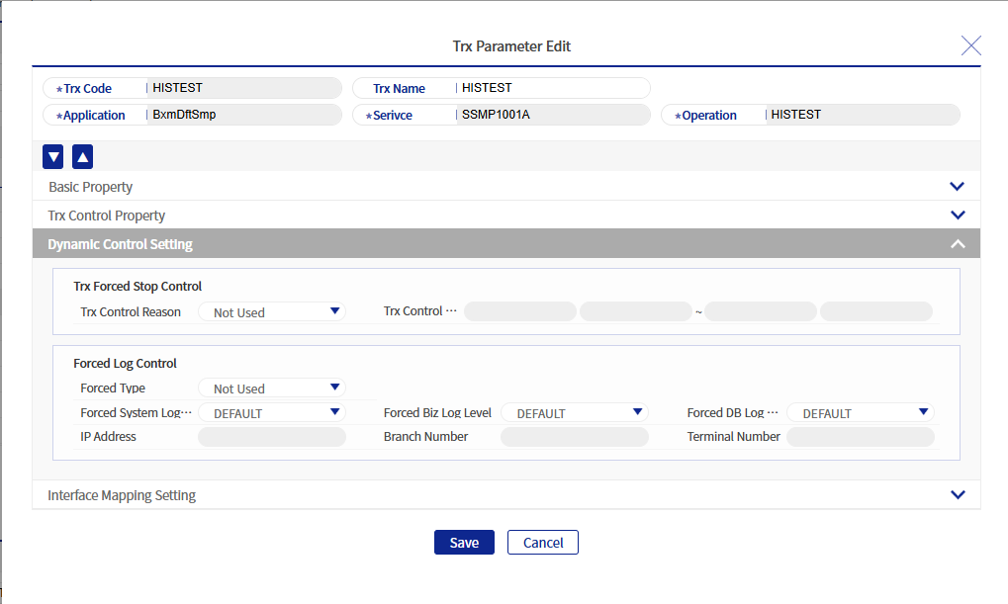
| Field Name | Description |
|---|---|
Transaction control |
By selecting a transaction control reason, you can set the transaction to an unavailable state. If "designated periods when transactions are prohibited" is selected as the reason, you can set the period. |
Forced log control |
When a transaction comes in from a specific IP, branch, or terminal number, you can change the log levels only for that case. You can set the System/Job/DB log level respectively. After selecting in the registration type, enter the remaining information in the activated fields. |