Application Architecture
This section describes how to design the application architecture in the design environment.
This chapter is intended not for individual designers but for administrators who manage overall business standards, such as process modelers or framework administrators.
1. Creating a New Structure File
This section describes how to create a structure file for defining the business classification structure and the business classification structure editor.
The new structure file is not exposed to general developers.
1.1. Creating a Structure File
-
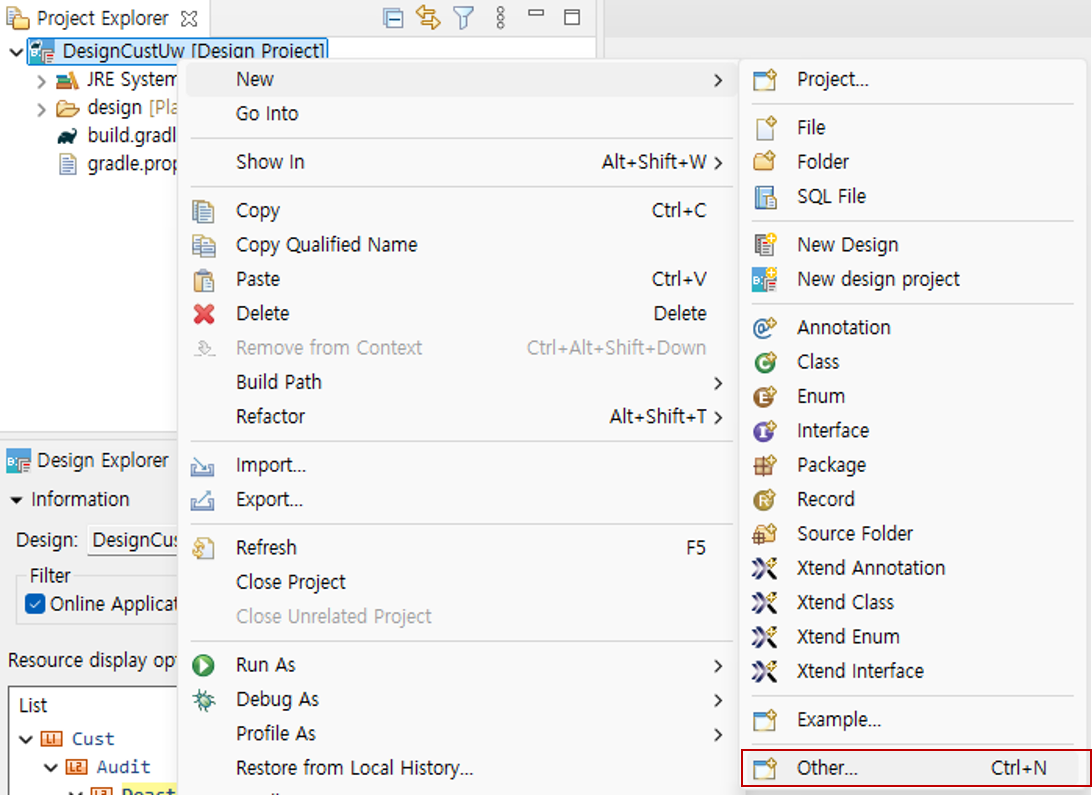
Right-click the design project or right-click in the Project Explorer view > click the 'NEW' > 'Other…' menu to open the New wizard.
-
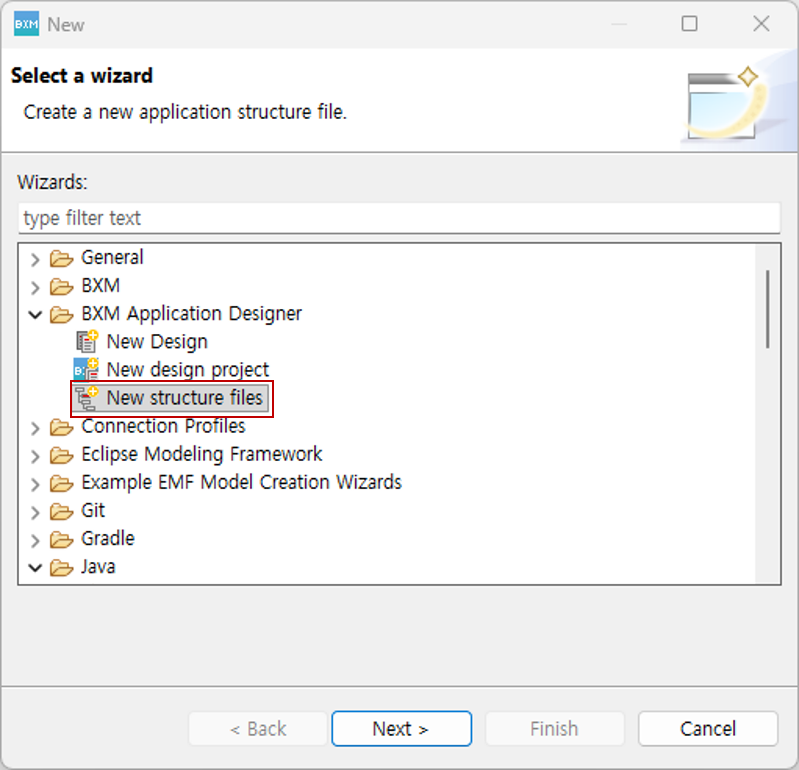
Select BXM Application Designer → 'New structure files' and click the Next button.
-
Enter the file name, ID, and file description, then click the Finish button to create the structure file.
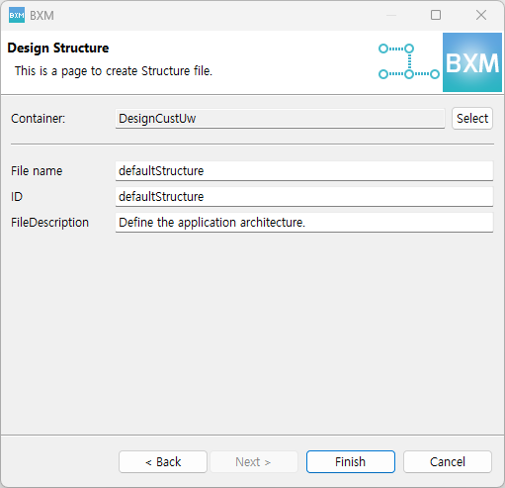
-
Check that the structure file is created under the project and that the editor opens normally.
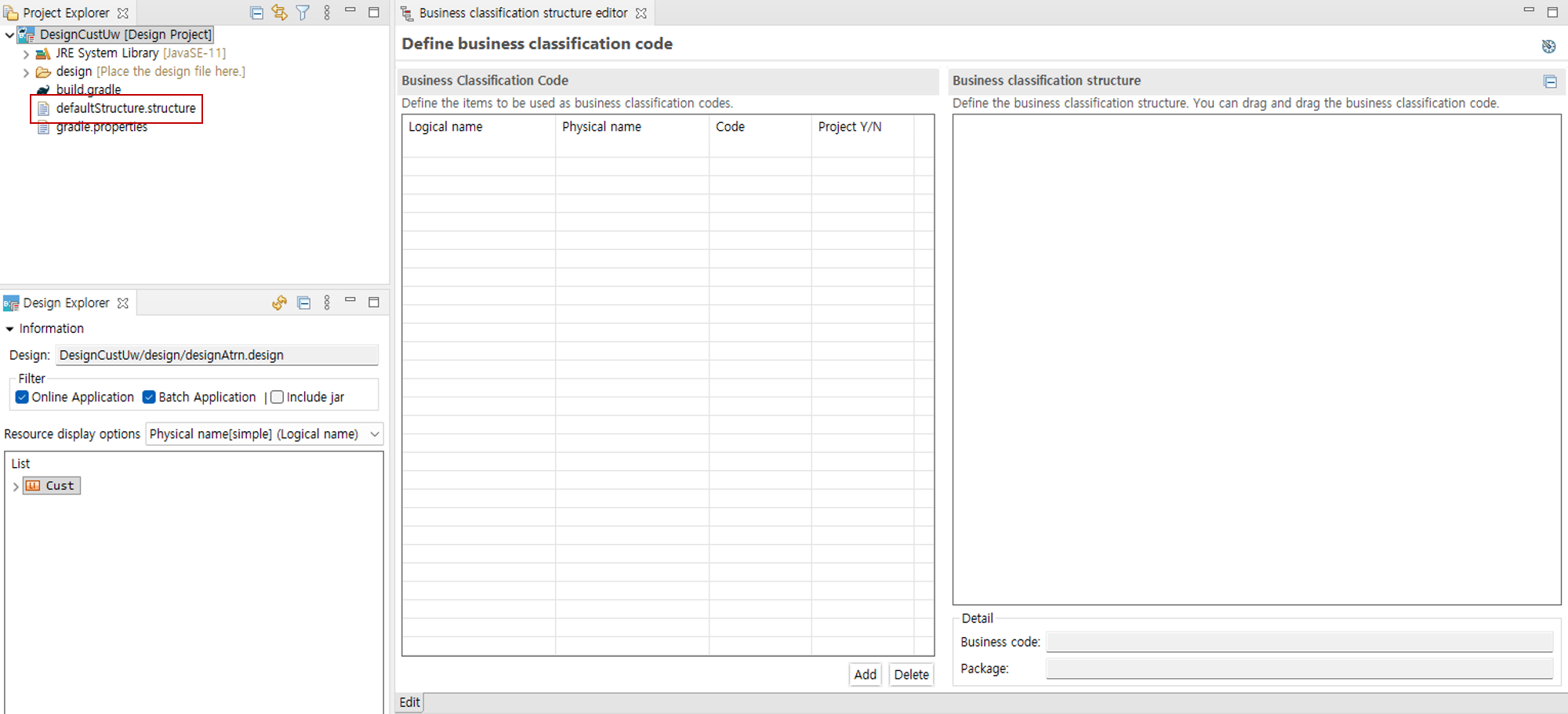
1.2. Business Classification Structure Editor
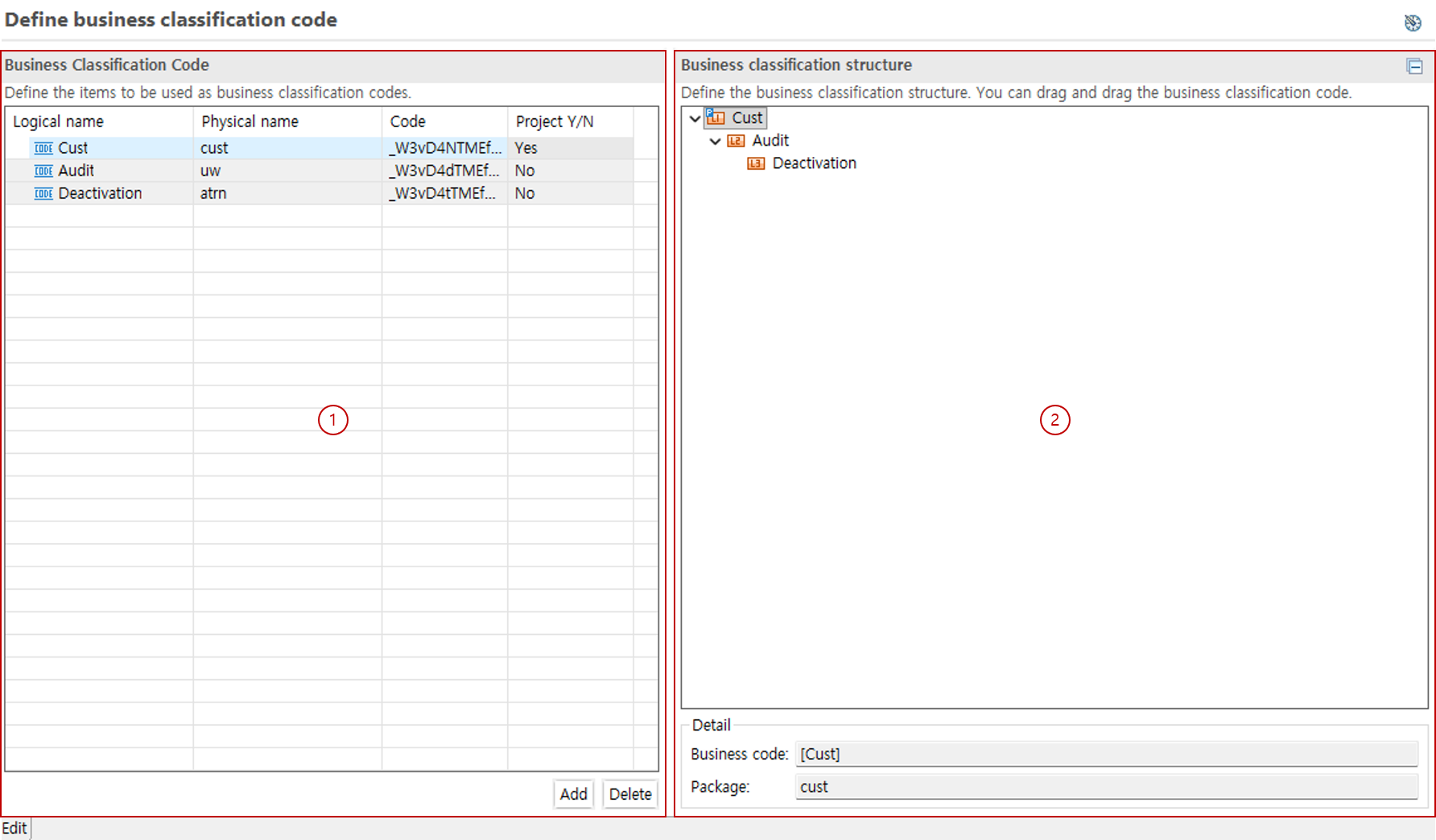
This section describes the composition of the business classification structure editor.
-
This area defines all business classification codes. In this area, you can define business classification codes, the logical names of business classifications, and whether the code is a project.
-
This area defines the hierarchy of business classification codes. You can define the parent/child business classification codes for each business classification code.
2. Defining Business Classification Codes
-
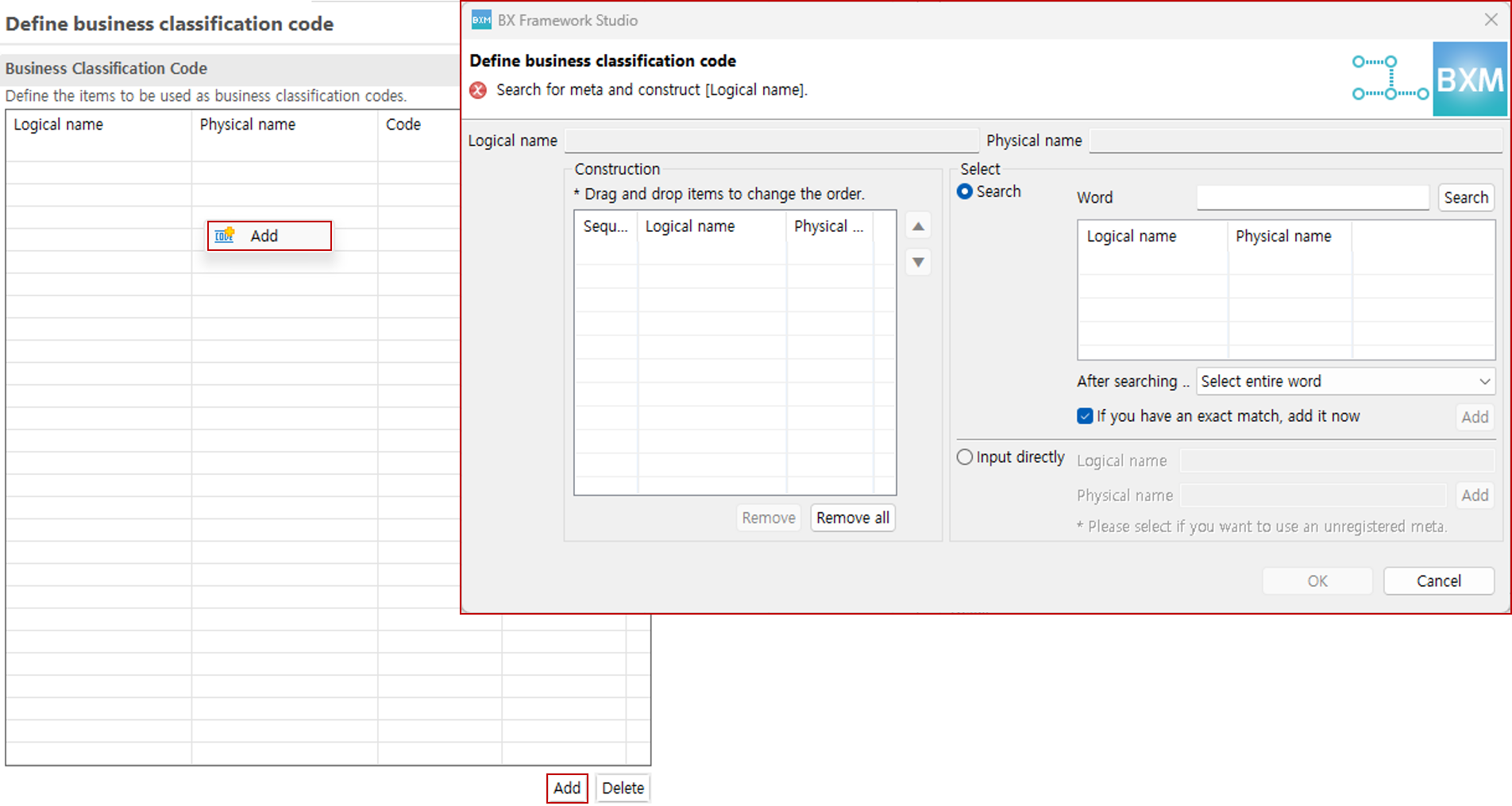
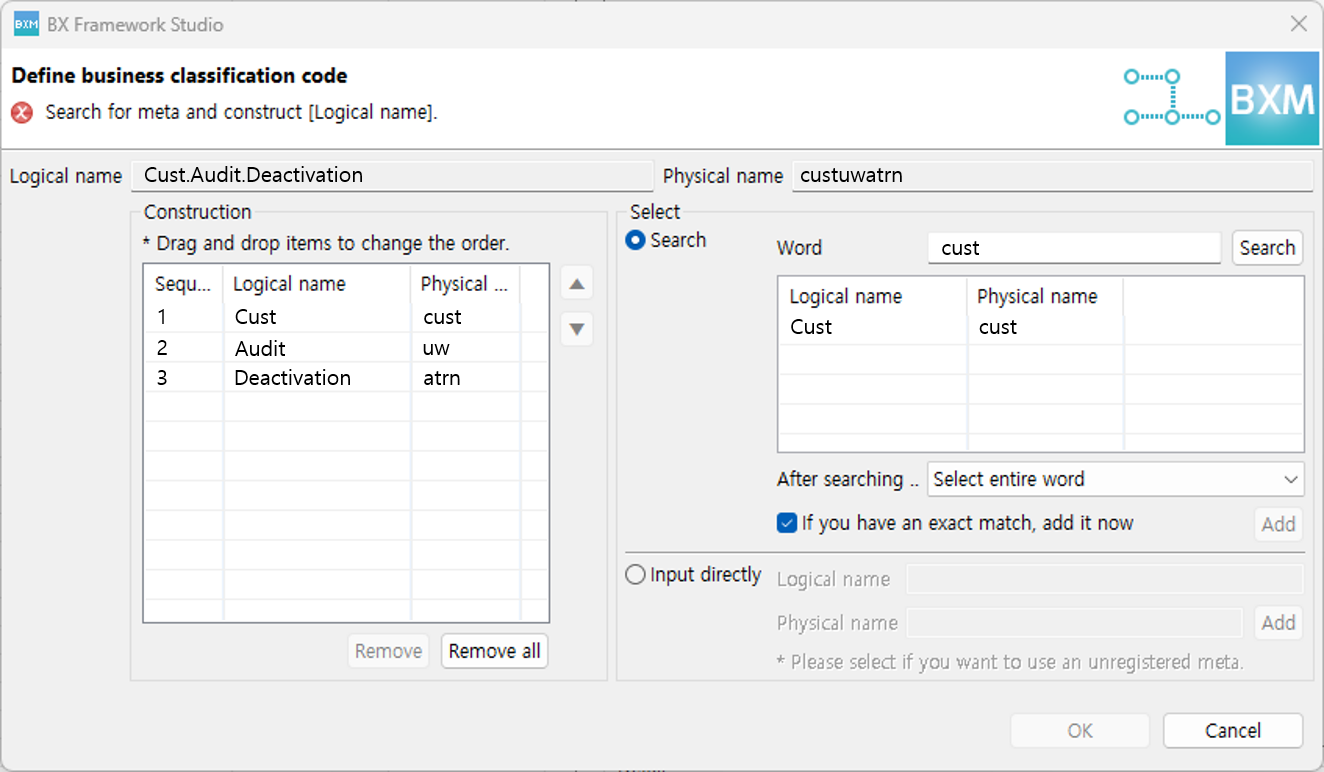
Right-click the business classification code area, or click the Add button to open the business classification code definition dialog.
-
Search for a word or directly enter it to add codes to the construction items.
-
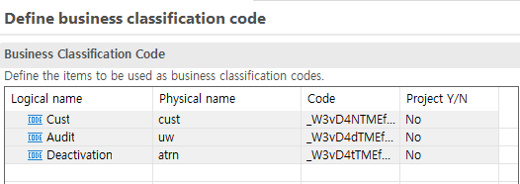
Click the OK button to complete adding the code.
3. Defining the Business Classification Structure
-
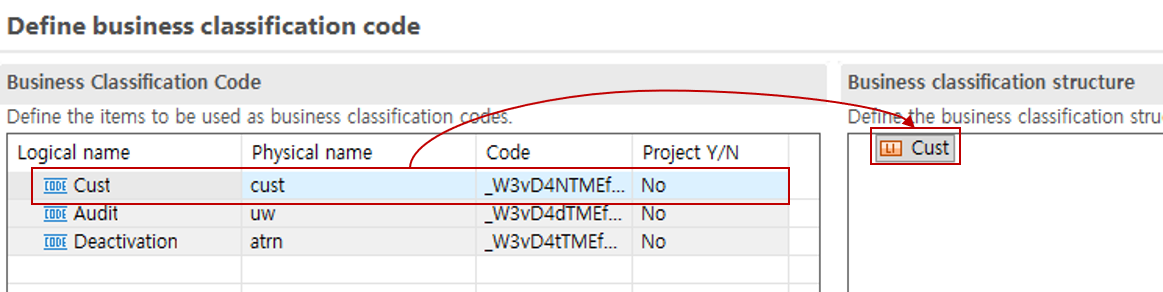
Drag the business classification code to the business classification structure area. At this time, if you drag it onto an already dropped code, it is applied as a subtype code.
-
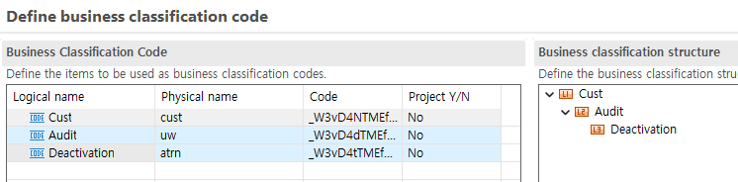
Check that the code has an appropriate map structure.
-
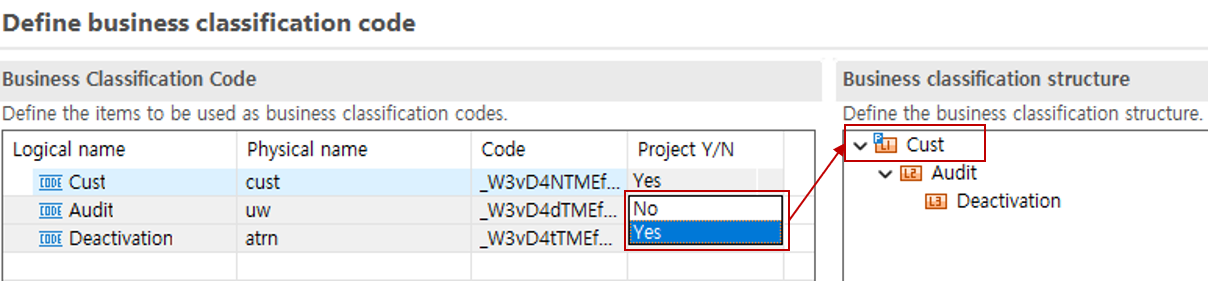
In the business classification code area, change the project status of codes to be used as projects. Resources of business classifications under the same project can reference each other, and otherwise, only shared resources can be referenced.