New Service test
To perform a service test, you must create a new service test.
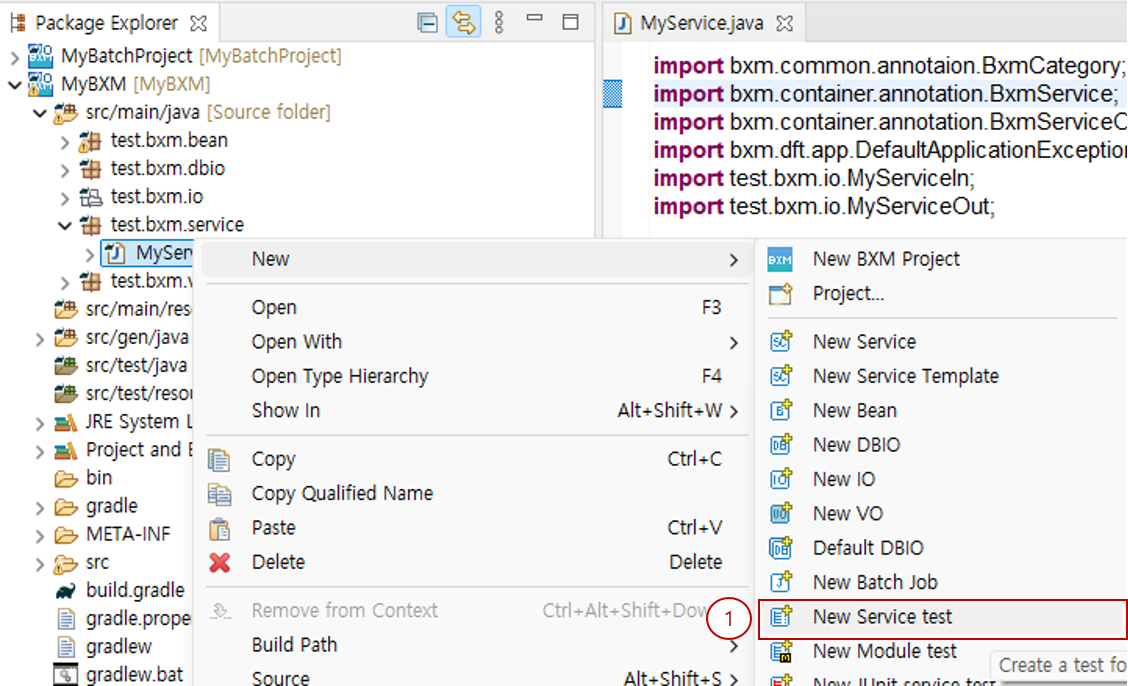
-
Select the service for which you want to create a service test → right-click → select the 'New Service test' wizard.
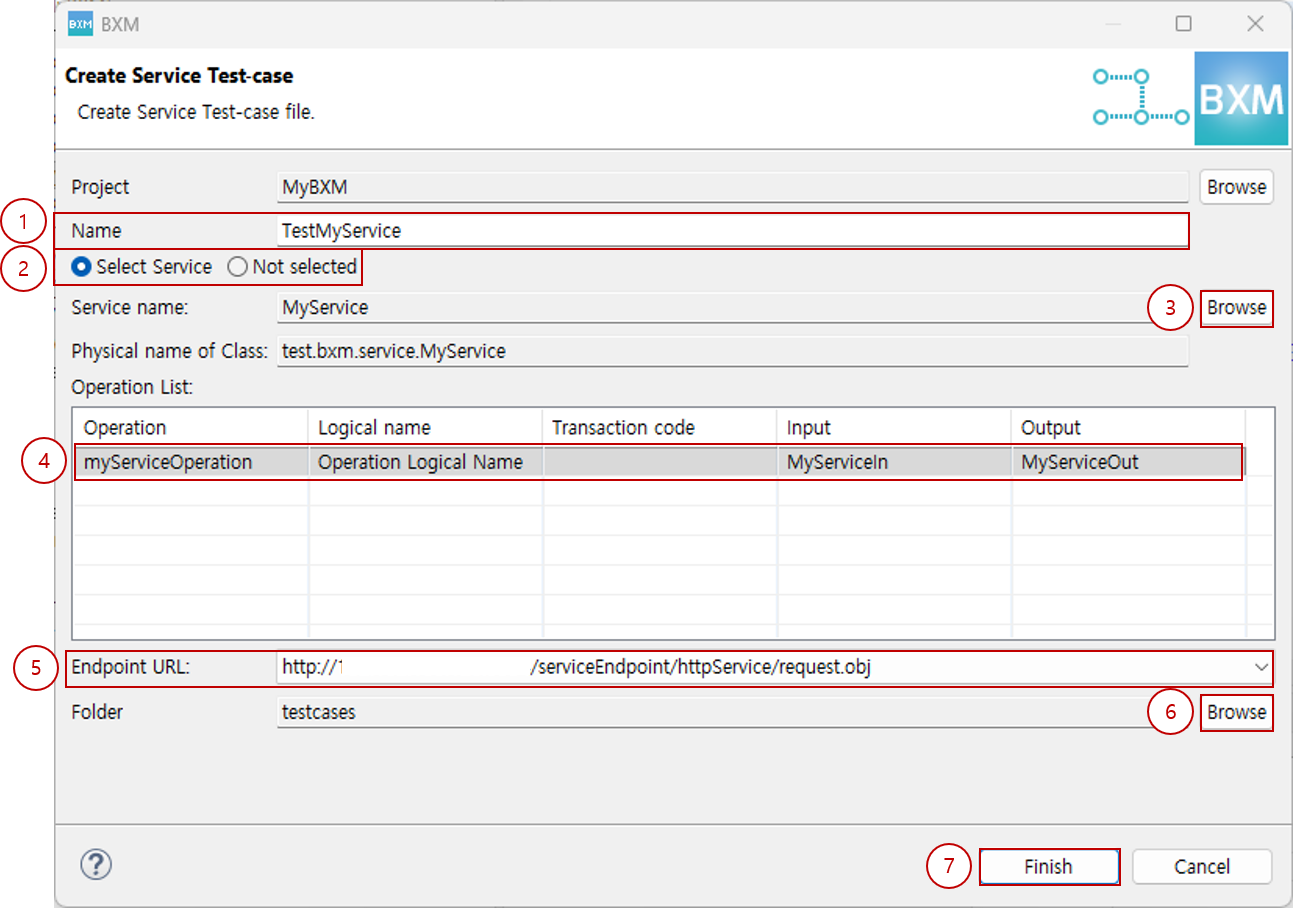
-
Enter the name of the new service test. The default name is generated based on the selected service.
-
To create a service test from a service operation, select Select Service, and to create an empty service test, select Not selected.
If you started the New Service test wizard by selecting a service, Select Service is selected by default.
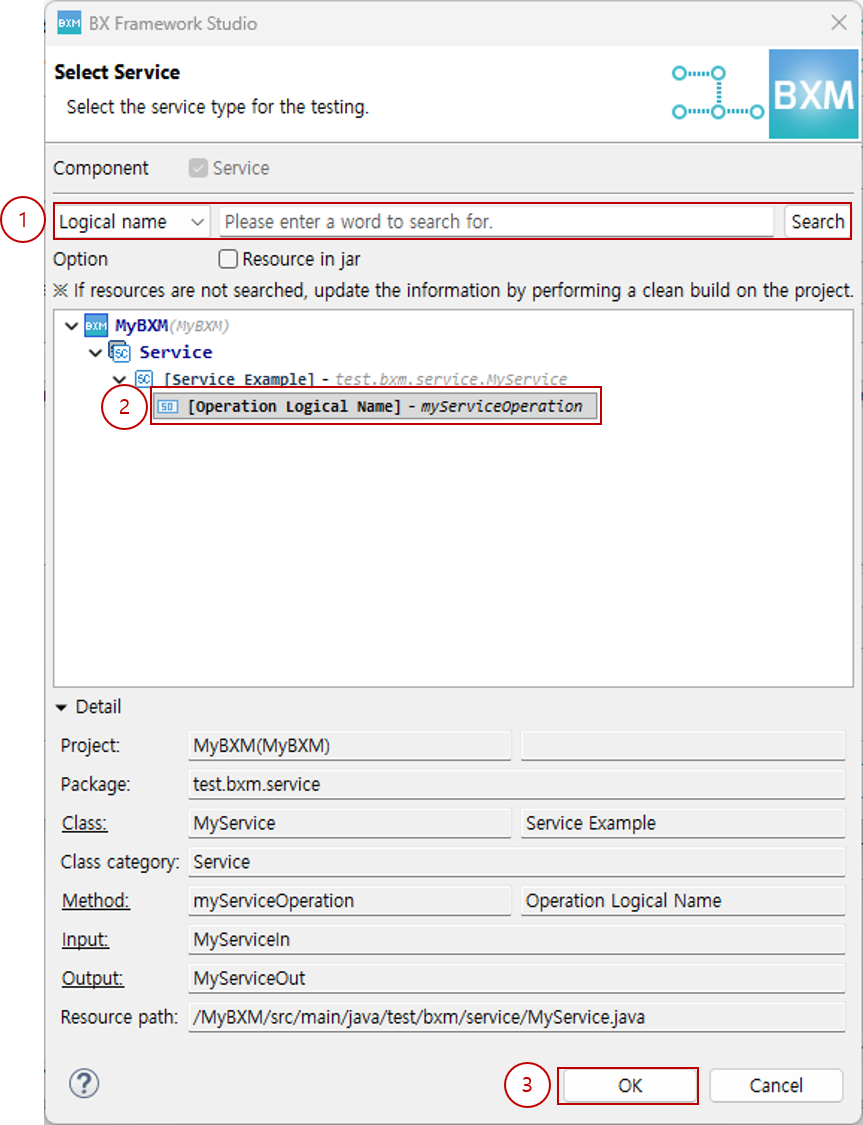
(1) Enter the conditions in the Dialog and click the Browse button.
(2) In the search results, select the service operation to be tested.
(3) Click the OK button. -
If you started the New Service test wizard without selecting a service, Not Selected is selected.
To select a service, click the Browse button.
-
From the operation list, select the operation to be tested.
-
Select the Endpoint URL to be tested.
-
If you need to change the folder where the service test will be created, click the Browse button to select a different folder.
-
Click the Finish button to exit the wizard.
|
For how to use the editor, refer to the Service Test page. |