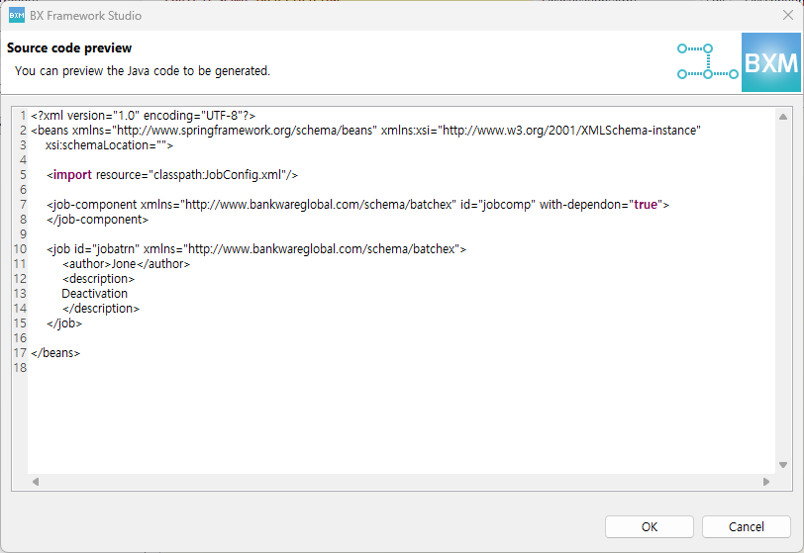
Batch Application Design
1. Resources
The resources that can be designed in a batch application are as follows:
| Resource | Description |
|---|---|
Batch Job |
You can design batch job (.xml) resources. |
Batch Component |
You can design Chunked and Tasklet resources. |
Business |
You can design business resources. |
DBIO |
You can design DBIO resources. |
IO |
You can design IO resources. |
2. Add Batch Component
-
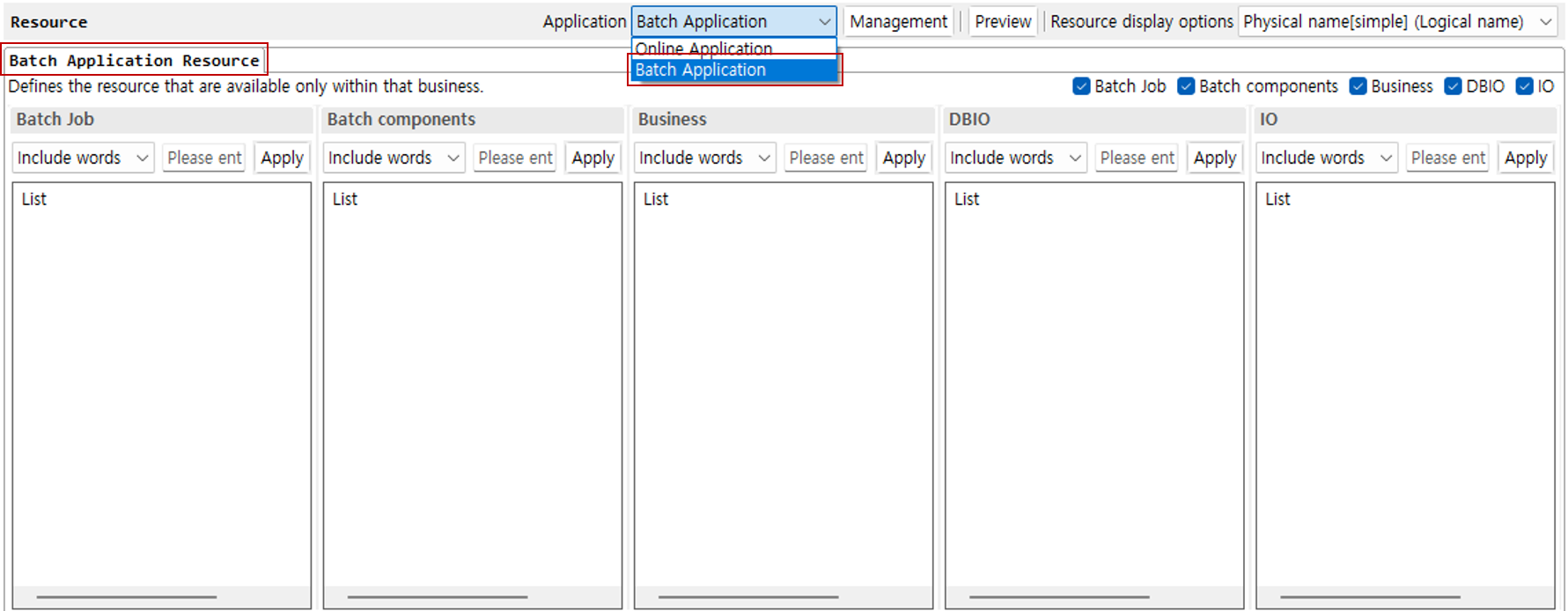
When you select Batch Application in the application combo box, the batch application resource tab is displayed.
-
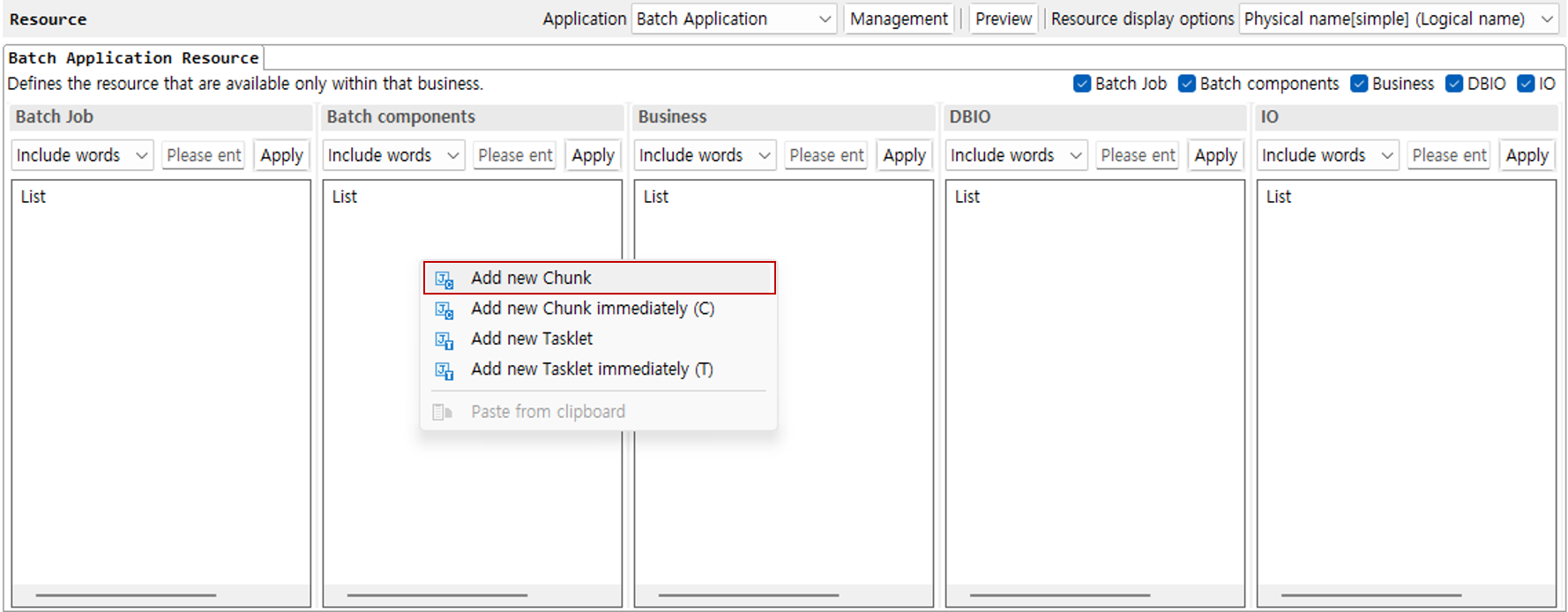
Right-click the batch component area to open the context menu. Decide whether the batch job is Chunk or Tasklet and add it. In this guide, select Add new Chunk.
-
Edit the
read,process, andwritemethods of the created batch component.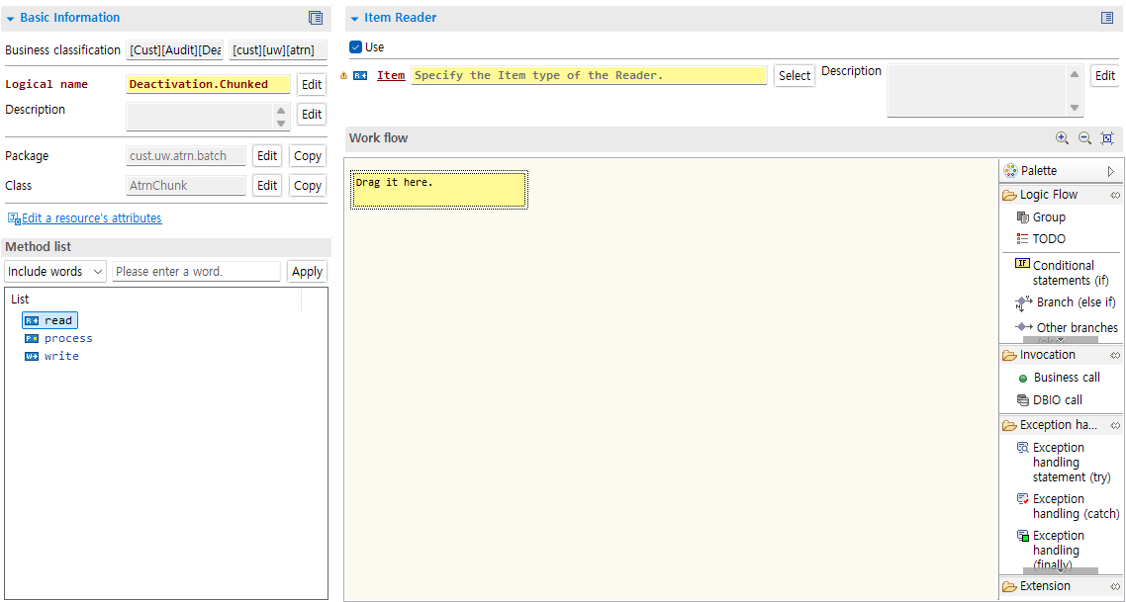
3. Add Batch Job
-
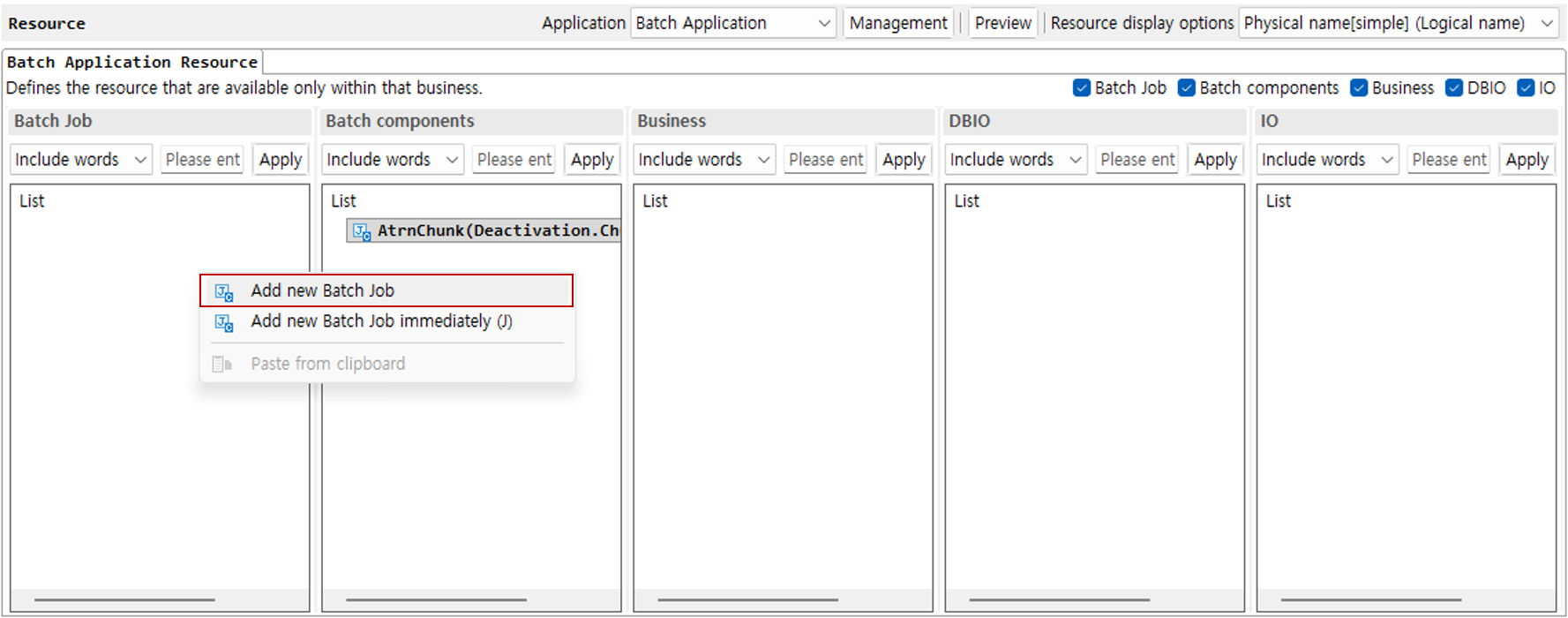
Right-click the batch job area and click Add new Batch Job.
-
Enter the required information in the dialog. If you need a template, select a template type. Depending on the selected template type, Beans that can be used in the batch job are added.
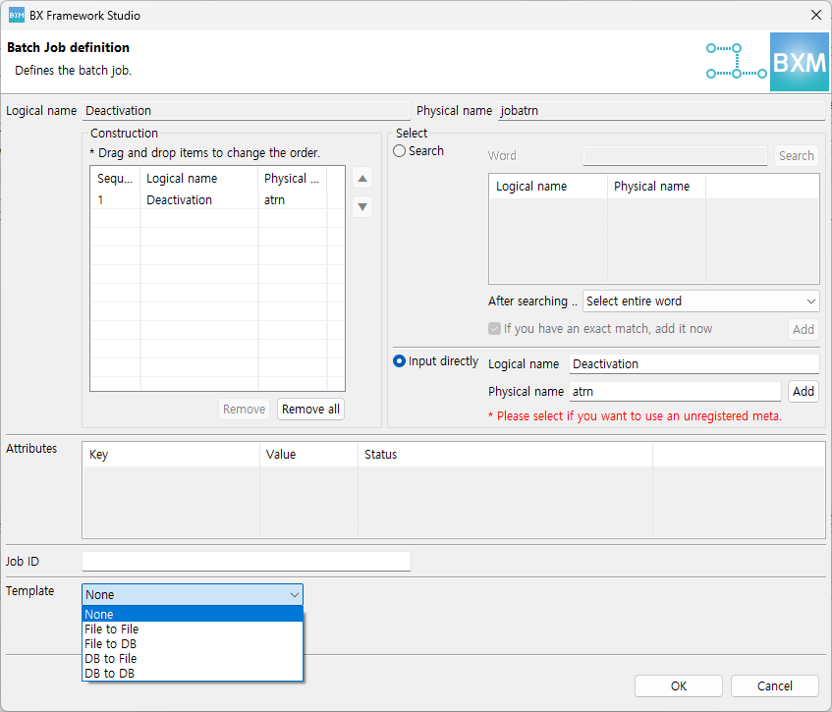
Type Form Description File to File

You can read data written in a file, process it, and then export it to a file.
File to DB

You can read data written in a file, process it, and then store it in a database.
DB to File

You can read data from a database, process it, and then export it to a file.
DB to DB

You can read data from a database, process it, and then store it in a database.
For details on the template types, refer to the Add as a template section.
-
Double-click the created batch job to move to the details page, then edit the batch job ID and the folder path where the batch job is created. The ID must be unique within the same project.
4. Batch Job Flow
You can define the flow of a batch job.
4.1. Step Types
You can define the job flow by selecting a step type from the palette.
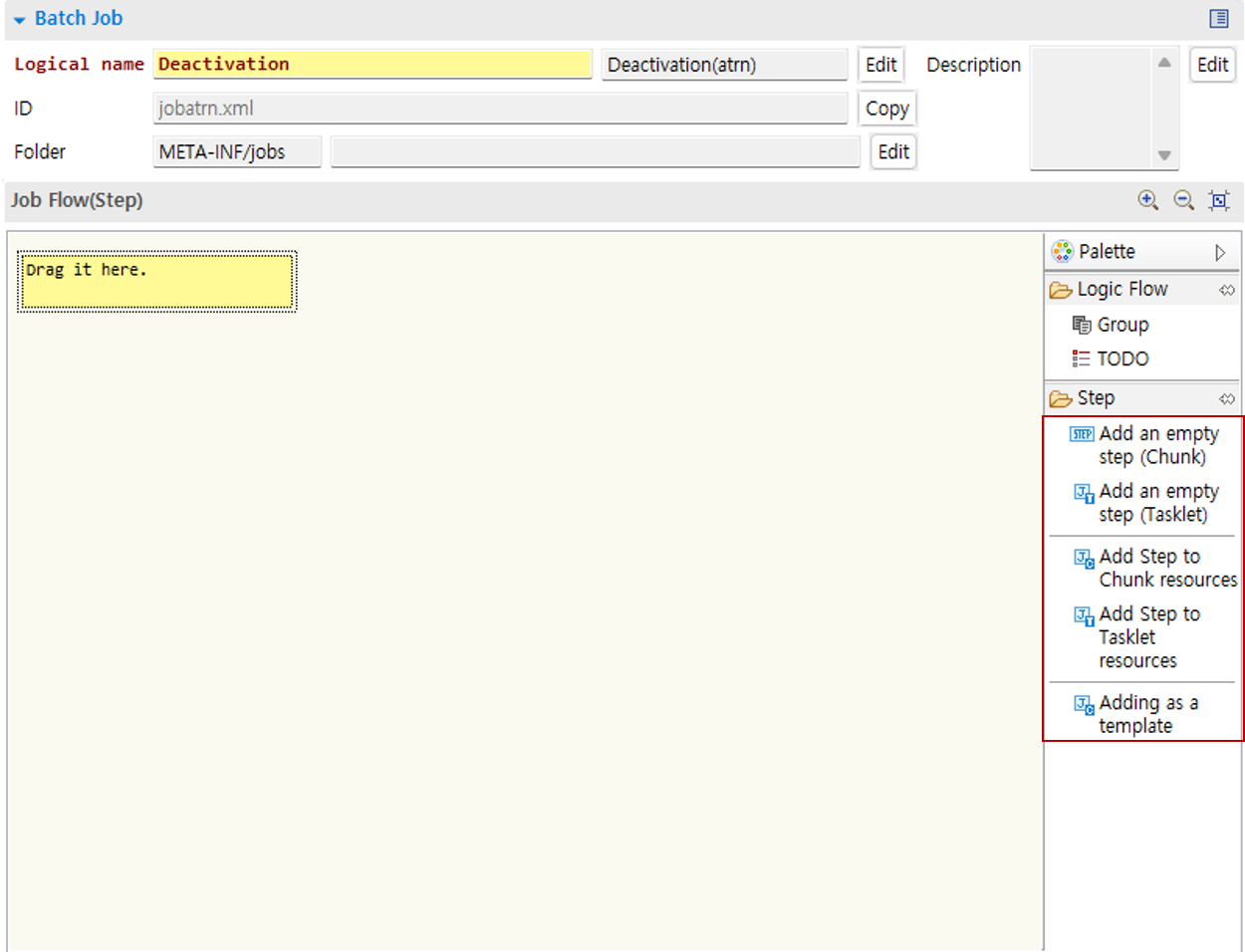
-
Add an empty step (Chunk): You can add a step as a Chunk type. When you select Chunk, you can specify
reader,processor, andwriterseparately. -
Add an empty Step (Tasklet): You can add a step as a Tasklet type.
-
Add step to Chunk resources: You can add a step by selecting an already created Chunk resource. The
read,process, andwritemethods defined in the Chunk resource are automatically mapped to the step. -
Add step to Tasklet resources: You can add a step by selecting an already created Tasklet resource.
-
Add as a template: You can add a step using provided template types such as File to File.
4.2. Add an empty step (Chunk)
-
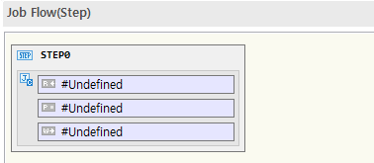
Drag and drop Add an empty step (Chunk) from the palette into the editor.
-
When you right-click the
reader,processor, andwriteritems of the added step, the available menus appear. In the example, the description is based on Reader.-
Select Bean: You can select a Bean defined in the batch job. Beans that match the
reader,processor,writertypes are listed.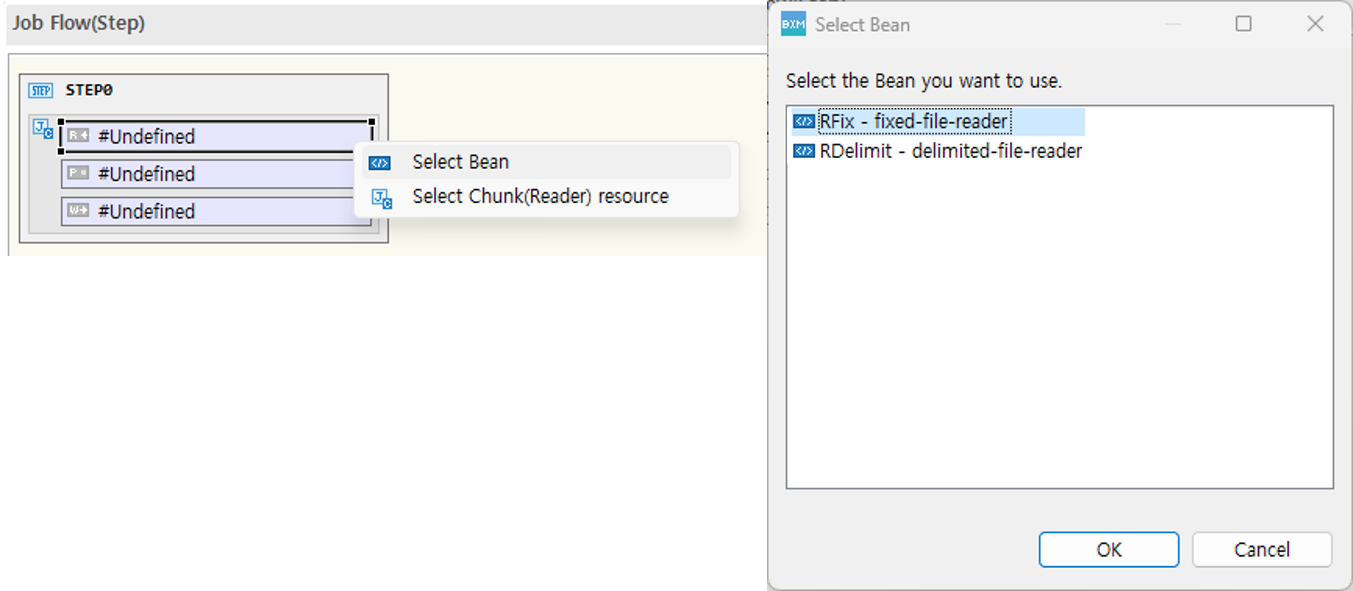
-
Select Chunk (Reader) resource: You can select an already created Chunk resource.
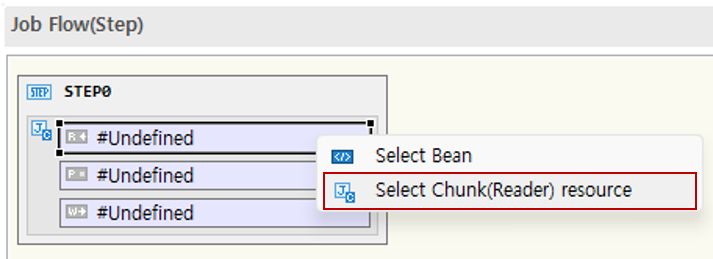
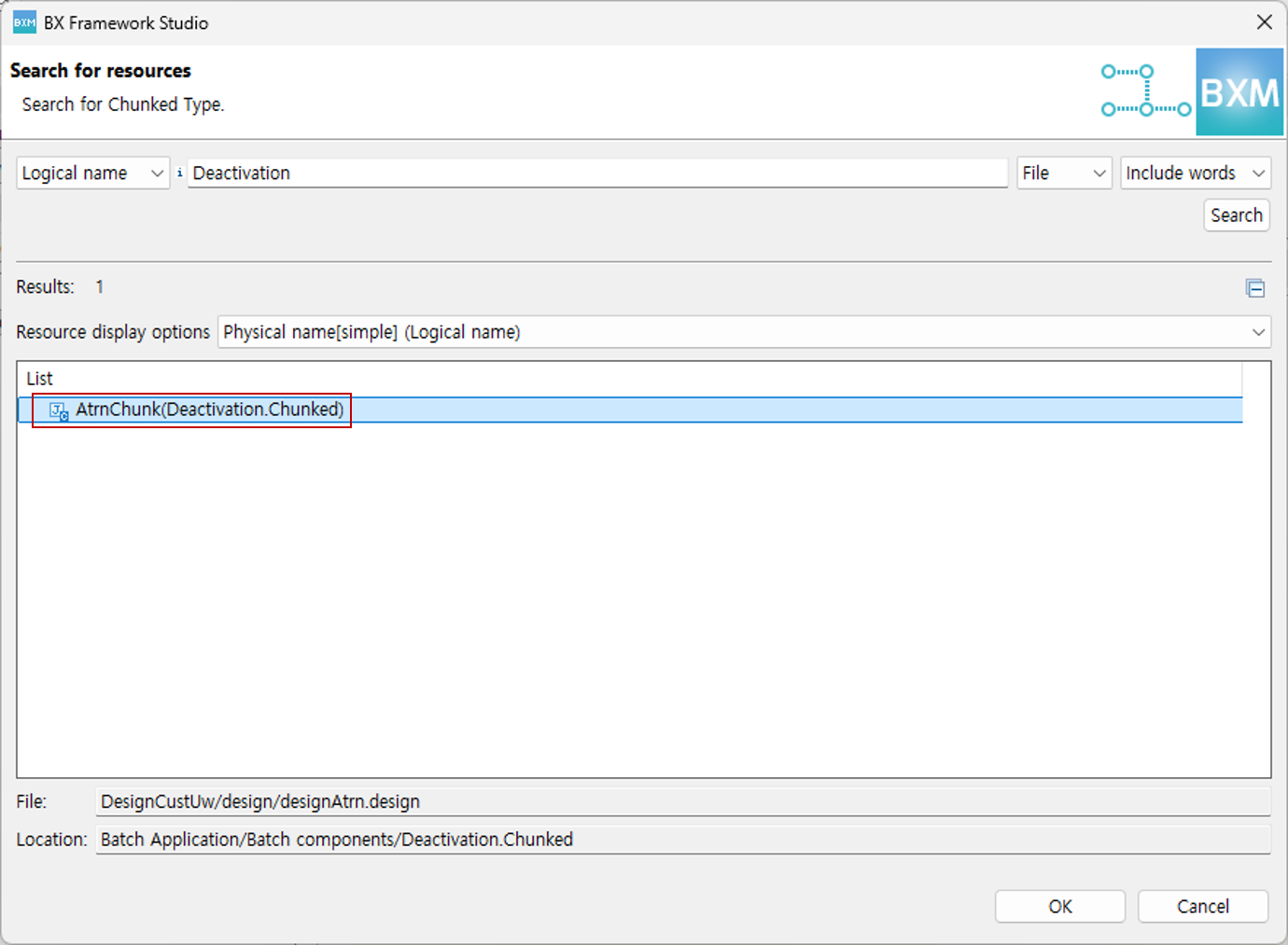
Select the Select Chunk (Reader) resource menu. In the dialog where you can search Chunk resources, search for and select the required resource.
If the selected resource has
read,process, andwritemethods defined and the individual items (reader,processor,writer) of the step are not defined, those items can be specified together.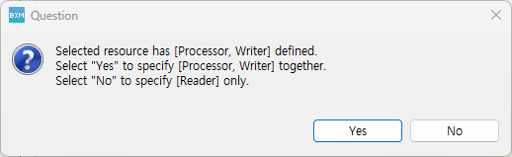
Repeat the above steps to add
ProcessorandWriter.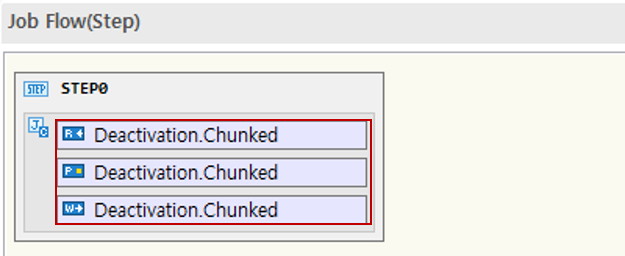
For details about Beans, refer to the Bean Definition section.
-
5. Add an empty Step (Tasklet)
-
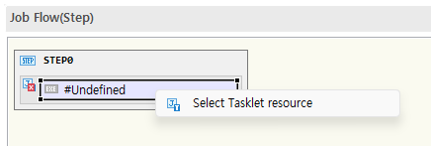
Drag and drop Add an empty Step (Tasklet) from the palette into the editor.
-
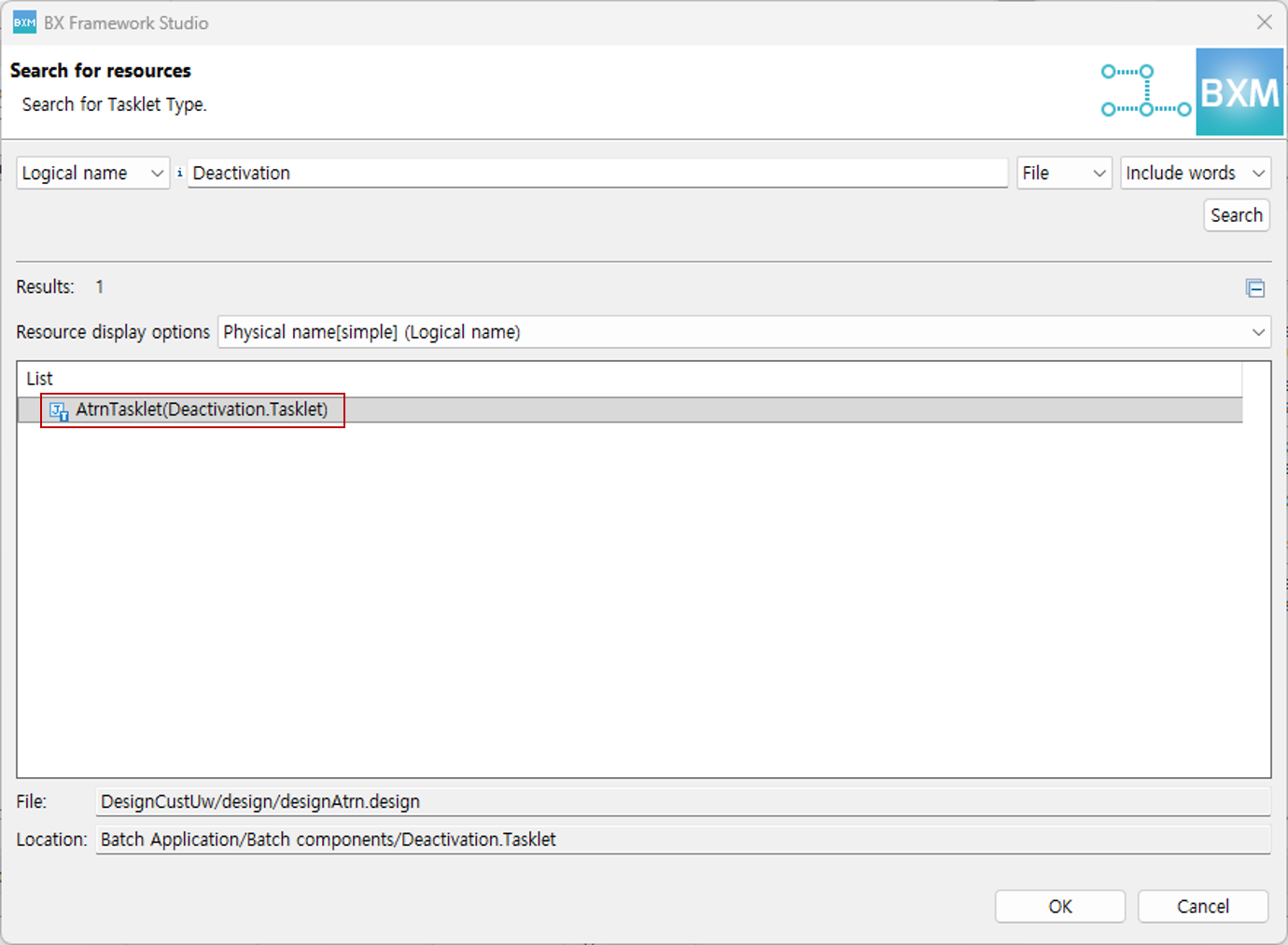
When you right-click the Execute item of the added step, the available menus appear. Select the Select Tasklet resource menu. In the dialog where you can search Tasklet resources, search for and select the required resource.
5.1. Add step to Chunk resources and Add step to Tasklet resources
-
Drag and drop Add step to Chunk resources from the palette into the editor.
-
In the dialog where you can search Chunk resources, search for and select the required resource.
-
You can add Tasklet resources in the same way.
5.2. Add as a template
-
Drag and drop Add as a template from the palette into the editor.
-
In the dialog, select the Template Type to use.
-
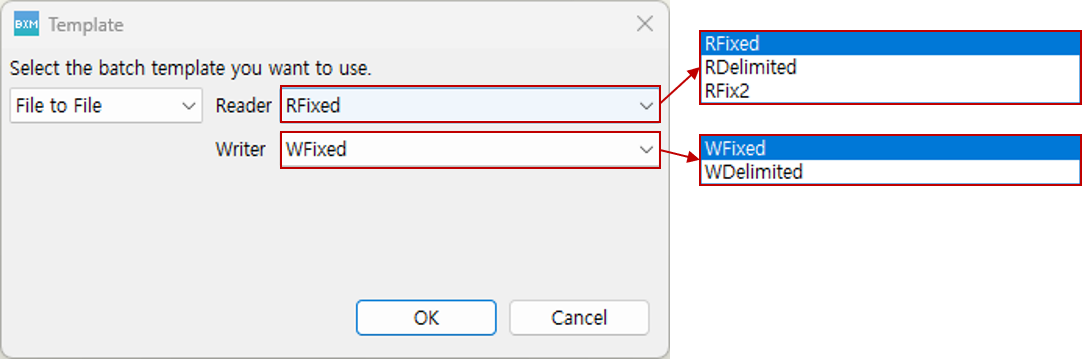
File to File: You can read data written in a file, process it, and then export it to a file.
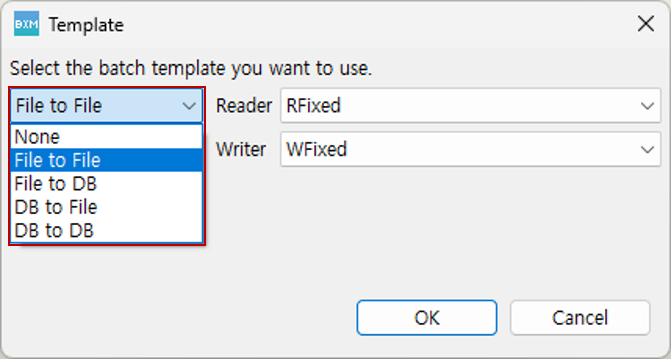
When the File to File type is selected, you can select the default provided Reader and Writer.
-
Reader: Select the required Reader type. RFix is used when reading files containing fixed-length data. RDelimit is used when reading files containing data separated by delimiters.
-
Writer: Select the required Writer type. WFix is used when writing data to a file as fixed-length data. WDelimit is used when writing data to a file with data separated by delimiters.
When you close the template dialog, Beans of the types selected for Reader and Writer are added under the batch job. The Beans selected for Reader and Writer are then assigned to the Reader and Writer of the step, respectively.
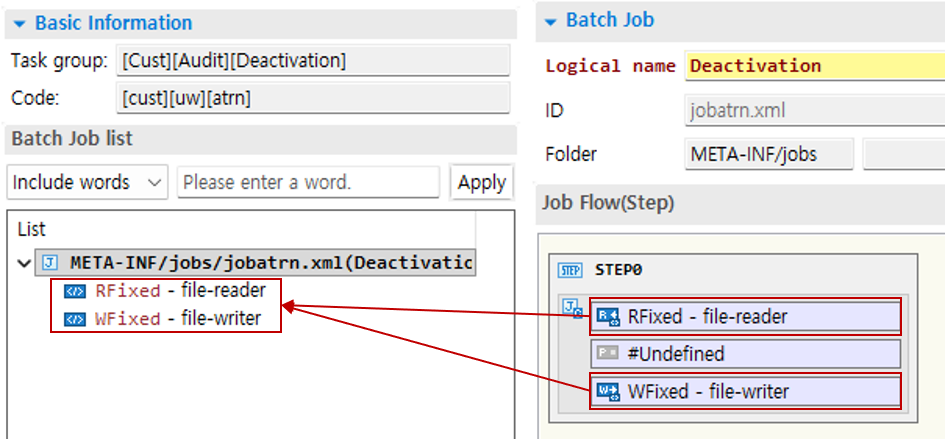
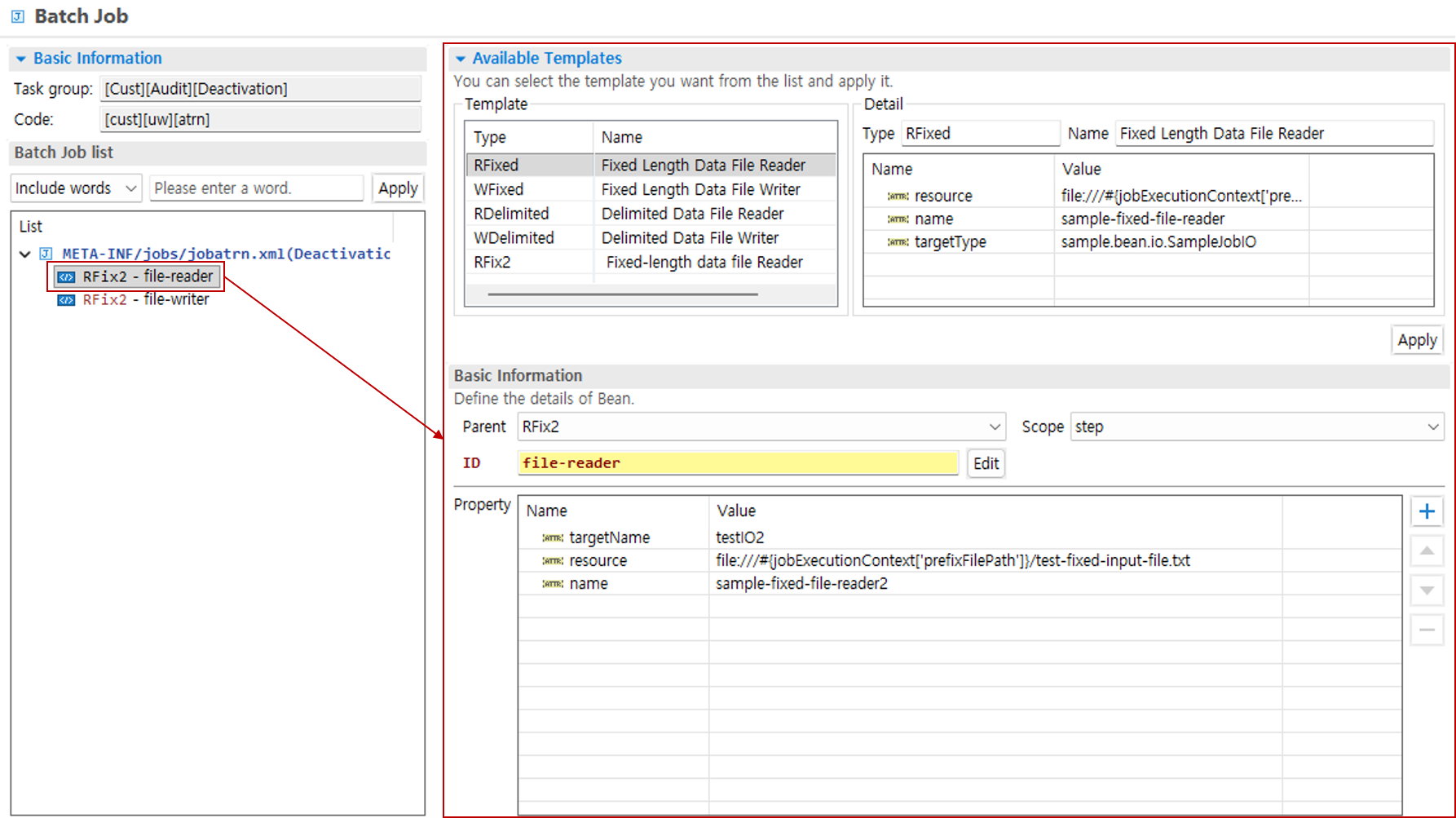
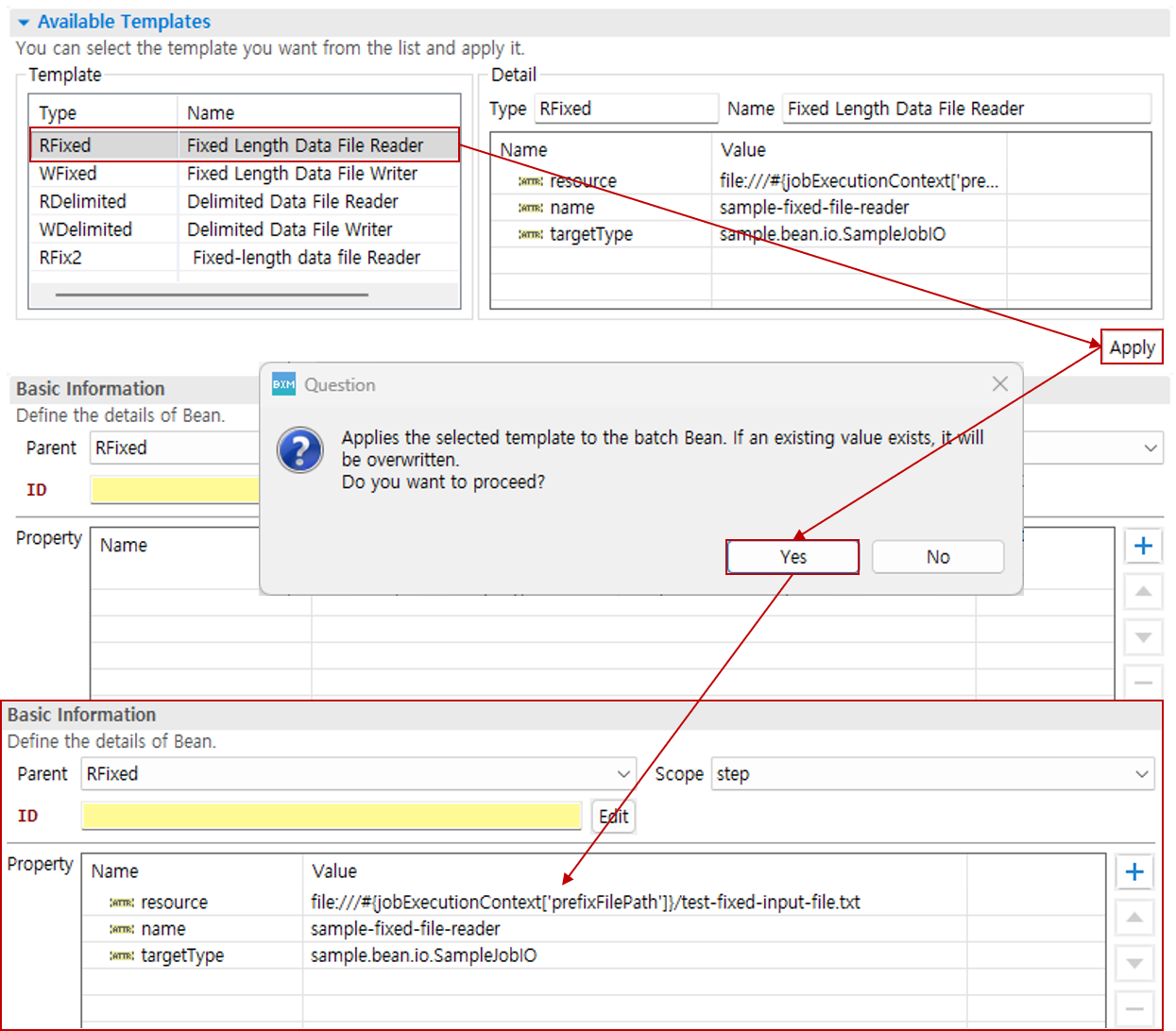
When you double-click an added Bean, the editor for editing the contents of the Bean is activated. The editor is divided into the Available Templates section and the Basic Information section.
-
-
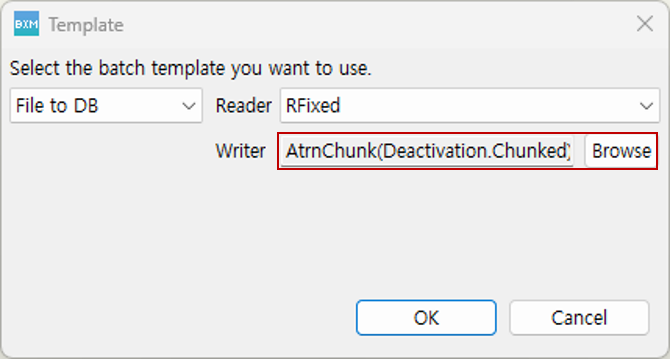
File to DB: You can read data written in a file, process it, and then store it in a database.
-
Reader: Select the required Reader type.
-
Writer: You can search for and specify a Chunk resource where the write method is defined.
-
-
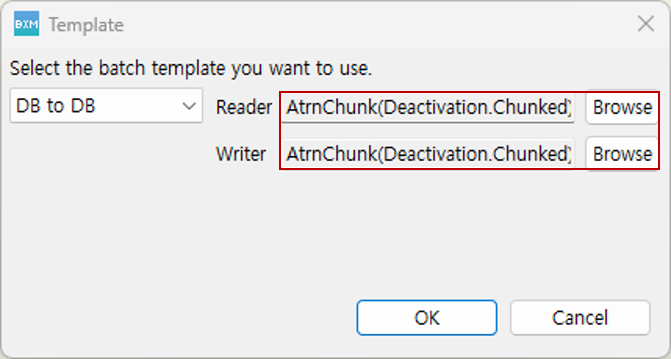
DB to File: You can read data from a database, process it, and then export it to a file.
-
Reader: You can search for and specify a Chunk resource where the read method is defined.
-
Writer: Select the required Writer type.
-
-
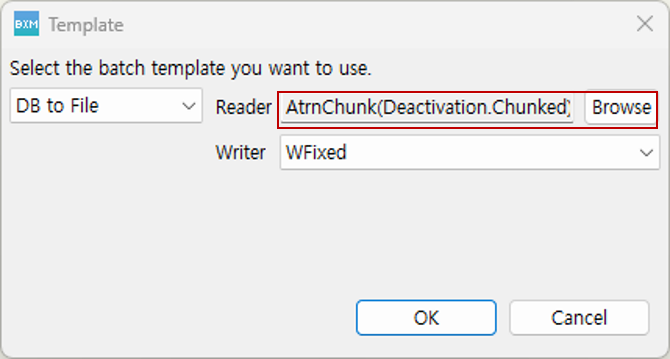
DB to DB: You can read data from a database, process it, and then store it in a database.
-
Reader: You can search for and specify a Chunk resource where the read method is defined.
-
Writer: You can search for and specify a Chunk resource where the write method is defined.
-
-
6. Bean Definition
You can define Beans that are written in job.xml in the following form:
<bean id="fixed-file-reader" parent="RFix" scope="step">
    <property name="name " value="sample-fixed-file-reader"/>
    <property name="resource" value="file:///#{jobExecutionContext['prefixFilePath']}/test-fixed-input-file.txt"/>
    <property name="targetType" value="sample.bean.io.SampleJobIO"/>
</bean>
6.1. Add Bean
-
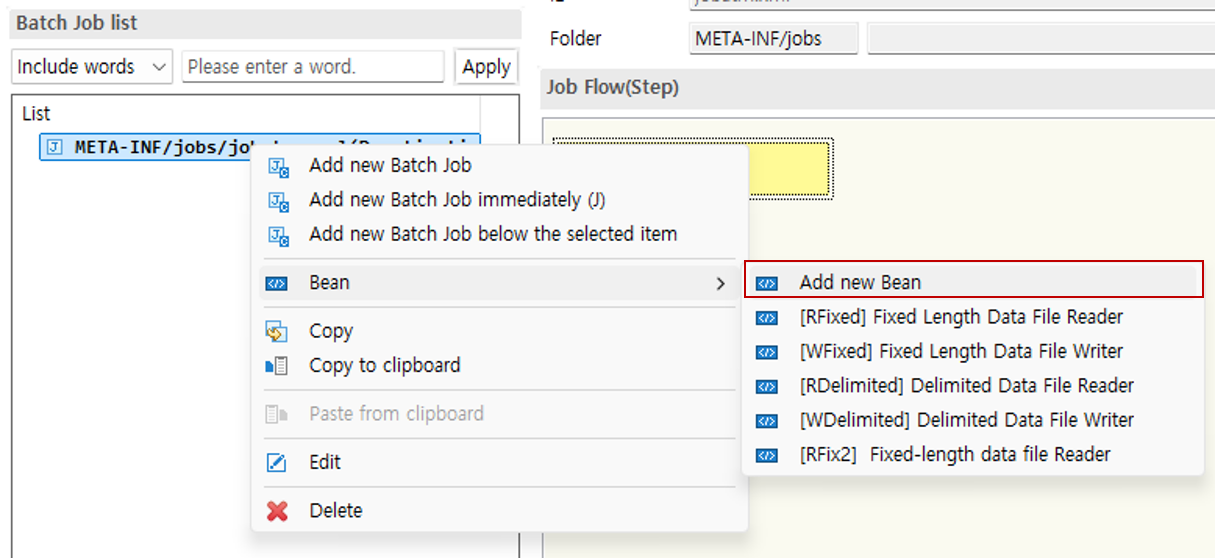
Right-click the batch job and select 'Bean' → 'Add new Bean' from the menu.
-
In the editor where you can edit the Bean, select each item. If necessary, you can add and use Properties.
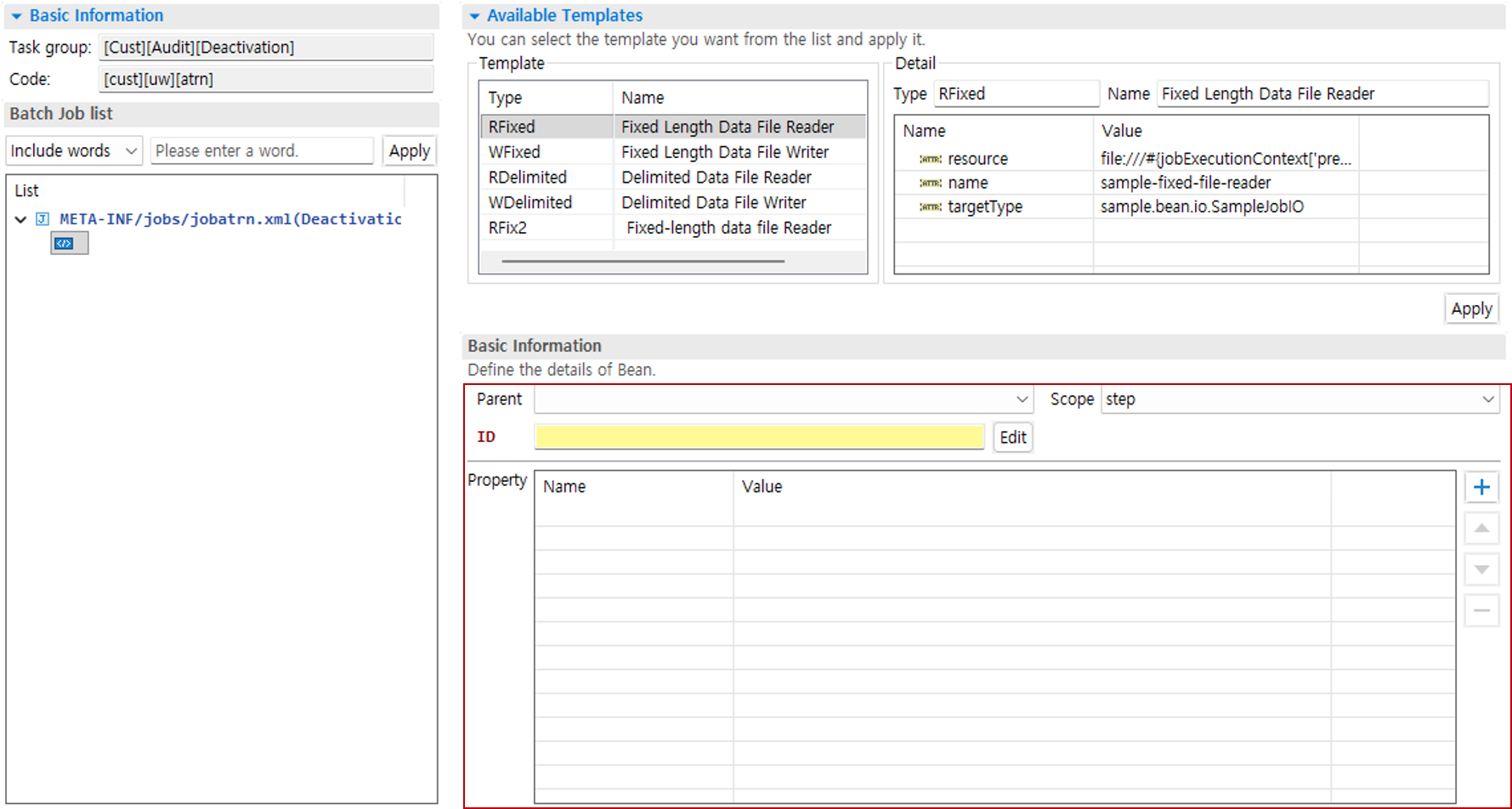
You can also select and apply templates provided in the Available Templates section. When you select a template, you can easily fill in each item.
6.2. Edit Property
-
You can edit the name and value of a Property.

-
When the Property name is
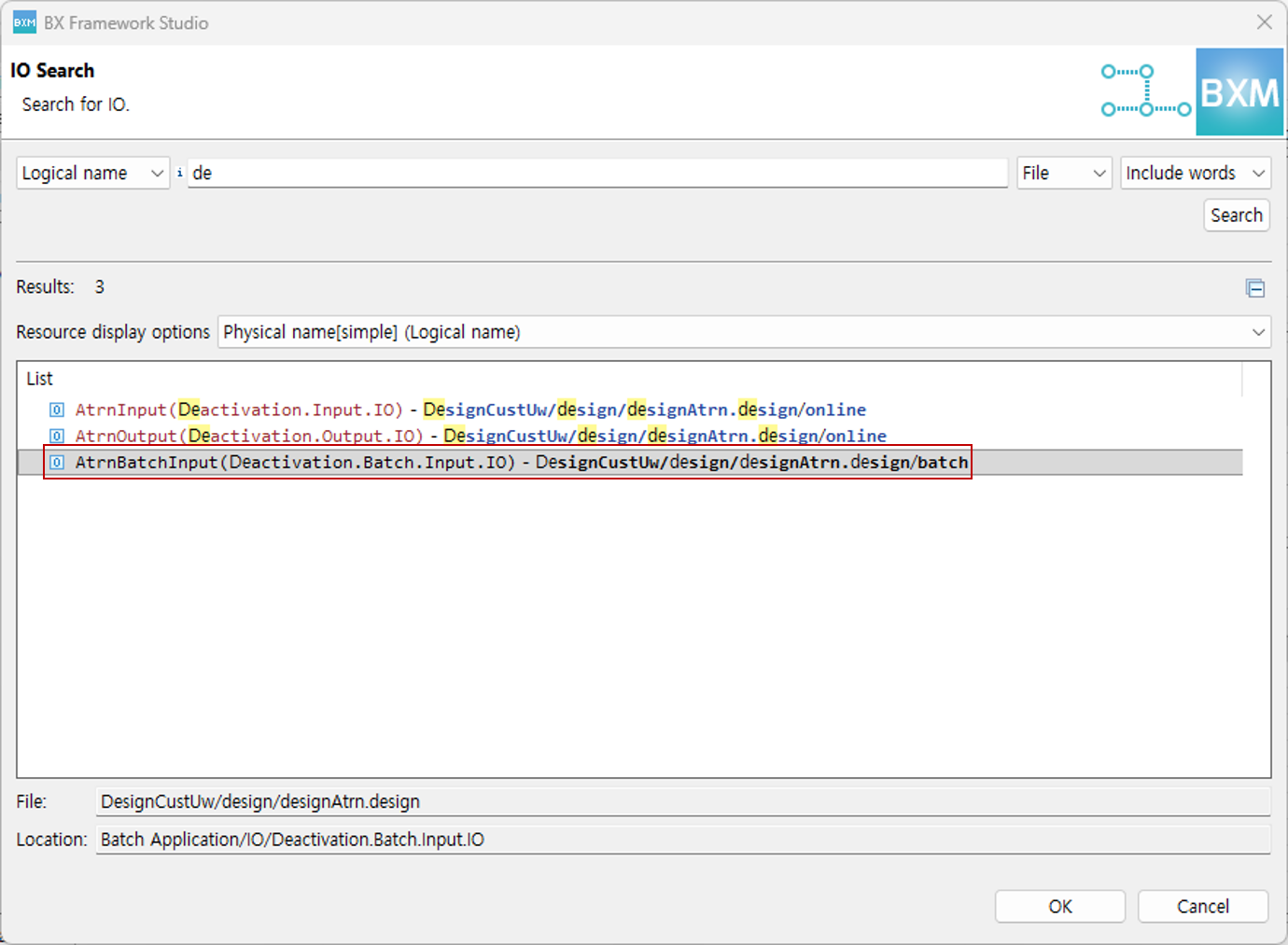
targetType, you can specify it by selecting an IO type.
Click the … button to open the dialog, then search for and select an IO resource.
-
You can add/delete/move Properties. Enter the name and value of the added Property.