Introduction
This chapter briefly introduces the basic screens and menus of BXM Web Admin.
1. BXM Web Admin Usage Environment
Resolution: 1280 x 1024 (or higher)
| Browser name | Version |
|---|---|
Chrome |
52 or higher |
Firefox |
47 or higher |
Internet Explorer |
11 or higher |
2. Login Screen
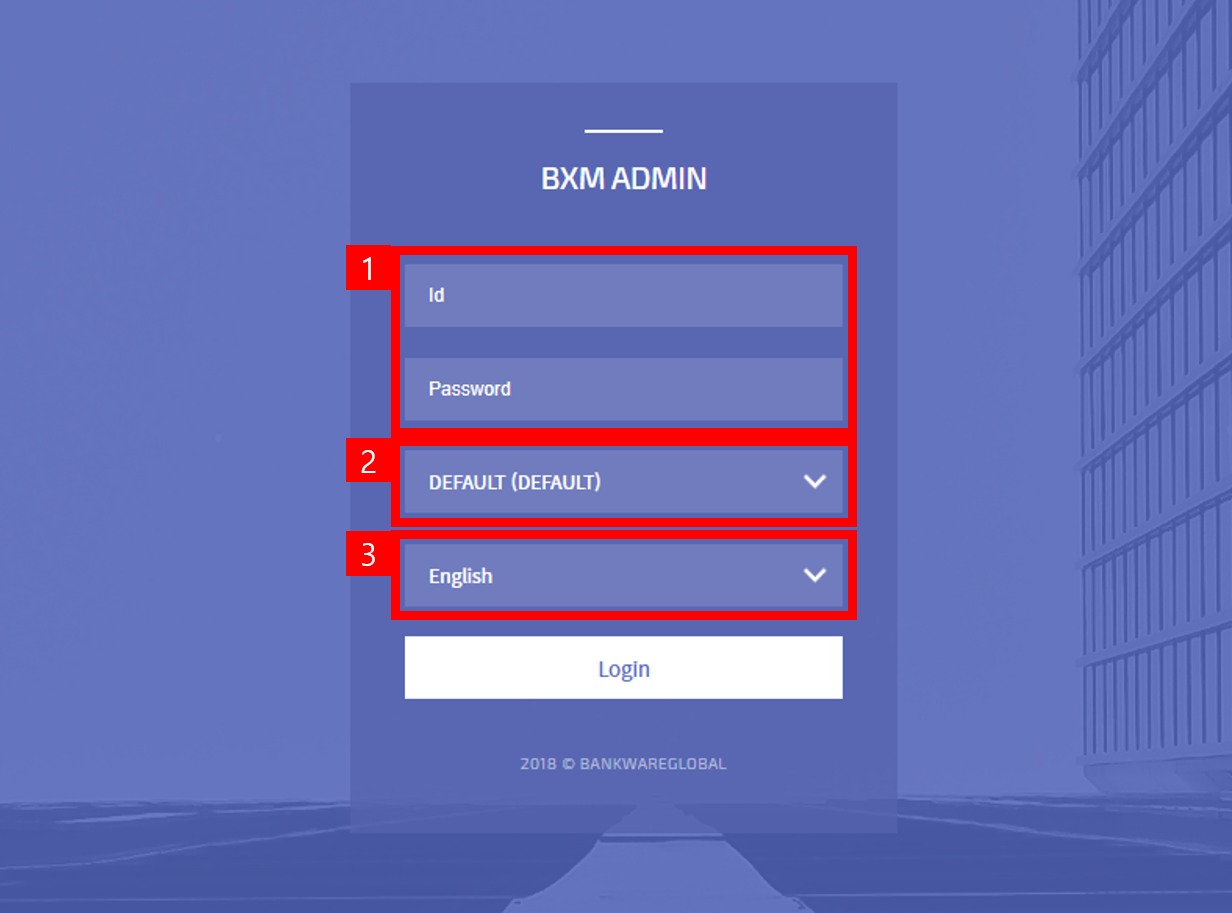
-
User ID and Password
Enter the user ID and password required for login. If the entered user ID does not exist, the message 'The ID is not registered.' is displayed, and if the password is incorrect, the message 'Incorrect password.' is displayed.
-
Domain
This area is used to select a domain. You must select a domain and log in so that each domain can be managed separately in BXM Web Admin. Domain information is managed directly in the BXM_DOMAIN table in the database.
-
Language
This area is used to select a language. BXM Web Admin basically supports Korean, English, and Japanese. The Admin screen is translated into the selected language, but the information in the database is not translated.
3. Basic Screen
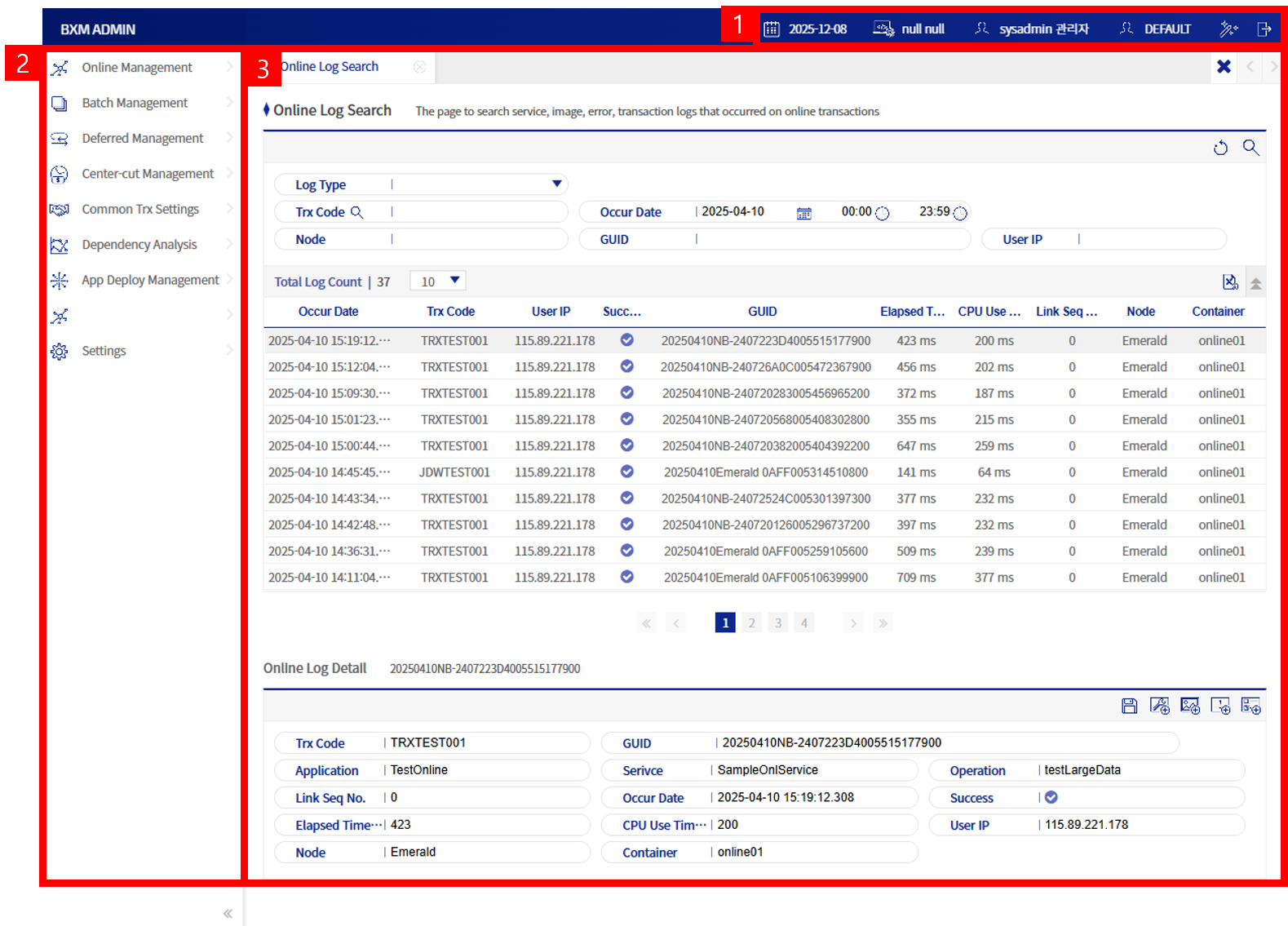
-
Basic information area
-
Screen menu area
-
Main screen area
3.1. Basic Information Area
You can check basic information such as the operating date.

-
Current operating date
Click to open a popup where you can check detailed information on the operating date.
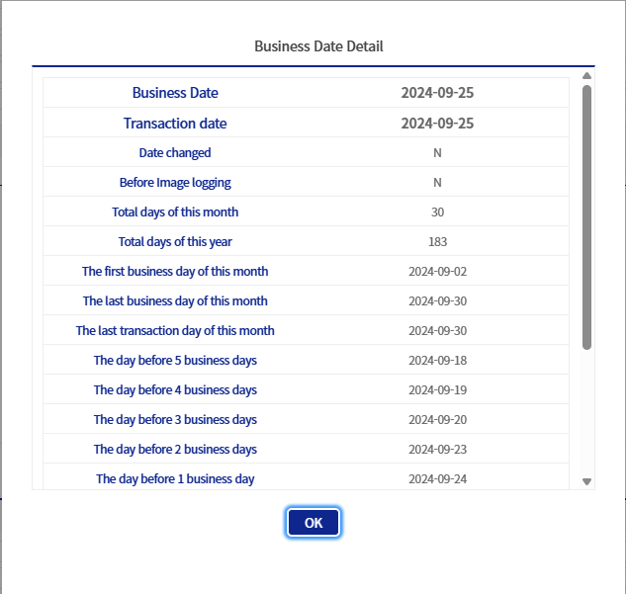 Figure 4. Detail popup for operating date information
 -
Information on the system under development
-
Information on the connected user
Click to open a popup where you can change the information of the connected user.
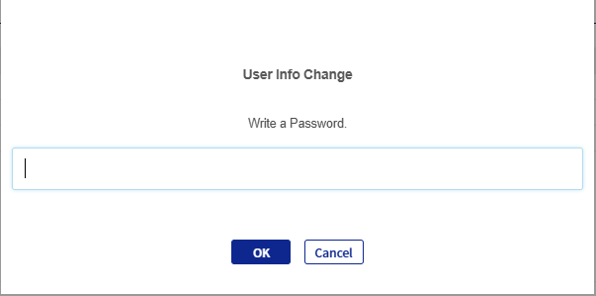 Figure 5. Password confirmation before changing user information
You must enter the current password correctly to proceed to the user information change screen.
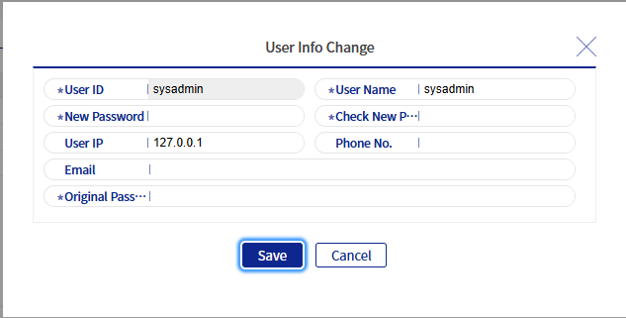 Figure 6. User information change screen
The user ID cannot be changed, and the user name, new password, and new password confirmation are required fields.
-
Domain information
Displays the domain information selected at login.
-
Color theme change button
-
Logout button
3.2. Screen Menu Area
This area displays the main menus of BXM Web Admin. When you click a submenu under a main menu, the screen for that menu is displayed in the main screen area.
3.3. Main Screen Area
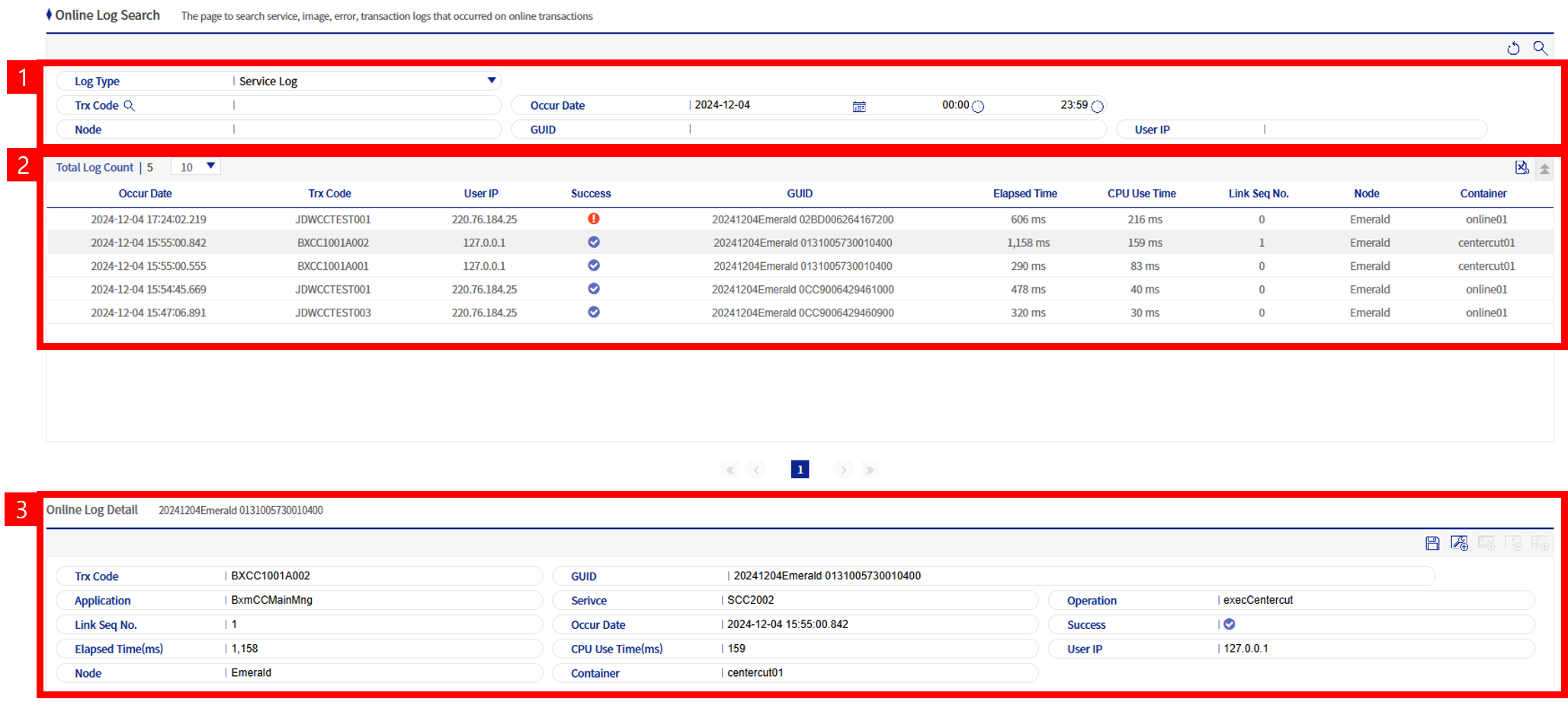
This area displays the content for each menu, and all menus consist of common elements (except APP deployment management and App Analyzer). The following is the online log inquiry screen.
-
Search area
Each screen has search fields appropriate to its purpose, and 'Reset' and 'Search' buttons are located at the top right.
List of icons in the search area Icon Description 
Resets the search conditions.

Searches with the specified search conditions.
-
Grid area
Using the combo box at the top left, you can adjust the number of data rows displayed in the grid. Depending on the screen, there may be buttons for Excel download, add item, delete item, etc.
List of icons in the grid area Icon Description 
Opens a popup to add an item. Located at the top right of the grid.

Downloads the current search result as an Excel file. Located at the top right of the grid.

Deletes the corresponding item. Located at the far right of each grid item.
-
Detail area
Displays detailed information of the item selected in the grid above. Depending on the nature of the screen, additional action buttons may be located at the top right. For descriptions of each button, refer to the guide page for the corresponding screen.