Batch Job Monitoring
This menu allows you to monitor batch jobs that are in progress or have been executed.
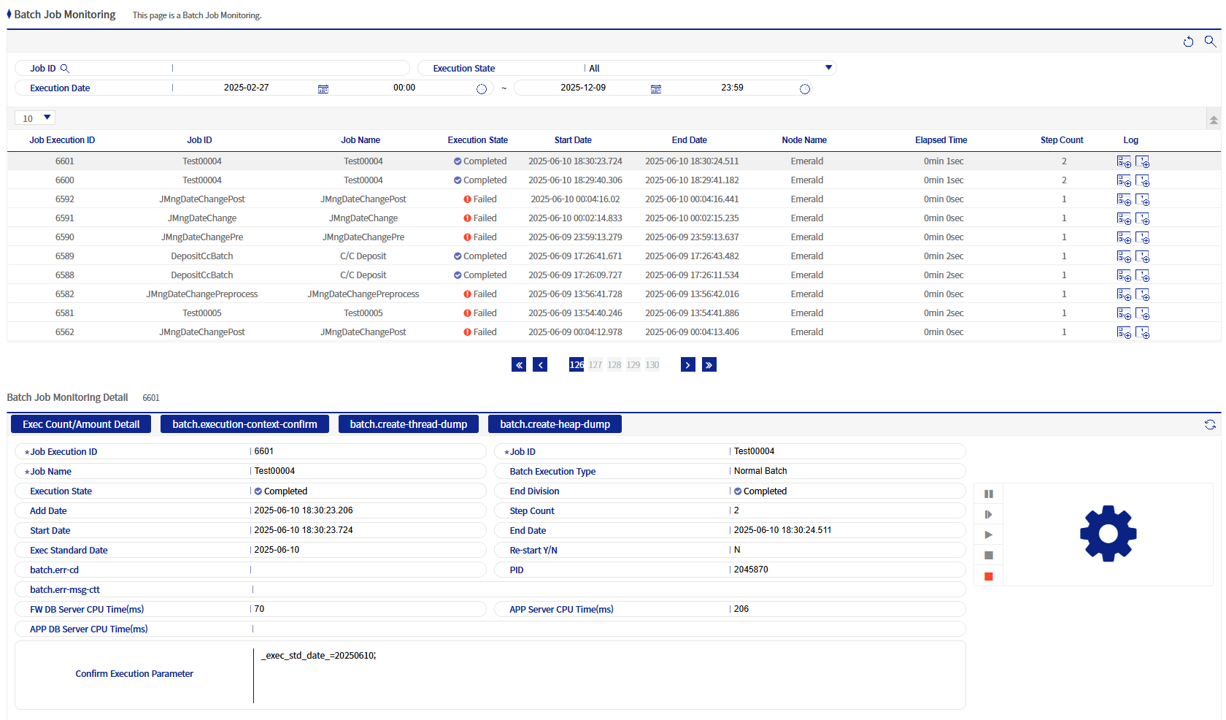
1. Search Area
You can search by batch job ID, current state, and job date. Partial search for batch job ID is not supported, but there is a popup where you can search for the batch job ID. Job date is a required field.

2. Grid Area
A button to check logs is provided at the far right of each data row. You can view the batch job log and user log in a popup.

3. Monitoring Detail Area
You can check detailed information about the batch job and its job steps, and you can also operate the batch job (pause, rerun, etc.).
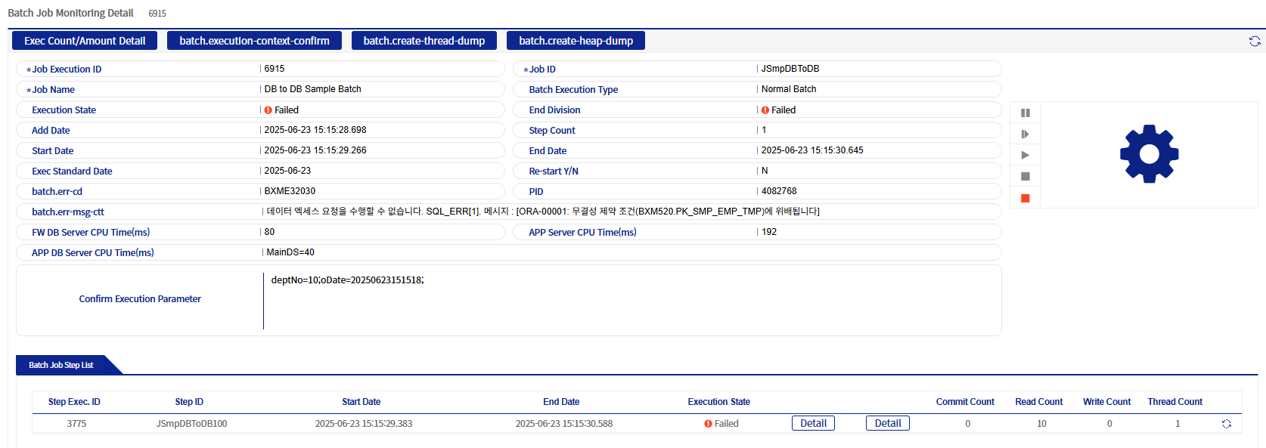
3.1. Batch Job Details
You can check detailed information about the batch job. Depending on the current state, you can operate the batch job using the buttons on the right.
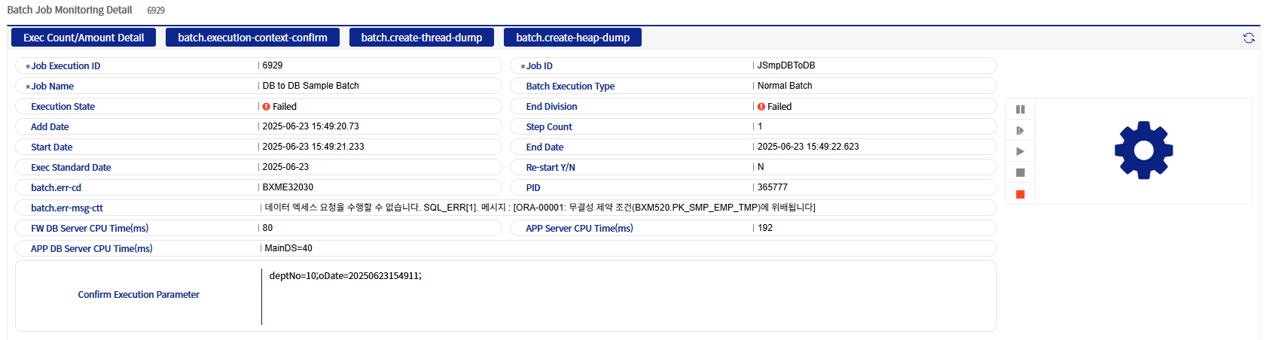
"Execution count/amount check" and "Execution context check" are provided as buttons; clicking them displays details of the corresponding content.
The following functions are available for operating a batch job:
| Icon | Function Name | Description |
|---|---|---|
|
Pause |
Pauses a batch job that is in progress. |
|
Resume |
Releases a paused state. |
|
Restart |
Restarts a batch job that was stopped due to an error. |
|
Stop |
Stops a batch job that is in progress. However, it waits until the currently running step is completed, then stops. |
|
Forced Stop |
Immediately stops the batch job. |


3.2. Step Detail Area
A single batch job can have multiple steps. In this area, you can check detailed information for each step.

For each step, clicking the "Detail" button in the detail column displays detailed information in a popup.
For each step, clicking the "Detail" button in the execution context displays the execution context in a popup.
For each step, clicking the "refresh" button reloads the detailed information.