Test Execution
1. Test Prerequisite - Register Transaction Parameter
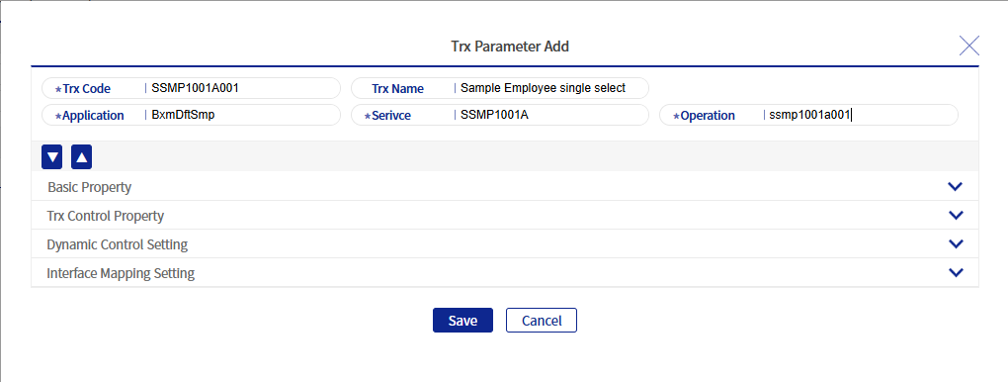
Before performing module tests or service tests, map the Service Operation and transaction code, and then perform the test using the corresponding transaction code.
In the transaction parameter add popup of Web admin, enter the application/service/operation values. Enter them in the same way as the created sample.
2. Execute Module Test
This section describes how to execute the module test created in Create Module Test.
2.1. Execution Method
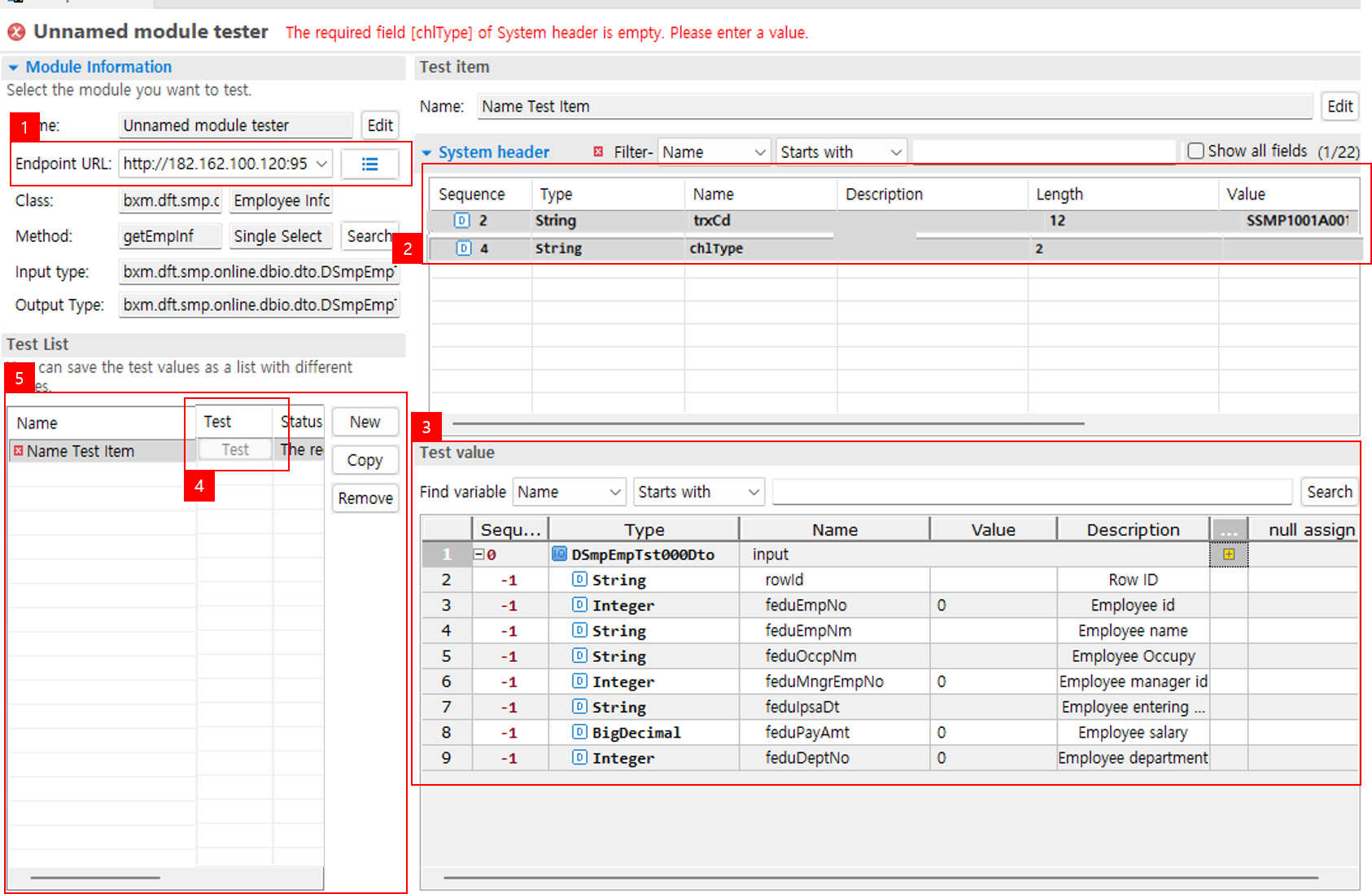
-
Endpoint URL
Select the URL required to execute the module test. If the desired URL value is not available, click the button on the right to adjust the value in the popup for adding/deleting Endpoint URLs.
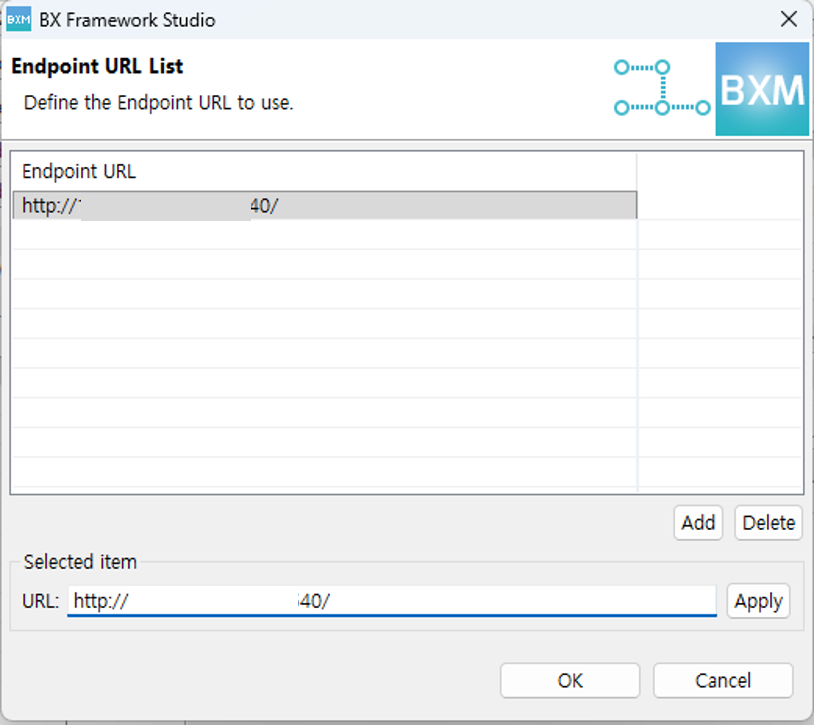 Figure 3. Endpoint URL Popup
 -
System Header
Required input fields are displayed on the screen.
trxCd : Enter the transaction code mapped to the Service Operation that calls the Bean method to be tested.
chlType : Enter the channel type.
-
Test Value
Set values in the fields of the input IO.
-
Test
Click the cell to run the module test tool.
-
Test List
You can save different test values as a list and reuse them.
2.2. Result Screen
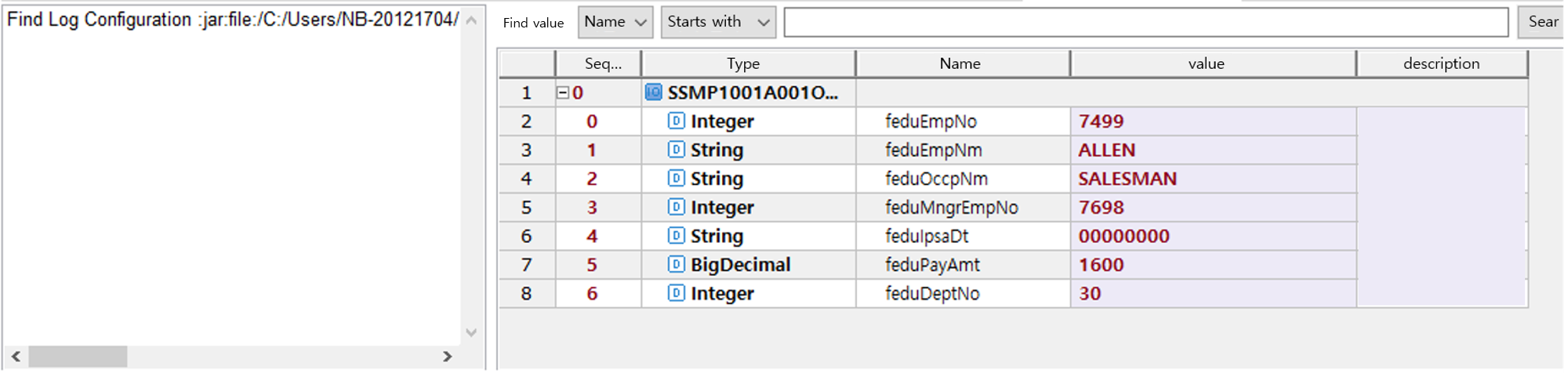
If executed normally, a view opens together with the output values.
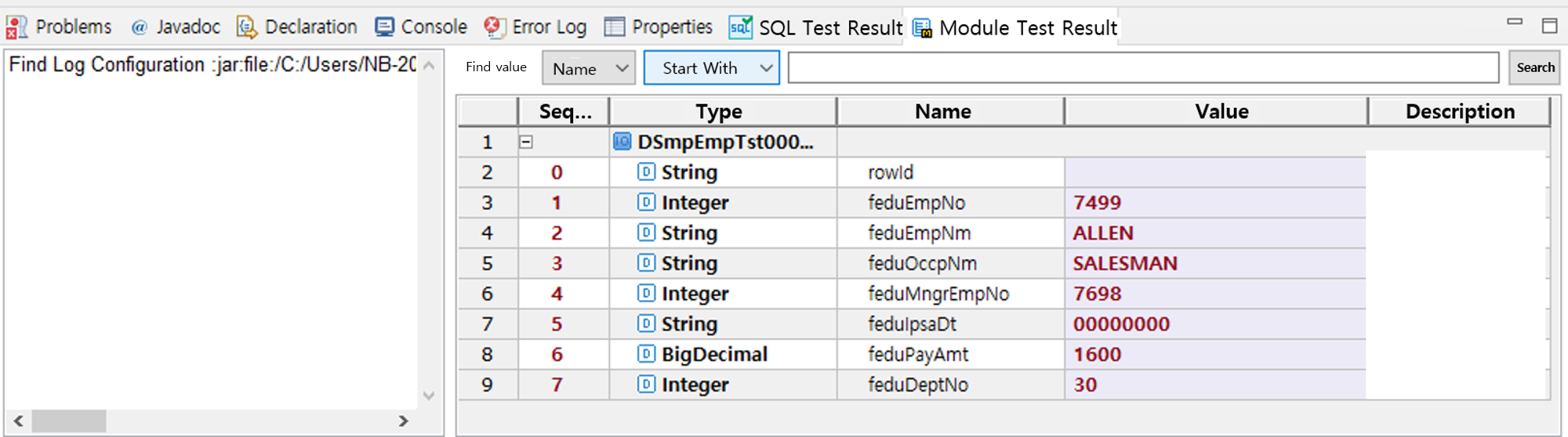
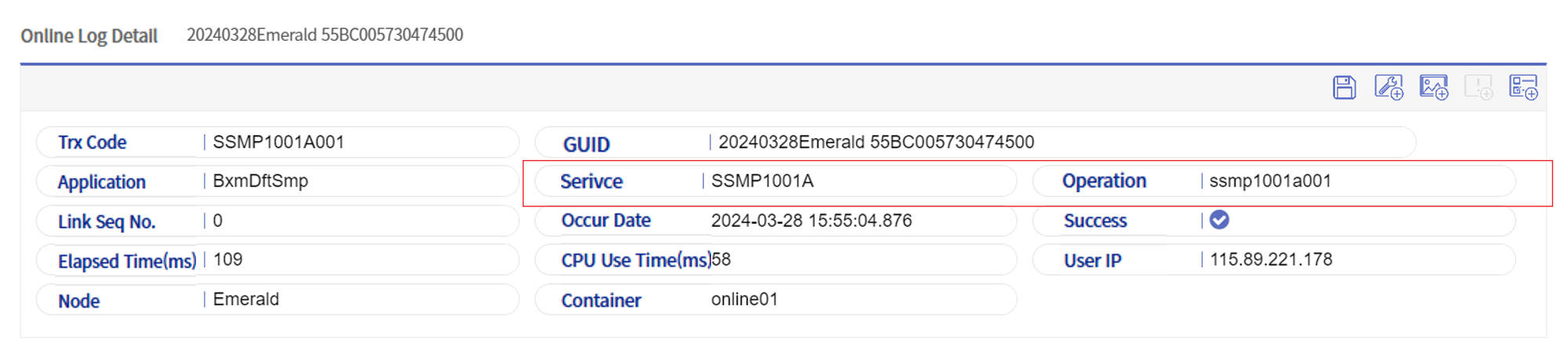
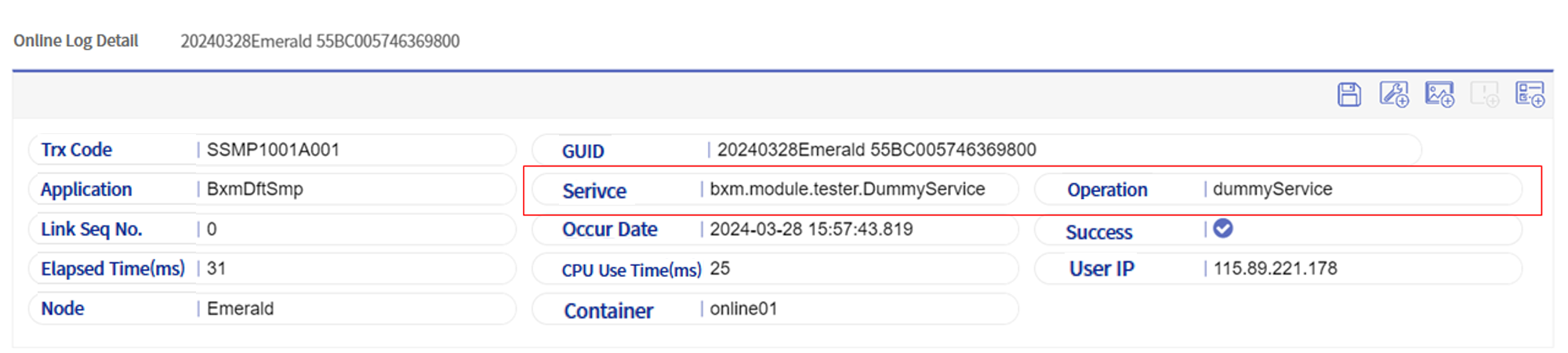
You can view the execution log in webadmin. Since the module test tool operates at the Bean method unit, the Service and Service Operation values are output as dummy.
3. Execute Service Test
This section describes how to execute the service test created in Create New Service Test.
3.1. Execution Method
-
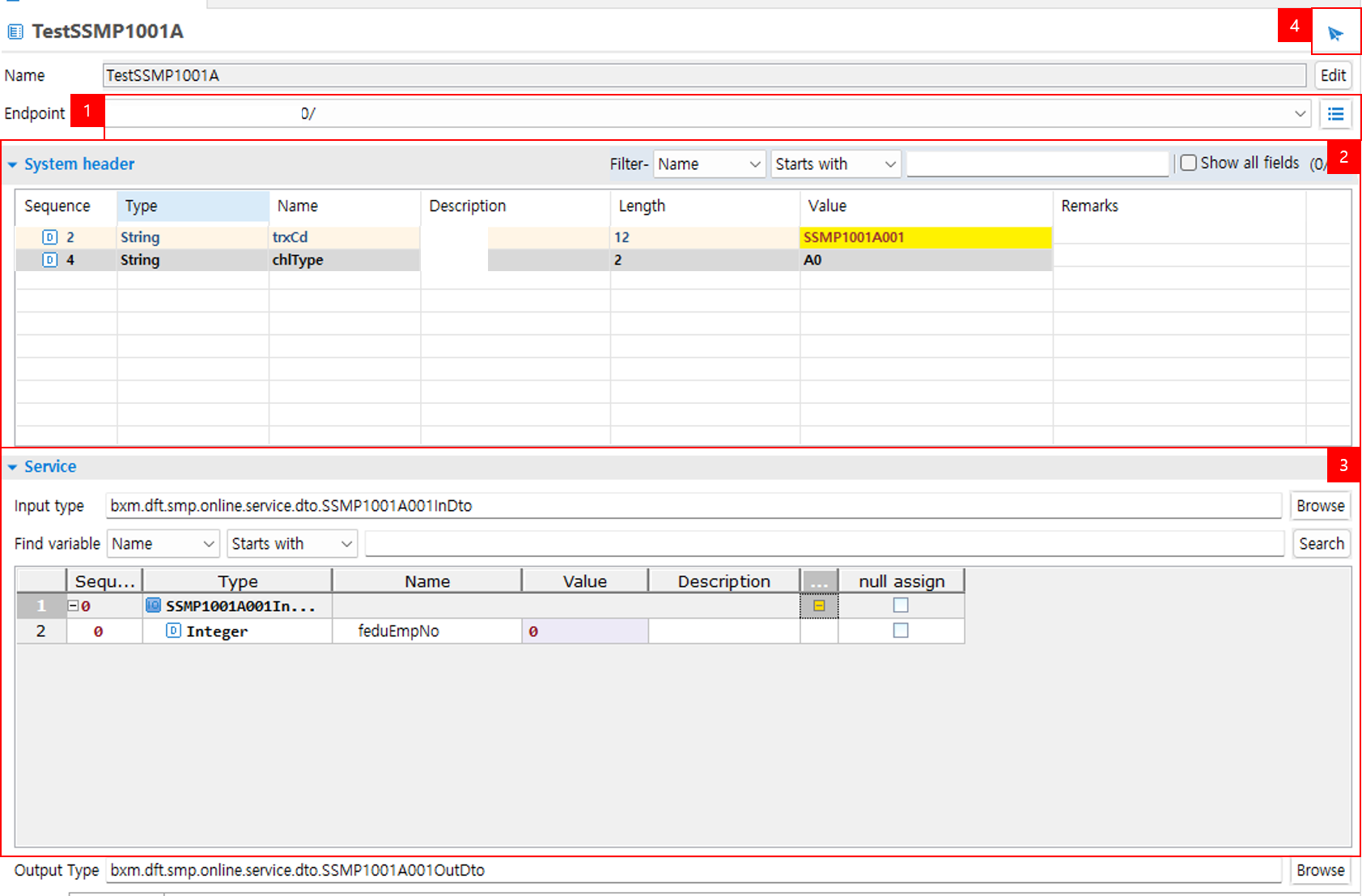
Endpoint URL
Select the URL required to execute the online transactions. If the desired URL value is not available, click the button on the right to adjust the value in the popup for adding/deleting Endpoint URLs.
Figure 7. Endpoint URL Popup -
System Header
Click [System Header] to display the required input fields on the screen. Enter values in the yellow highlighted areas. If you want to see fields other than the required ones, check [Show All Fields] to enter values for all fields.
trxCd : Enter the transaction code mapped to the Service Operation to be tested.
chlType : Enter the channel type.
-
Service
Set values in the input type variables.
-
Send
Click the [Send] button. The service test result is printed in the console, and if executed normally, the viewer opens.