Import Excel Design
This section explains how to import a design created in Excel.
-
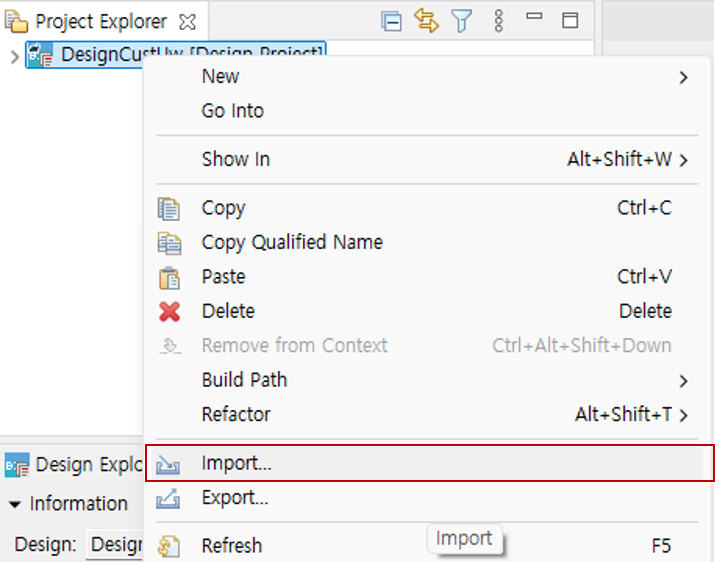
Right-click the design project or right-click in the Project Explorer view, and click the 'Import' menu to open the Import wizard.
-
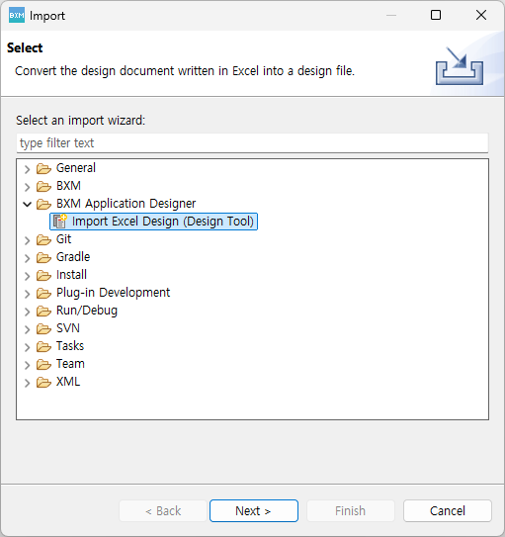
Select BXM → 'Import Excel Design' and click the Next button.
-
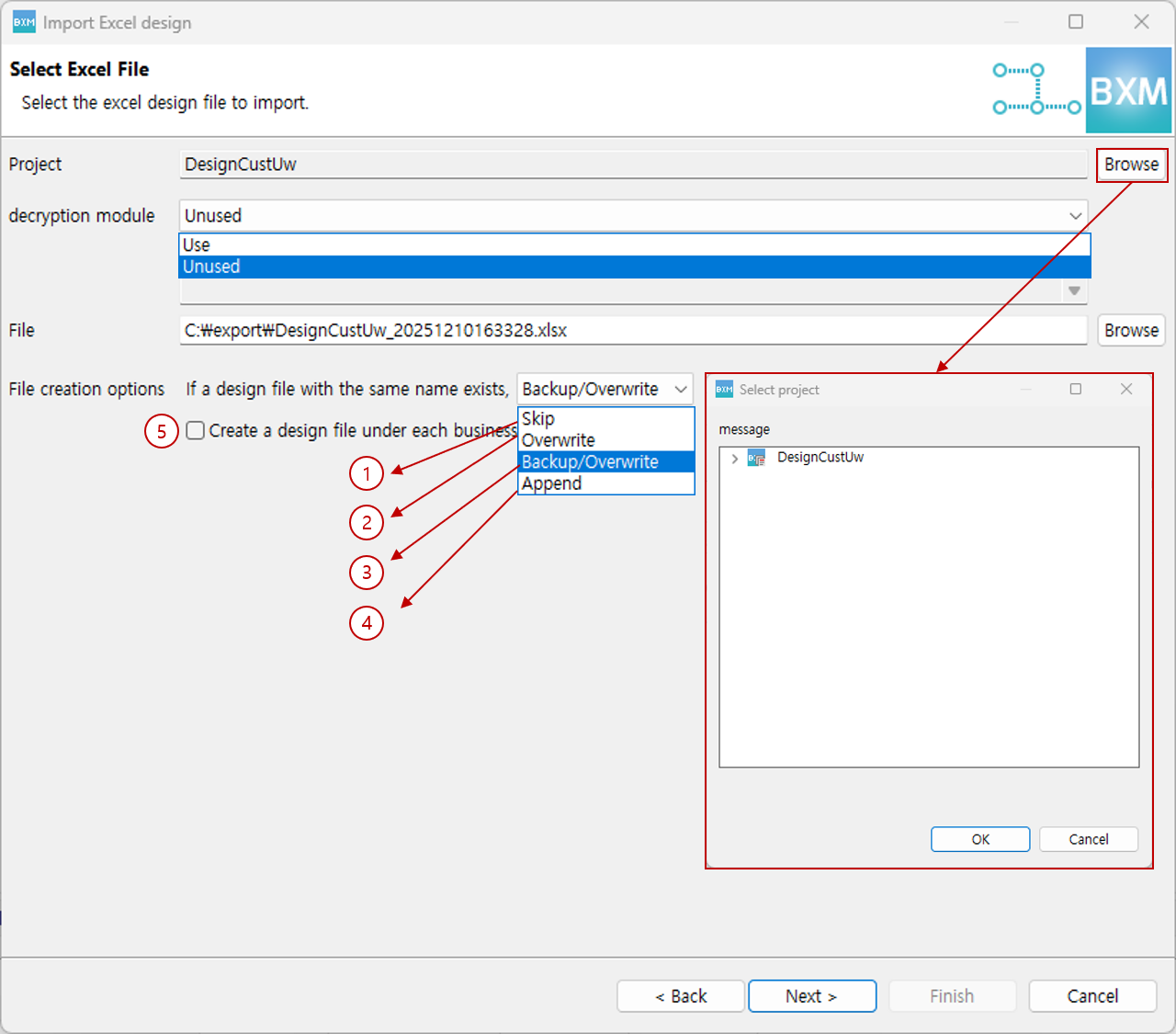
Select the information required to import the Excel design.
-
Click the project Browse button to select a project.
-
Select whether to use a decryption module.
-
Click the file browse button to select the Excel file to import.
-
Select the file creation option and click the Next button.
(1) Skip: If a file with the same name exists, the file is not created.
(2) Overwrite: If a file with the same name exists, the contents of the existing file are overwritten with the contents of the new file to be created.
(3) Backup/Overwrite: If a file with the same name exists, the existing file name is changed by adding the backup date, and a new design file is created.
(4) Append: If a file with the same name exists, components, methods, IO, and IO fields defined in the Excel design can be appended to the existing design file. However, input parameters cannot be added to methods that already exist in the existing design file.
(5) If you select the checkbox, design files are created under each business subfolder. If not selected, design files are created under the design directory.
-
-
After checking the data read from the Excel file, click the Next button.
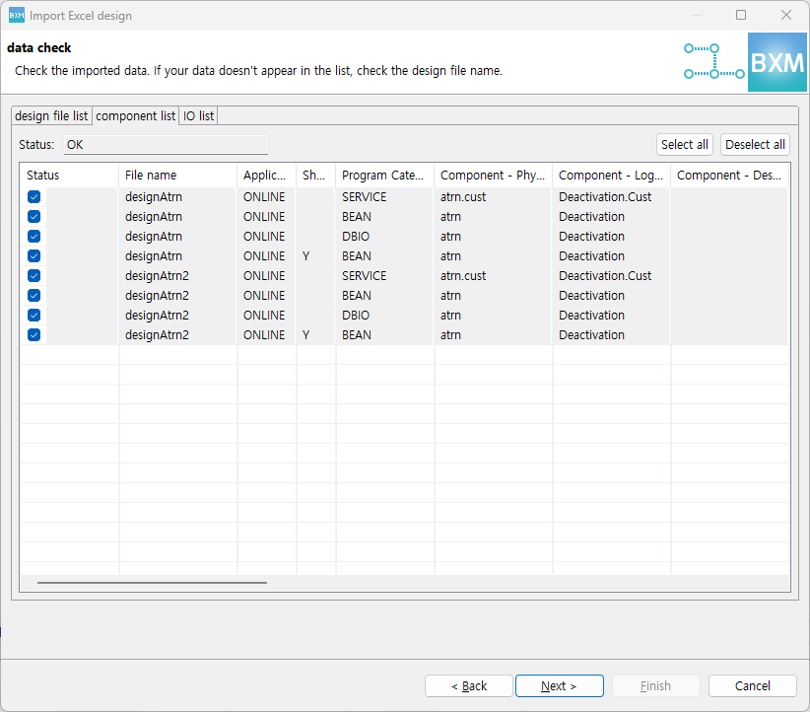
If you clear a checkbox, the cleared data will not be reflected when the design file is created.
If you clear a checkbox in the Design Document File List tab, the checkboxes for all data belonging to that design file are cleared in the Component List and IO List tabs. Conversely, if you select a checkbox, the checkboxes for all data belonging to the selected design file are selected.
If data is not visible in the list, check the design file name.
Values entered in the Excel design are validated. If values are entered incorrectly, a warning or error is displayed.
-
Check the list of design files to be created and the design file conversion result report. When you click Finish, the design files are created.
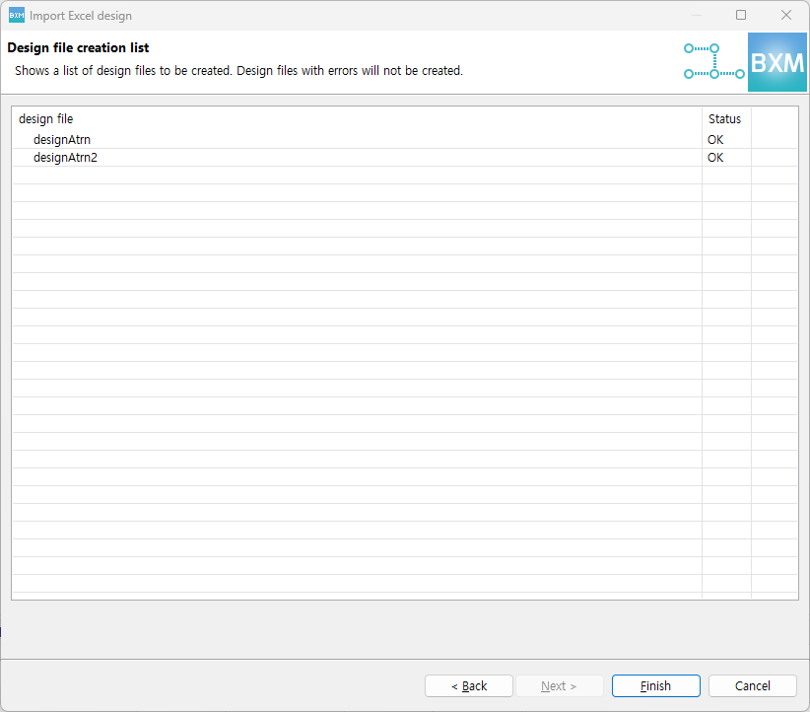
If the design file status is error, the file is not created.
-
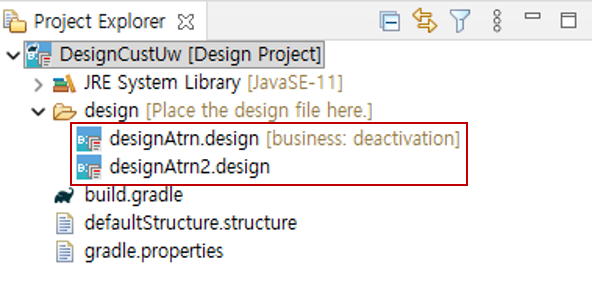
Check that the design files have been created successfully.