Import Excel Specifications into Online Projects
Import the prepared Excel specifications into an online project.
-
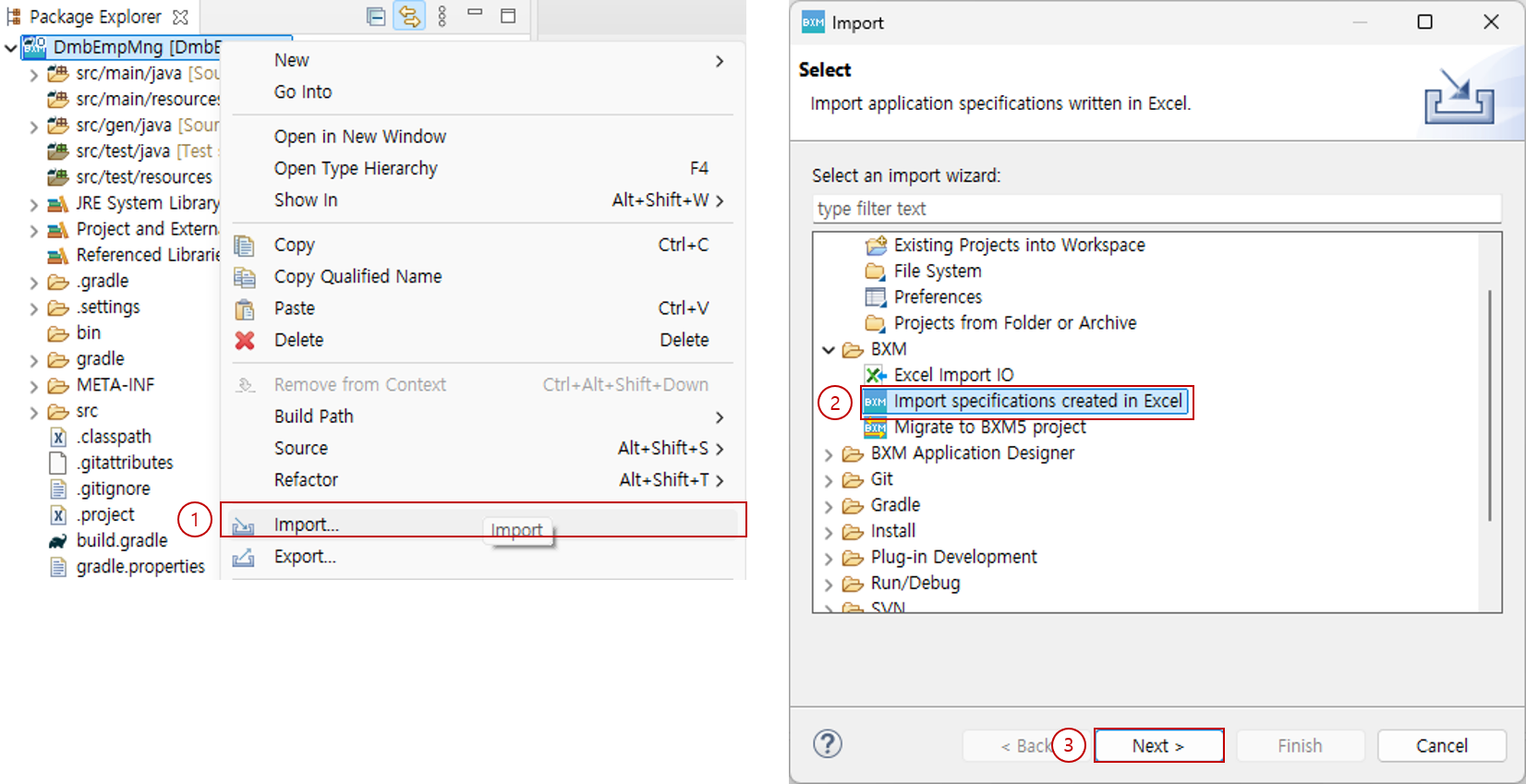
Select the online project → right-click → select 'Import'.
-
In the Import Dialog, select Import specifications created in Excel under BXM.
-
Click the Next button to proceed to the next step.
1. Select Excel file
Select the Excel file to import.
-
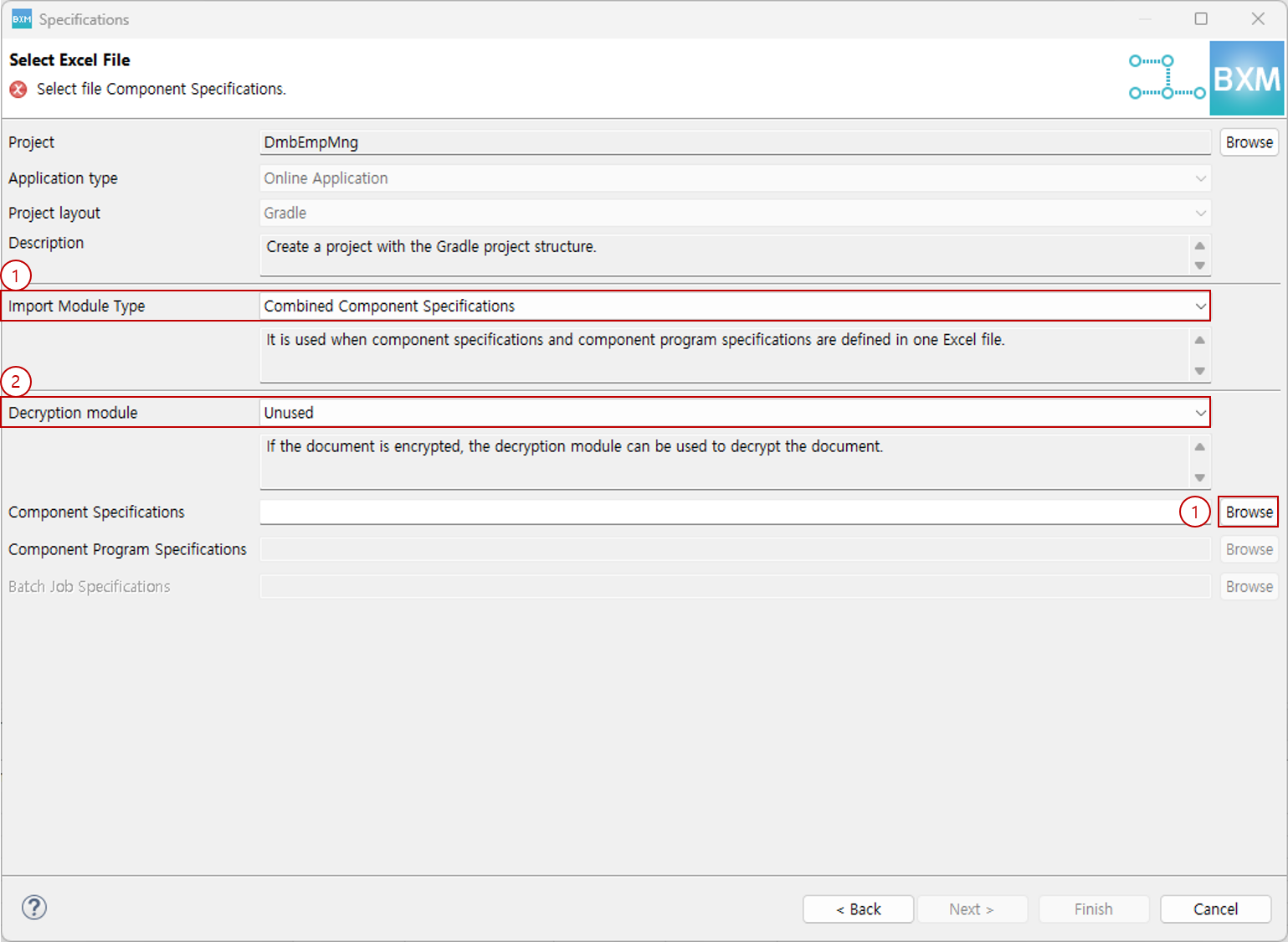
Import Module Type: Select the Excel file type. You can select either Combined Component Specifications or Separated Component Specifications.
-
Combined Component Specifications: Used when the component specifications and component program specifications are defined in a single Excel file. (default)
-
Separated Component Specifications: Used when the component specifications and component program specifications exist as separate files.
To use Separated Component Specifications, the
specifications.excel.use.combinedComponentSpecificationsoption value must be set tofalse.
-
-
Decryption module: If the Excel specifications is encrypted, it must be decrypted before use. If decryption is required, select Use. Otherwise, select Unused.
-
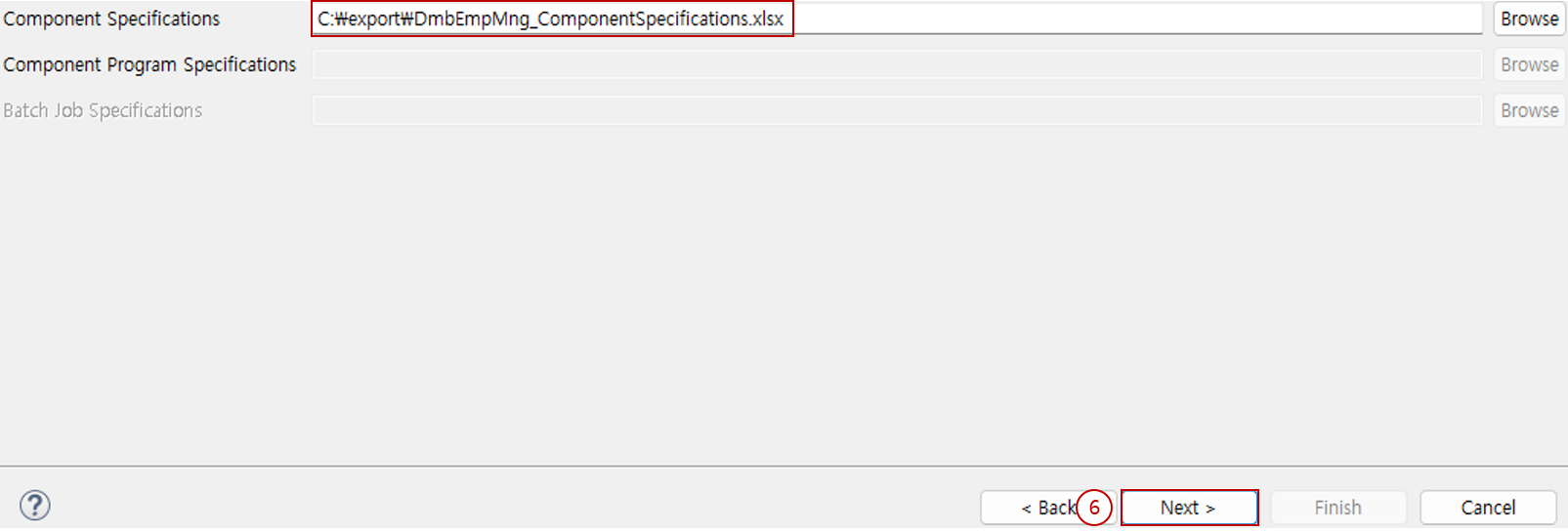
You can select the component specifications to use. Click the button to open the file selection Dialog.
-
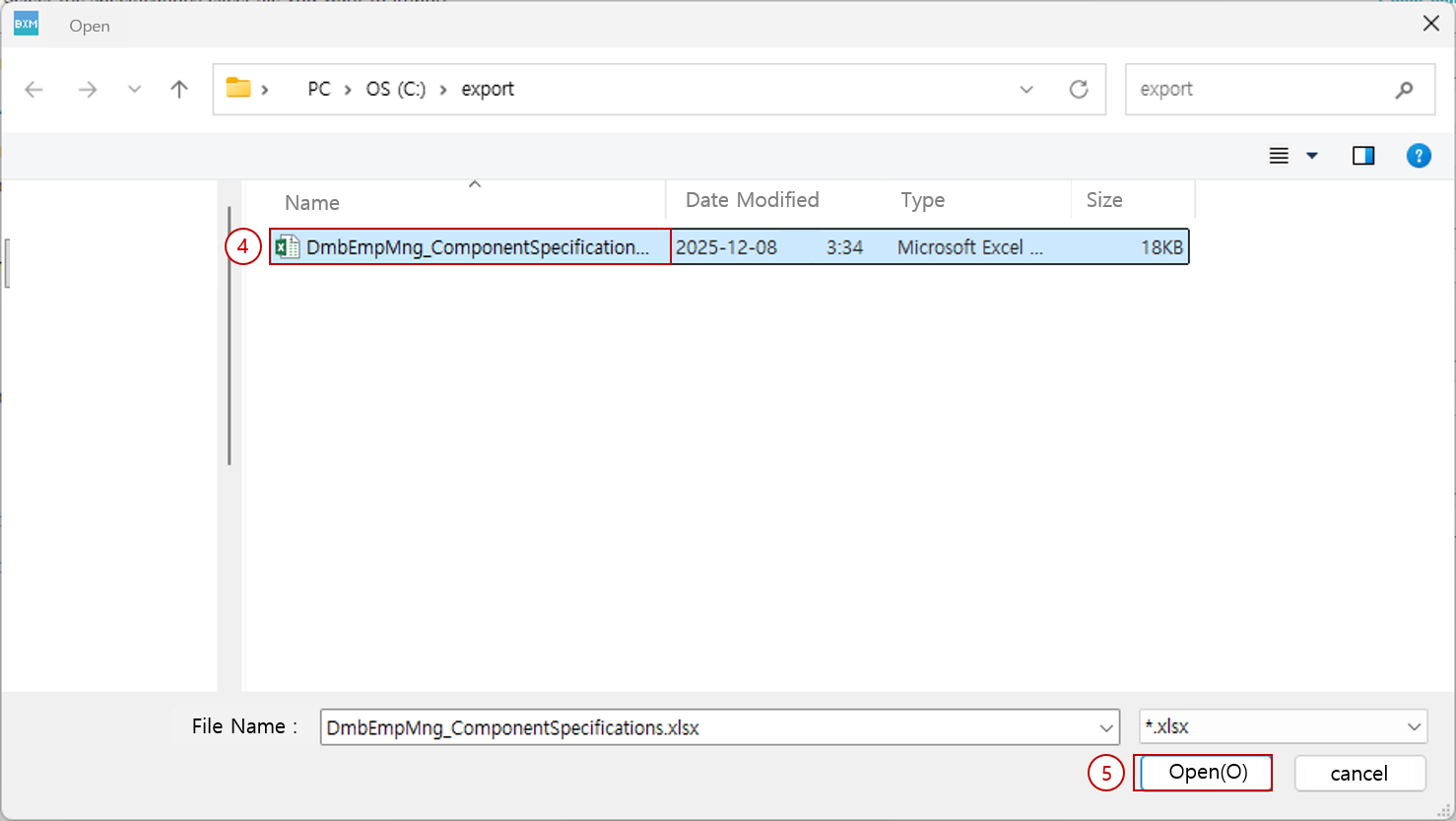
In the file selection Dialog, select the Excel file to use.
-
Click the Open button to close the Dialog.
-
Check the selected component specifications and click the Next button.
2. Check data
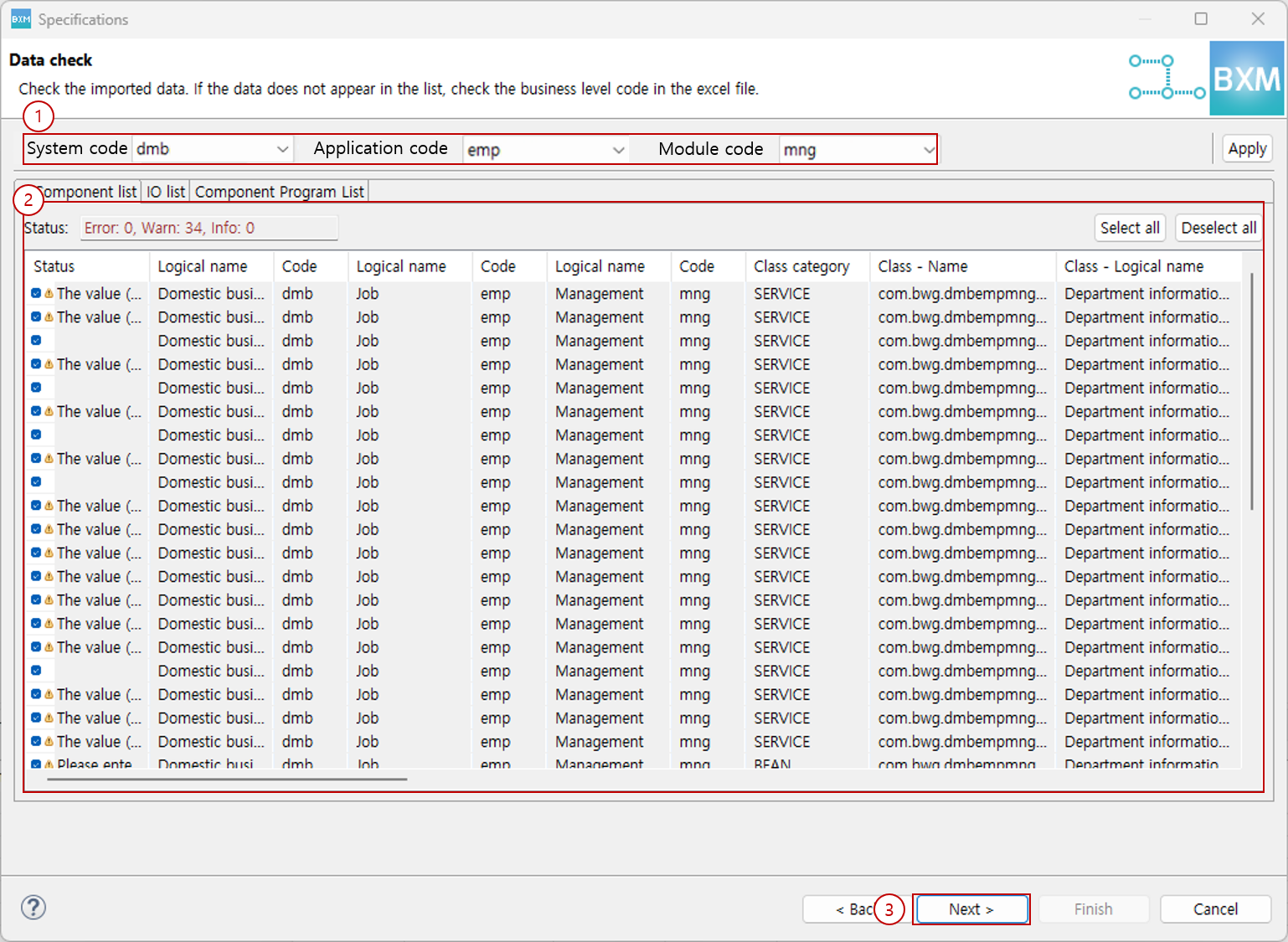
Check the data read from the Excel file.
-
Check the business level code. The business level code of the selected project is selected by default.
-
Among the data read from the Excel file, you can check the data that matches the selected business level code. If there is incorrectly written content, you can check the validation details in the Status item.
-
After checking the contents, click the Next button.
3. Check resources to be created
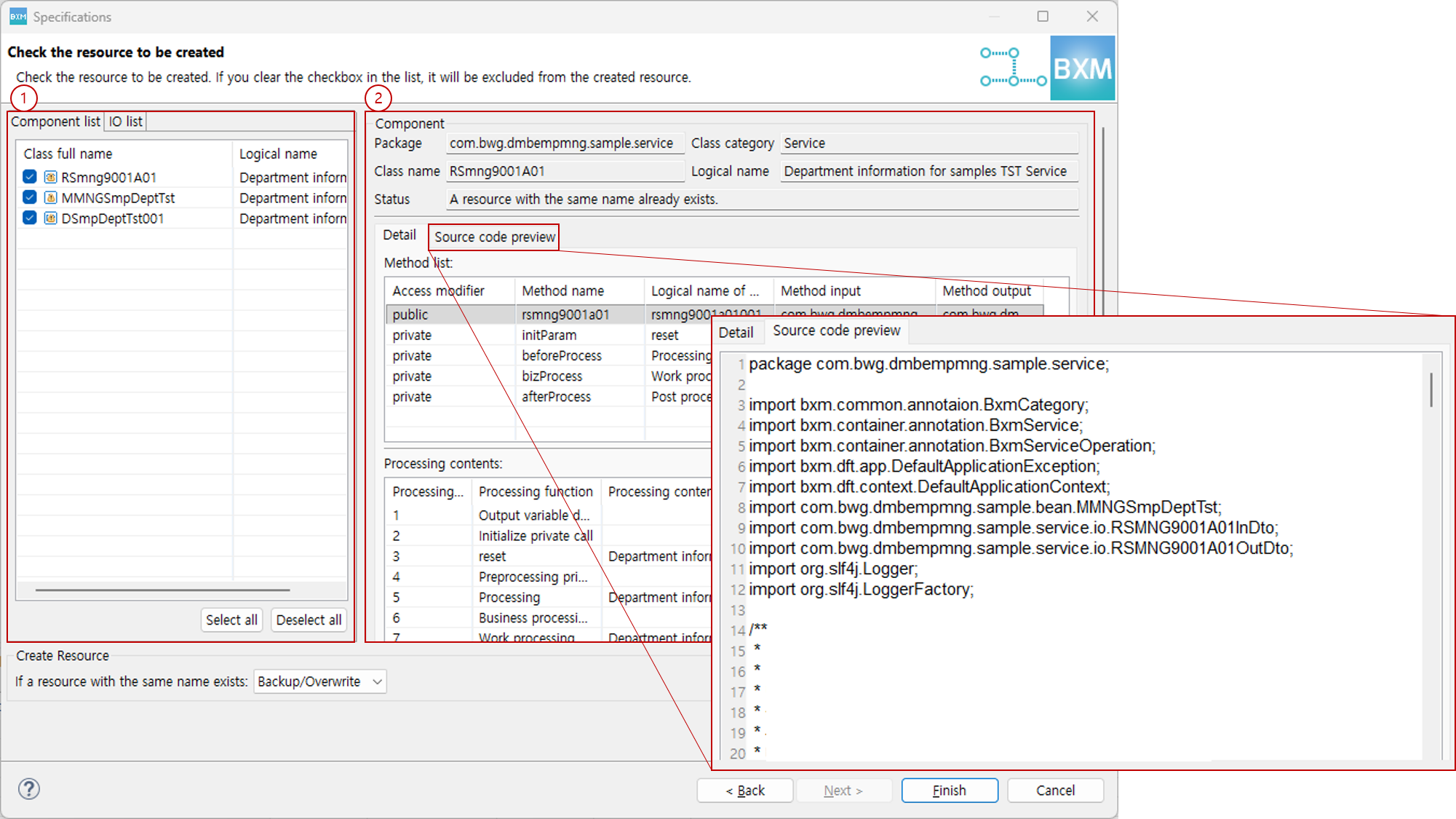
You can check the resources to be created.
-
Component list: You can check Services, Beans, and DBIO in the list.
-
Detail: You can check detailed information such as methods, processing contents, and source code of the selected component.
-
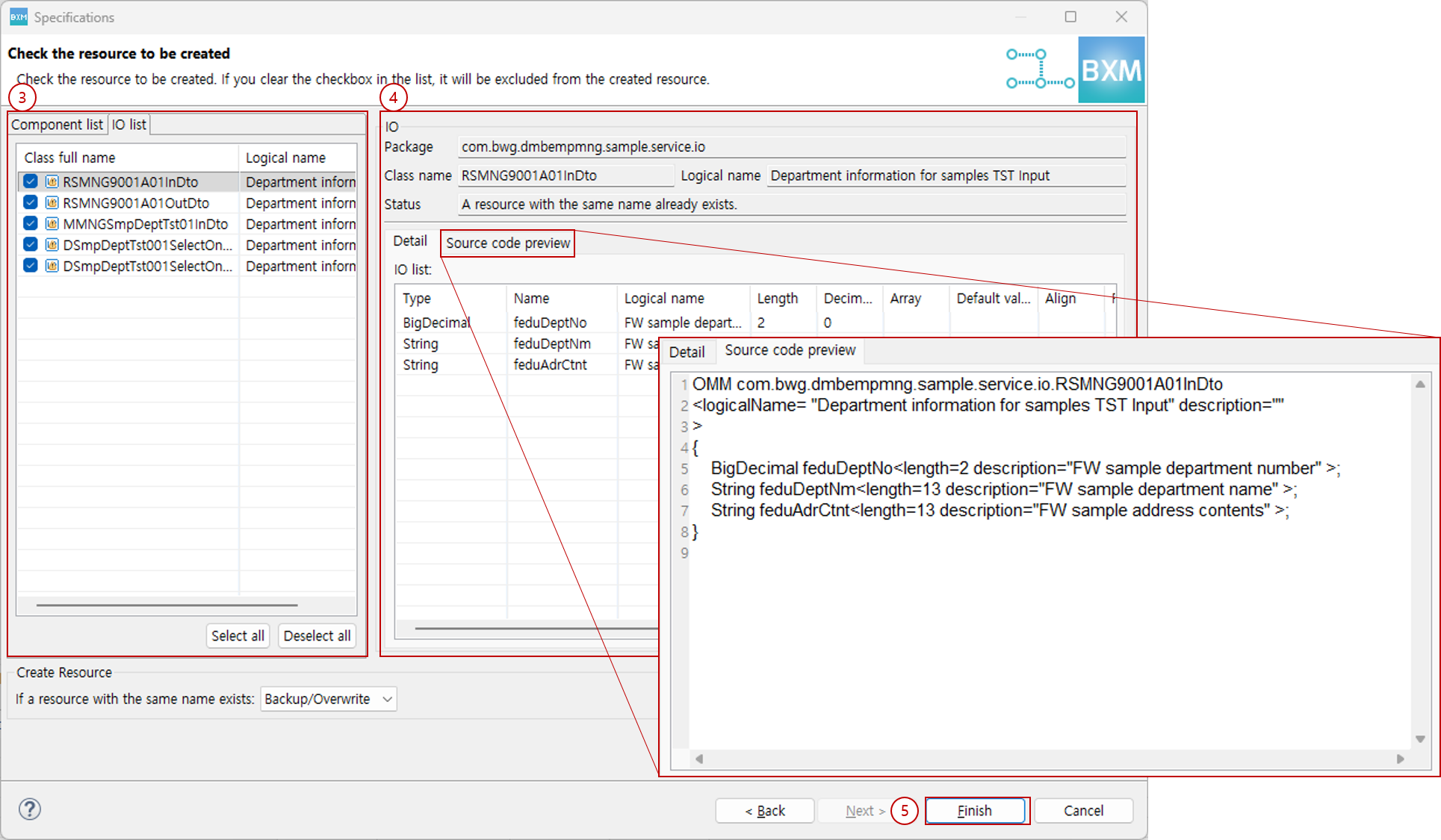
IO list: You can check Services, Beans, and DBIO in the list.
-
Detail: You can check detailed information such as methods, processing contents, and source code of the selected component.
-
Click the Finish button to exit the wizard.
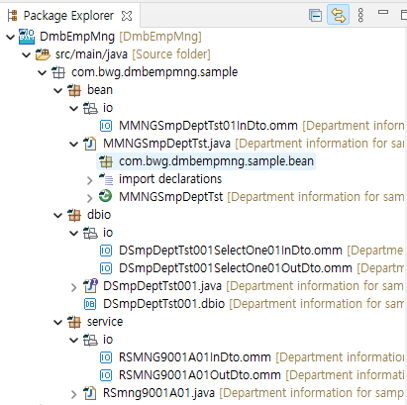
Check the resources created in the project.