Online Log Inquiry
Logs generated from online transactions can be searched and checked as service logs, image logs, job logs, and error logs.
1. Log Main Area
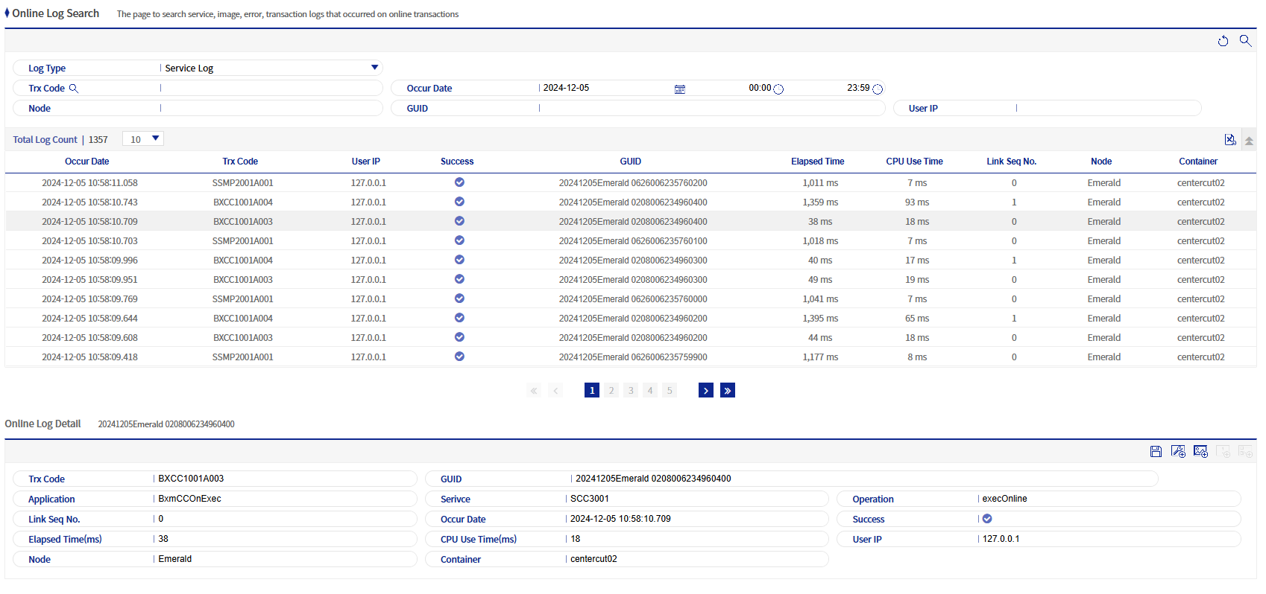
Logs can be searched by log type (service log, image log, job log, error log), and the date of occurrence is a required item. Depending on whether the operating date is used, the operating date also belongs to the required items.
|
There are differences in the types of logs accumulated depending on the settings and whether the transaction succeeds or fails, so even for the same transaction, the search results may differ. For example, if the transaction succeeds, a job log exists but an error log does not. |
1.1. Service Log
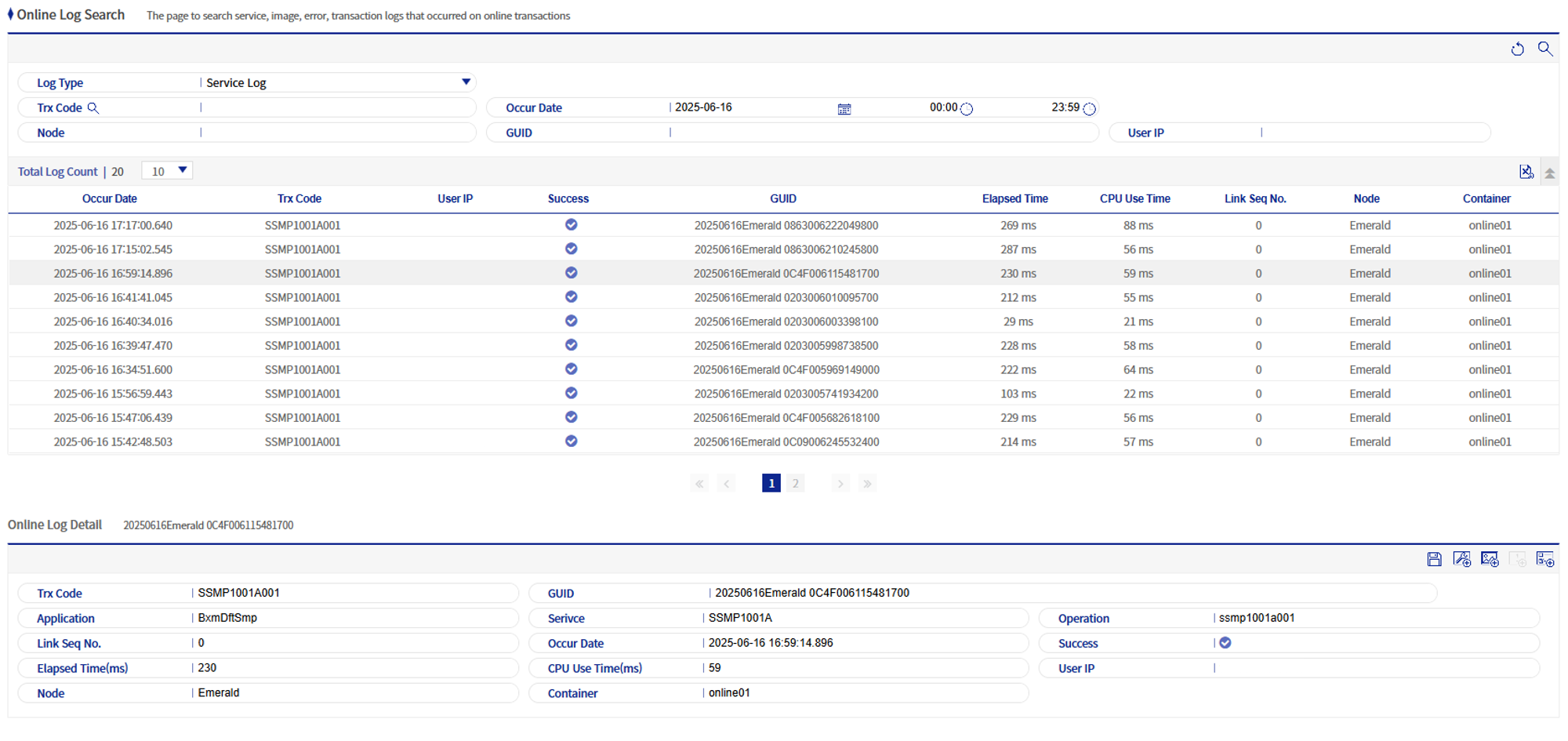
You can inquire service logs using the date of occurrence, node, GUID, and user IP as search conditions. On the screen, the date of occurrence, transaction code (or application/service/operation), user IP, success status, GUID, execution time, CPU usage time, interworking serial number, node, container information, etc. are displayed.
1.2. Image Log
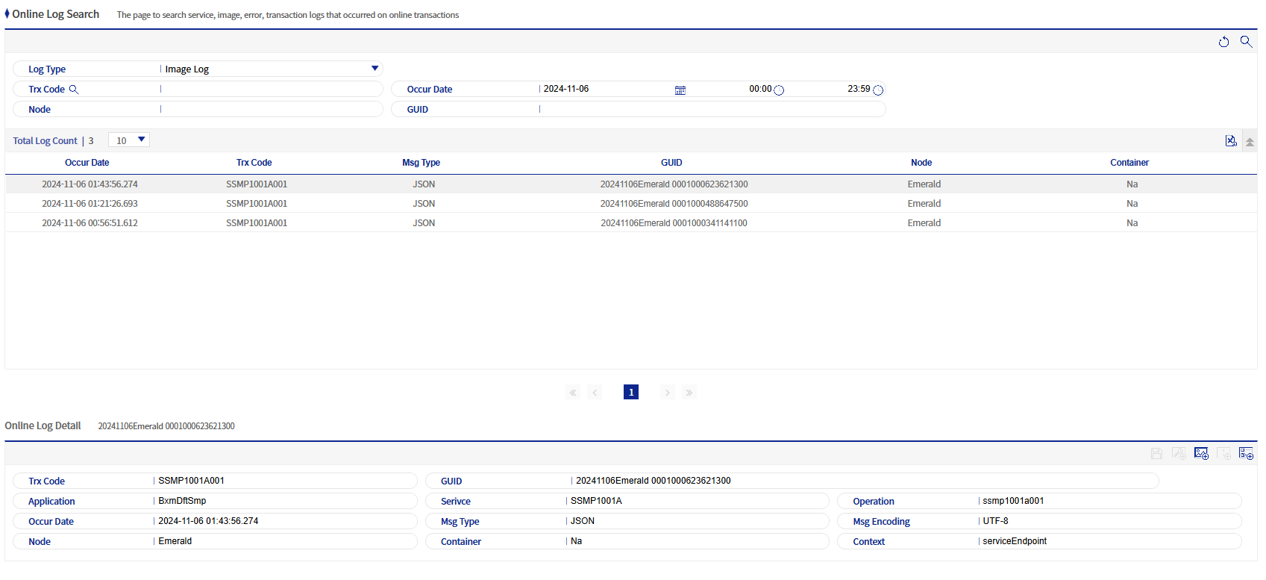
You can inquire image logs using the date of occurrence, node, and GUID as search conditions. On the screen, the date of occurrence, transaction code (or application/service/operation), message type, GUID, node, container-specific encoding information, etc. are displayed.
1.3. Job Log
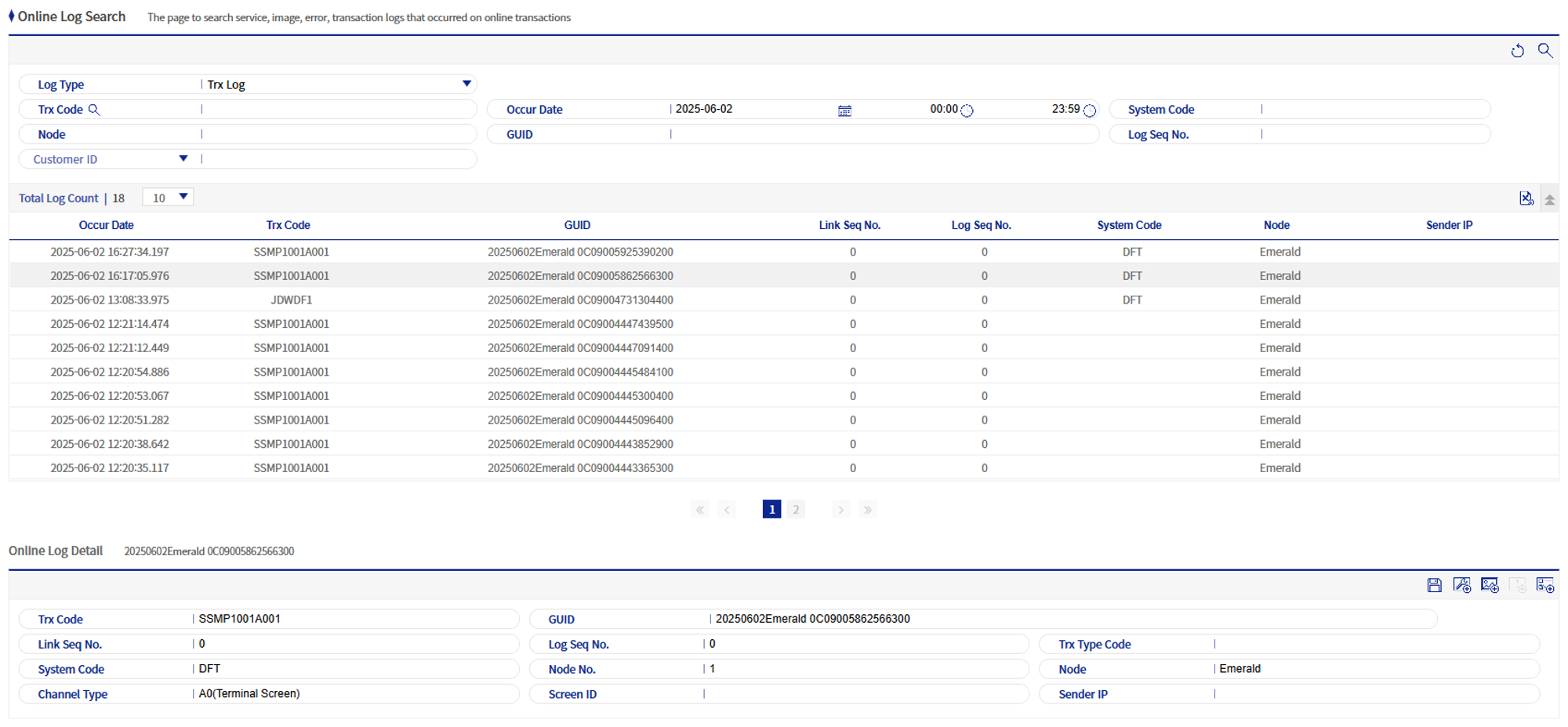
You can inquire job logs using the date of occurrence, node, system code, GUID, log serial numbers, and job log details (customer ID, account number, card number, etc. custom area) as search conditions. On the screen, the date of occurrence, transaction code, GUID, interworking serial number, log serial numbers, system code, node, sender information, etc. are displayed.
1.4. Error Log
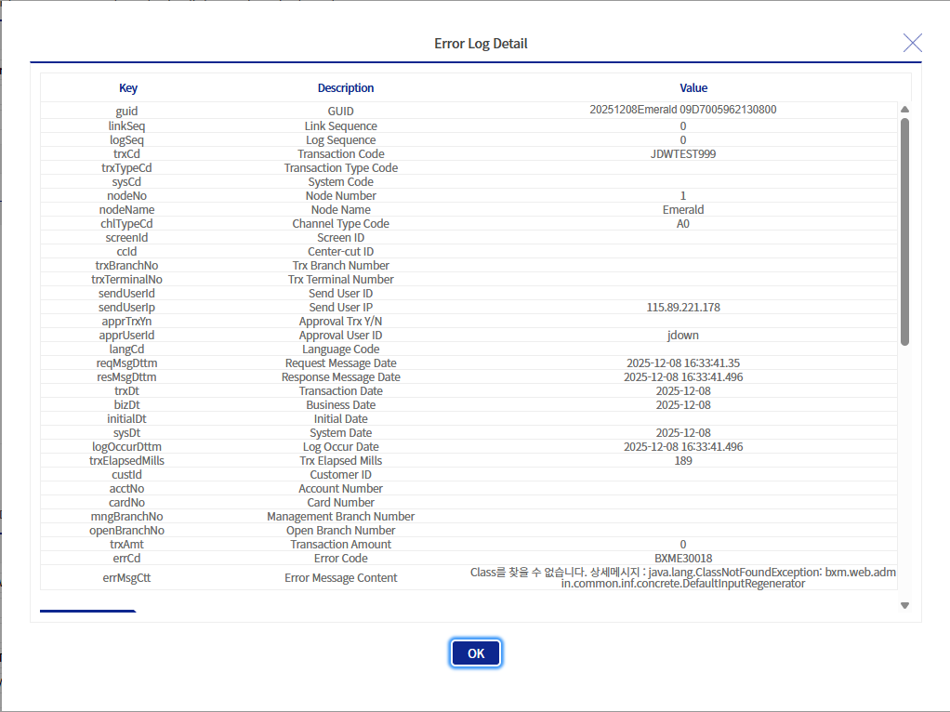
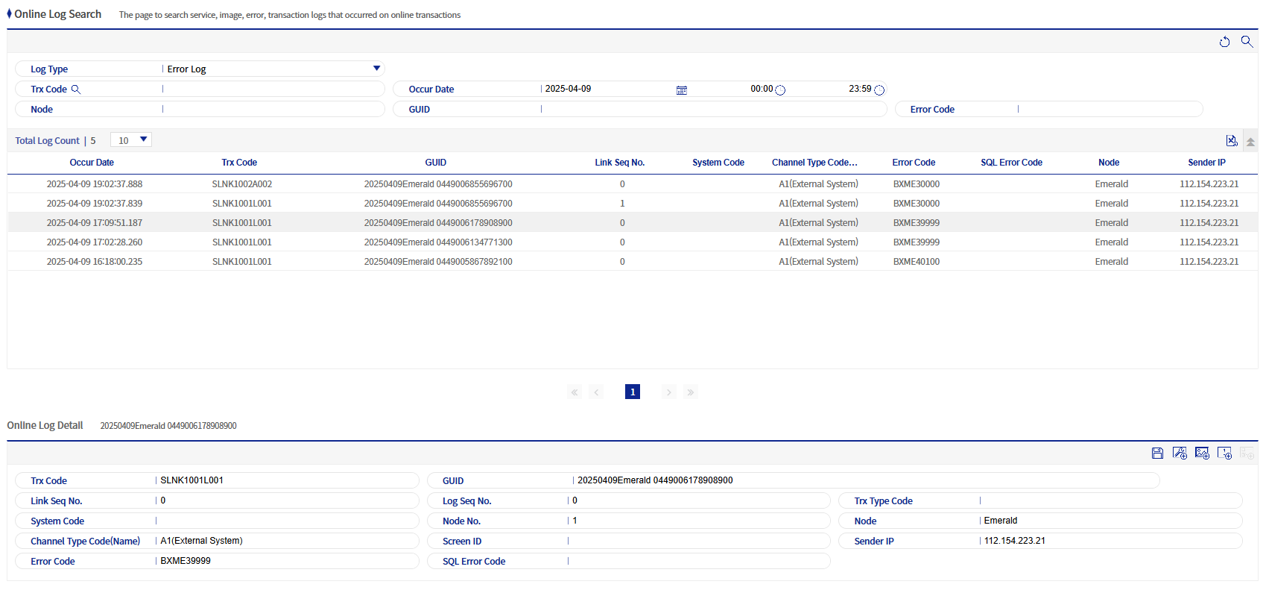
You can inquire error logs using the date of occurrence, node, channel type, GUID, SQL error code, and error code as search conditions. On the screen, the date of occurrence, transaction code, GUID, interworking serial number, system code, channel type code, error code, SQL error code, node, and sender IP information, etc. are displayed.
2. Log Detail Area
You can check detailed information on the search results. The content of each log can be checked in a popup by clicking the button at the top right, but if the log does not exist, the button is disabled.

| Icon | Description |
|---|---|
|
You can check logs generated during the transaction. |
|
You can check image logs. |
|
You can check error logs. (Available only when the transaction fails) |
|
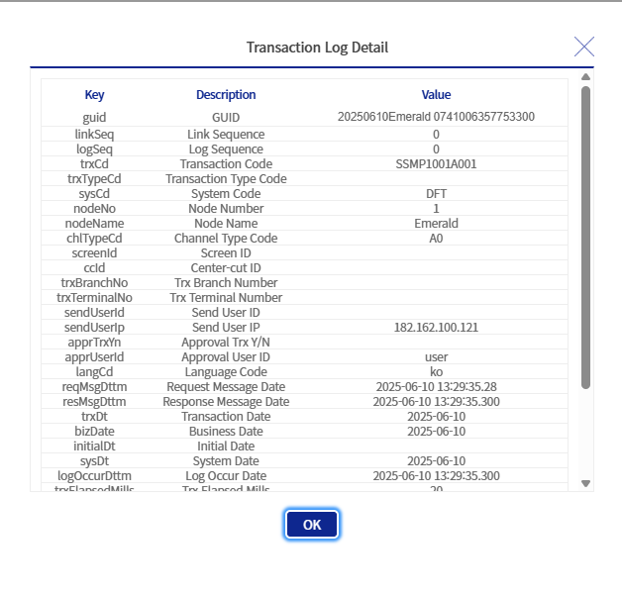
You can check job logs. (Available only when the transaction is normal) |


2.1. Service Log Detail
You can check logs that occurred during the transaction.
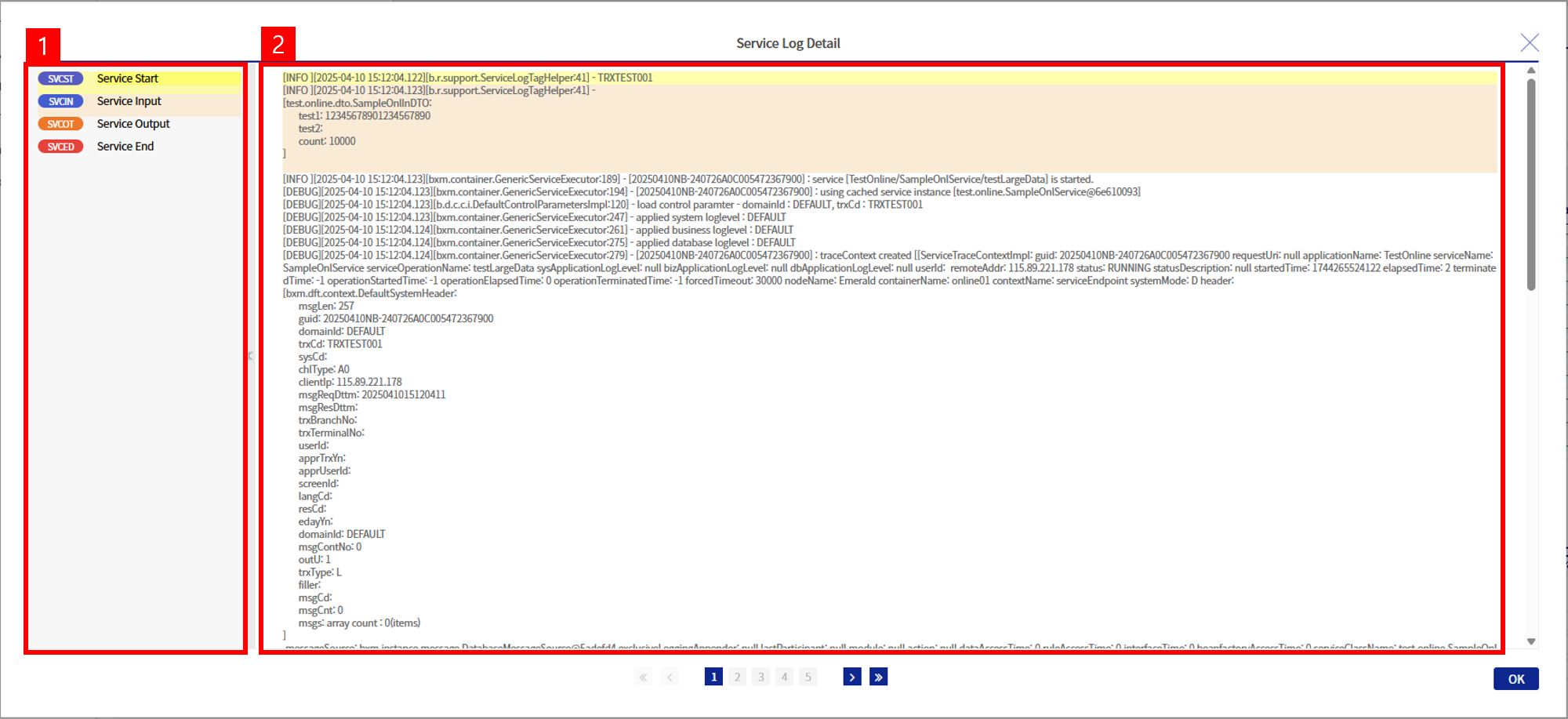
1: Events that occurred during the transaction (transaction input values, error occurrences) are displayed, and when clicked, you move to the corresponding log position.
2: Log content
2.2. Image Log Detail
You can check image logs for input message, input message Raw Data, output message, and output message Raw Data.
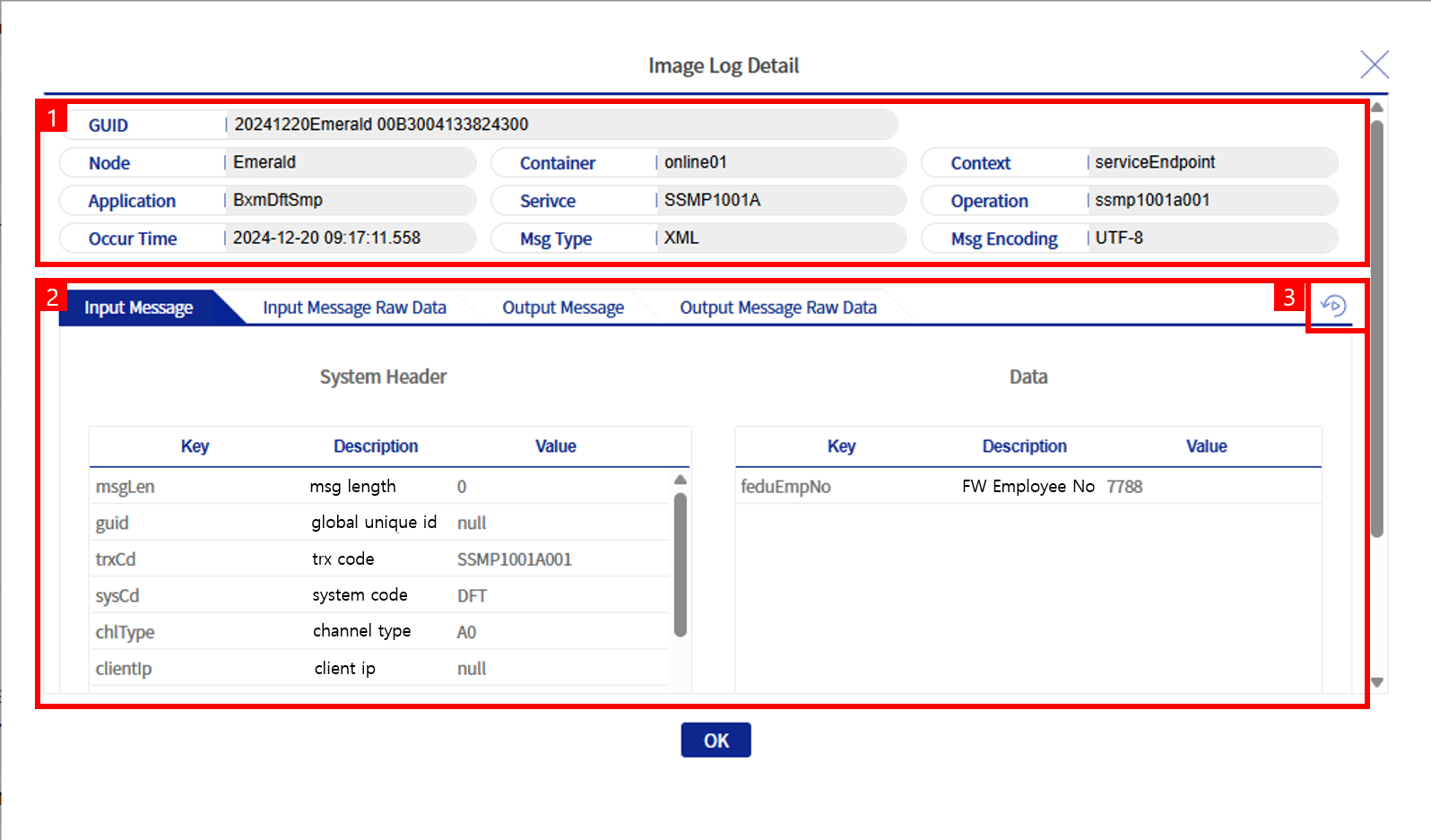
1: Detailed information about the image log
2: Log content. The input/output messages show data after unmarshlling is completed, and the input/output message Raw Data shows the data as it entered the transaction.
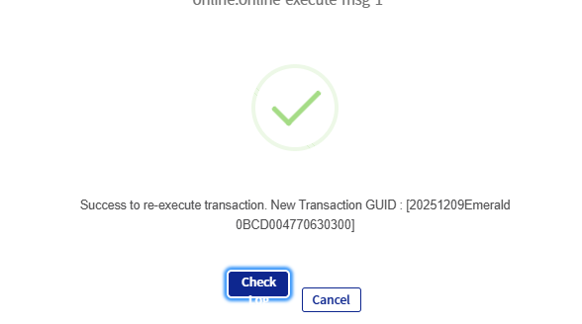
3: Transaction re-execution. After selecting the URL to re-execute the transaction and clicking Execute, the transaction is re-executed with the same input message (only the GUID is changed). After execution, clicking the log check button searches logs with the corresponding GUID.

The list of re-execution URLs can be managed on the URL management screen. Refer to Section 7.4. "URL Management".